












How to Choose a Motherboard: The Complete Buying Guide For 2026
Buying a motherboard should be straightforward. Pick the right socket, select a chipset tier that matches your needs, ensure the board has solid power delivery, and confirm it includes the storage and ports you will actually use.
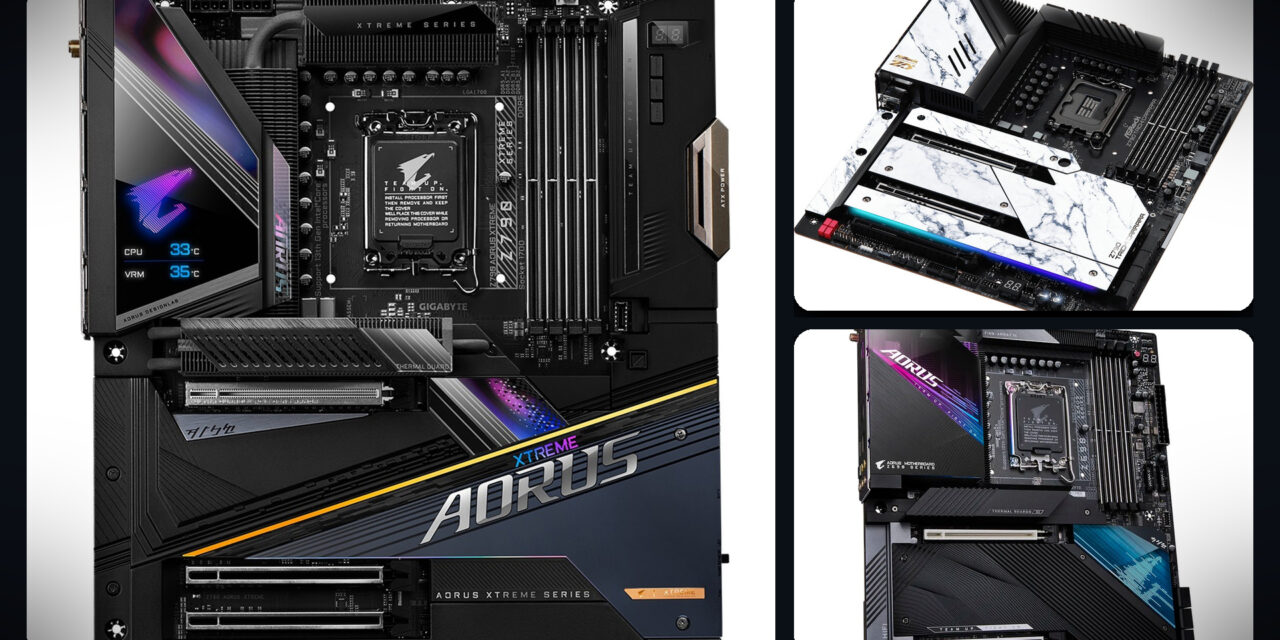
It feels messy because motherboard marketing is built to push you toward expensive boards by highlighting visible features and burying the constraints. You will see oversized heatsinks and RGB, but not the VRM thermal limits under sustained load. You will see “4x M.2” in bold, but not the footnote explaining that using two of those slots disables SATA ports or a PCIe slot. You will see “16 phases” with no context on what those phases are, what current they can deliver, or whether the heatsinks are doing anything beyond looking premium.
This guide focuses on the fundamentals that decide whether the system is stable, expandable, and pleasant to own. If you understand sockets, chipsets, VRMs, lane sharing, and M.2 planning, you can pick a motherboard confidently even when product names change, and vendors reshuffle their stacks.
1) Motherboard basics: what the board controls and what it does not
A motherboard is not a performance part in the same way as a CPU or GPU. If you take two competent boards, install the same CPU, the same memory, and the same GPU, and run them with the same power limits and memory settings, they will usually perform within a small margin of each other. When you see big gaps, it is generally because one board uses different default power settings, memory behavior, or is thermally limiting the CPU.
Where motherboards matter is everything around that headline result.
A motherboard determines:
- Whether the CPU can sustain boost clocks under long loads without power delivery or heat becoming the limiter
- Whether memory runs stably at the settings you choose
- How many drives and add-in cards can you run simultaneously, and which combinations disable which ports
- How usable the rear I/O is for your real peripherals
- Whether your case front ports work, including the front USB-C
- How easy it is to diagnose a failure when something does not POST
- How good the firmware is over time, including BIOS updates and bug fixes
A good motherboard is boring in the best way. It boots every time. It does not mysteriously drop devices. It does not throttle under workloads it should be able to handle. It includes the headers you need, the ports you use, and the tools to recover when you inevitably change a setting you shouldn’t have touched.
2) Socket first: picking the right platform (Intel vs AMD)
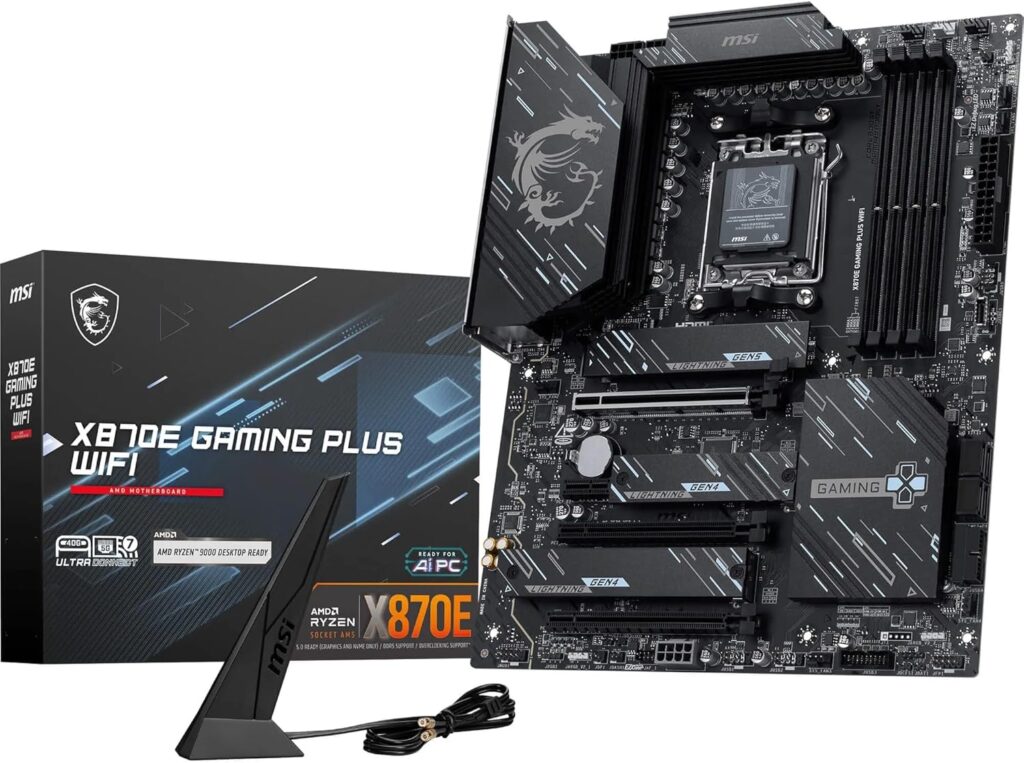
Socket is the compatibility gate. A wrong socket means the CPU does not fit and the system does not work. The right socket means the CPU fits, but you still need to consider CPU generation support, BIOS readiness, and how long the platform remains viable for upgrades.
Intel mainstream desktop sockets, you will see
- LGA1851: current Intel mainstream desktop socket for Core Ultra desktop CPUs in the Arrow Lake era, paired with 800 series chipsets
- LGA1700: previous mainstream platform for 12th, 13th, and 14th Gen Core, paired with 600 and 700 series chipsets
LGA1700 can still be a strong value platform, depending on pricing, but treat it as buying what exists today rather than a long-term upgrade path.
AMD mainstream desktop sockets, you will see
- AM5: current mainstream Ryzen desktop socket, paired with 600 and 800 series chipsets
- AM4: older, long-lived socket, still useful for budget builds and drop-in upgrades, but not the platform to choose if you want modern I/O headroom from scratch
BIOS reality: supported vs boots today
Even if the socket matches, a board may require a BIOS update to support a newer CPU. This happens when board stock is older, when CPUs launched after a board model, or when a platform is early in its lifecycle and firmware is still maturing.
This is why BIOS Flashback, or the vendor equivalent, matters. It lets you update the BIOS without a CPU installed. It is not glamorous, but it can save hours when a system will not POST because the shipped BIOS is too old.
Practical socket stage checks:
- Confirm the socket matches the CPU you are buying
- Confirm the board supports your specific CPU model and stepping, not just a family name
- Prefer BIOS Flashback if you want to reduce the chance of a dead-end build
- If you are buying used or older stock, assume you may need a BIOS update and plan for it
3) Chipsets explained: what the chipset really does
Modern platform design is easier to understand if you split it into two categories: CPU-to-direct-connection and chipset-to-direct-connection.
The CPU provides the most important high-performance links directly. That includes memory, the GPU’s primary PCIe connection, and usually at least one direct NVMe storage path.
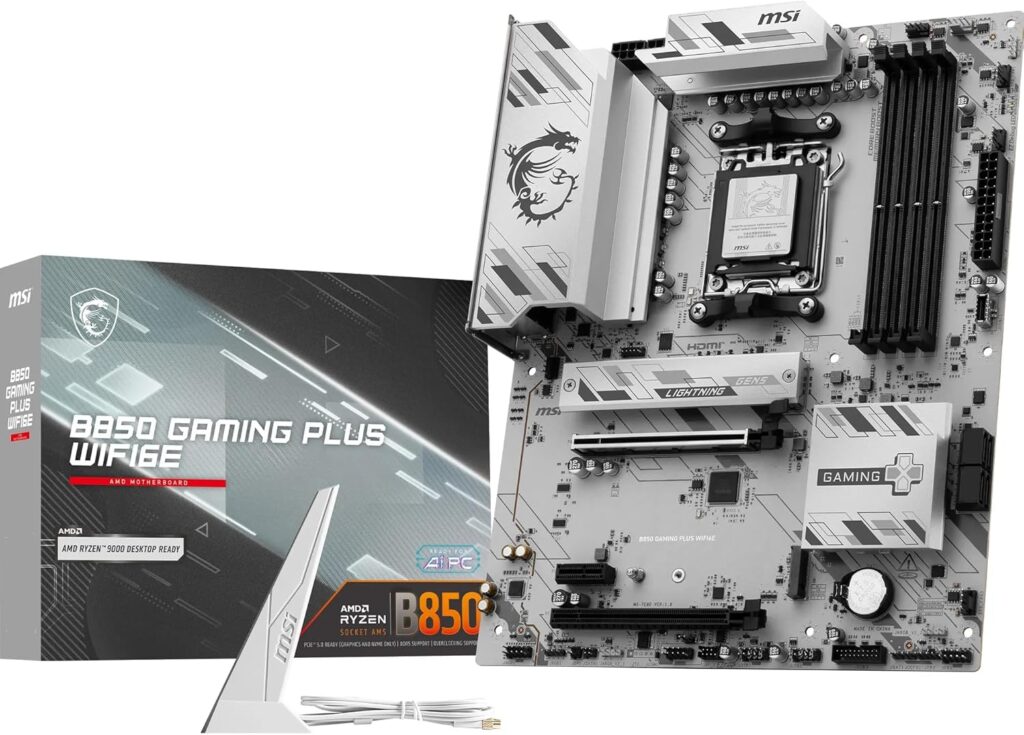
The chipset sits next to the CPU and serves as the expansion hub. It provides additional US and PCIe connectivity for M.2 slots and add-in cards, SATA support, and many of the platform capabilities that make the board feel feature-rich.
What the chipset does not do
A chipset name does not automatically make the PC faster. If you see performance differences between boards, it is usually because:
- One board uses higher default power limits or more aggressive boost behavior
- Memory training and memory stability differ between BIOS versions or vendors
- VRM thermals limit sustained CPU power on weaker boards
- Firmware maturity differs, especially on newer platforms
Chipset tier mostly determines connectivity headroom, not raw FPS.
The key concept: the chipset uplink is shared
The chipset connects to the CPU via an uplink. The devices connected through the chipset share that uplink. That is why bandwidth is not infinite even if a board has lots of ports on paper. It is also why lane sharing exists.
Lane sharing is where the board routes limited lanes in ways that create mutual exclusivity:
- Populate this M.2 slot, and these SATA ports turn off
- Use this PCIe slot and this M.2 slot drops to fewer lanes
- Use the third M.2 slot, and the secondary PCIe slot becomes unusable
These trade-offs are normal. The difference between a good and a frustrating board is how well the board is designed to minimize painful trade-offs, and how clearly the manual explains them.
4) Intel chipset tiers and what they mean in practice
Intel’s consumer chipset tiers are usually:
- Z series: highest mainstream tier, most I/O headroom, typically the most feature-dense boards
- B series: mainstream value tier, fewer lanes and less I/O headroom
- H series: entry tier, minimal I/O flexibility
A chipset tier raises or lowers the ceiling on what a board can expose, but it does not guarantee that the board is well-designed. VRM quality, slot layout, and firmware are still board-level decisions.
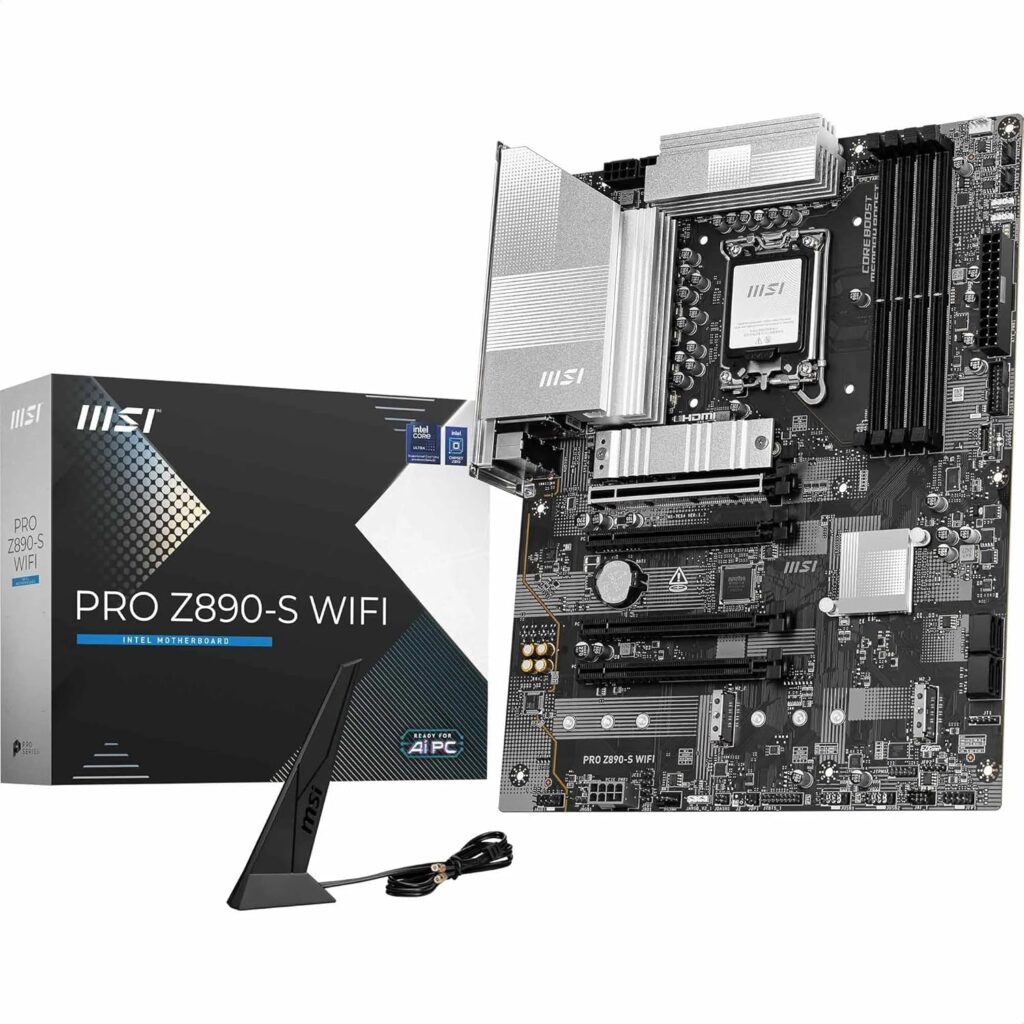
Intel 800 series (LGA1851): Z890 vs B860 vs H810
Z890 is the tier that makes sense when you want device headroom. That usually means multiple NVMe drives, plenty of rear USB ports, including higher-speed ports, and the realistic ability to add cards later without immediately turning off half the board. Z-tier boards also tend to include more build-quality features, such as better debug support and more robust rear I/O, but this is not guaranteed.
B860 is often the sensible mainstream tier for a simple build. One GPU, one or two NVMe drives, standard peripherals, and no plan to turn the PC into an I/O-heavy workstation. B860 is where you need to be honest about your future storage and expansion plans. If you know you will add multiple drives and cards, the value can evaporate when you encounter lane-sharing constraints.
H810 is the entry tier. It exists to hit price points. It can work well for a simple system, but it is not the tier you want if you expect to scale. Entry boards are where you tend to find fewer headers, fewer high-speed ports, and more aggressive compromises that you discover later.
Intel 700 series (LGA1700): Z790, H770, B760
The same logic applies. Z-tier is about I/O headroom and usually features richer board designs. B-tier is often the sweet spot for value when your build is simple. H tier is for minimal builds.
A practical way to choose Intel:
- If you will run one GPU, one or two NVMe drives, and a few add-ins, B tier can be a good buy if the specific board has solid VRM and the headers you need
- If you will run multiple NVMe drives, various SATA drives, add-in cards, and lots of high-speed USB devices, the Z tier can save you from awkward port disablement and expansion pain later
5) AMD chipset tiers and what they mean in practice
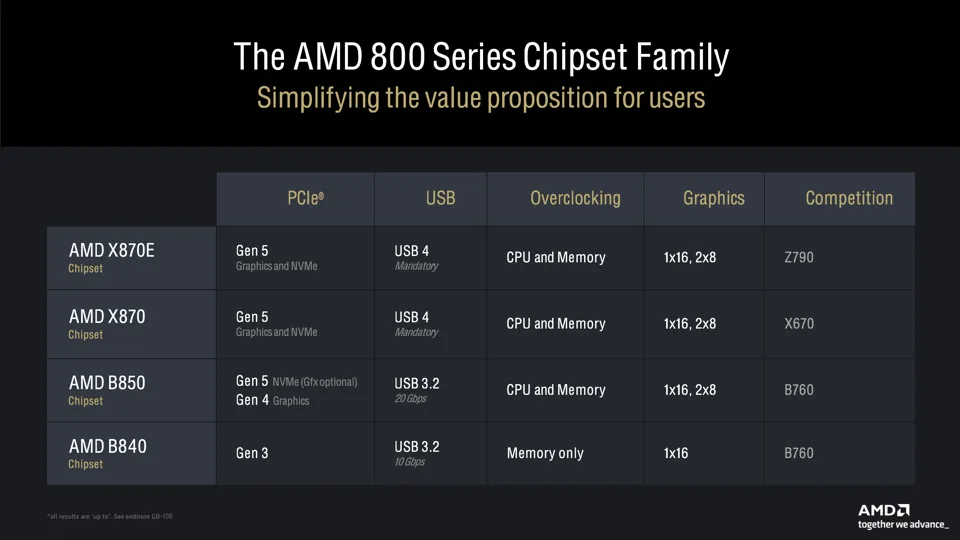
AMD’s consumer chipset tiers are:
- X series: higher end, more connectivity, and typically feature-dense boards
- B series: mainstream
- A series: entry tier
AMD adds a common suffix: E, as in X670E, B650E, X870E. In practical terms, E-tier boards align with stricter PCIe 5.0 requirements, often including the GPU slot, while non-E boards may support PCIe 5.0 more selectively, depending on routing and vendor choices.
AM5 high-end behavior: why X tier often feels less constrained
At the high end, AM5 X-tier boards have historically been designed for higher connectivity, and some X-tier generations used an approach that expanded I/O capabilities compared to B-tier boards. You do not need to know the silicon topology to benefit from the outcome. X-tier boards typically have more ports and M.2 slots, and fewer painful trade-offs when fully populated.
That does not mean every X board is perfect. It means the platform budget is larger, and vendors tend to build more feature-dense layouts on the X tier.
AMD 800 series (AM5): X870E, X870, B850, B840
X870E is the premium end where you often see boards designed as connectivity hubs. You tend to get more M.2 options, more USB ports, and board designs aimed at enthusiasts and prosumers. This tier makes the most sense when you know you will use that connectivity, not when you want a premium label.
X870 is typically the tier at which boards feel complete without chasing the most extreme pricing. If you want modern I/O and plan to use multiple fast devices, the X870 often lands as the premium yetne option.
B850 is the modern mainstream tier for AM5. It is where most standard builds should land if the specific board has a solid VRM and a sensible layout. It is also the tier where you should still check lane sharing and headers, because the mainstream name does not prevent vendors from making annoying compromises.
B840 is a budget tier. It can be fine for simple builds, but you quickly run out of runway if you want multiple drives, lots of USB ports, and add-in cards.
AMD 600 series (AM5): X670E, X670, B650E, B650, A620
X670E and X670 have historically been the least problematic AM5 boards for device-heavy builds. More ports, more storage options, and fewer forced trade-offs when you populate everything.
B650E and B650 vary significantly by board model. Some are excellent. Some exist purely to hit a price point. You cannot buy this tier by name alone. You must refer to the lane-sharing and VRM design manuals.
A620 is the entry-tier AM5. It can be a valid choice when the build is intentionally simple, but it is not where you want to be for storage-heavy or expansion-heavy systems.
6) Memory and motherboard compatibility: DDR5 realities, XMP vs EXPO, and why two sticks usually win
Memory is where many “my PC is unstable” stories begin, and it is also where motherboard choice can actually change your day-to-day experience. Not because the board makes RAM faster by magic, but because DDR5 is more stringent than DDR4, and the board’s layout and BIOS maturity determine how easily it trains and remains stable.
If you want a PC that boots reliably and doesn’t randomly crash in games, memory support is not a minor detail. It is one of the most practical reasons to avoid the absolute cheapest boards on any platform.
DDR5 vs DDR4 in plain terms
DDR4 is a mature platform. It is relatively forgiving, and there are years of BIOS tuning behind it. DDR5 is faster on paper, but it is more sensitive to signal quality, training, and the exact stick configuration you choose.
Most builders will pick DDR5 on modern platforms because that is where the market has gone, but the point is simple. DDR5 can be fast and stable, but it rewards sensible choices and punishes people who buy whatever is cheapest and hope XMP will sort it out.
Two sticks vs four sticks
This is the big one.
Running two sticks is easier than running four sticks at high speeds. That is true on most DDR5 platforms, and it is true even if your motherboard has four slots.
Why does it happen:
- More sticks mean more electrical loading on the memory bus.
- More load makes clean signaling harder at high frequency.
- Harder signaling means the board has to train more aggressively, or fall back to lower settings.
What this means in practice:
- 2×16 GB is usually the easiest path to a stable 32 GB system.
- 2×32 GB is usually the easiest path to a stable 64 GB system.
- 4×16 GB can work, but it is more likely to force lower speeds or looser timings, or both.
- 4×8 GB is often a false economy on DDR5, because it is the configuration most likely to create training headaches for no real gain.
If your goal is stability, capacity, and a build that doesn’t require debugging RAM at midnight, start with two sticks unless you have a specific reason to fill all four slots.
Single rank vs dual rank
This is the part that makes people’s eyes glaze over, so keep it simple.
“Rank” is about how the memory chips are organized on the stick. Some configurations can perform better in certain workloads, but for most builders, the real issue is compatibility and stability.
The useful takeaway:
- Higher-capacity sticks can be harder to run at very high speeds.
- Mixing kits, even if they are the same model, can behave differently than a matched kit.
- Chasing the last 200 MT/s is not worth it if it makes the system flaky.
XMP vs EXPO, and what they actually do
XMP and EXPO are memory overclock profiles. They are not magic compatibility stamps.
- XMP is Intel’s profile format.
- EXPO is AMD’s profile format.
Both are basically preset settings for speed, timings, and voltage. They work well most of the time, but “most of the time” is not the same as “always.”
The common misconception is that enabling XMP or EXPO is like turning on a supported feature. In reality, you are pushing the memory subsystem beyond default JEDEC settings. If the board’s BIOS is immature, the CPU’s memory controller is having a bad day, or your stick configuration is difficult, the system can crash in ways that appear to be GPU or driver issues.
If you enable XMP or EXPO and things get weird, it does not mean the CPU is broken. It usually means you are operating closer to the edge than you think.
QVL explained properly
The QVL is the board vendor’s memory compatibility list. It is not a complete list of everything that works. It is a list of what they tested, with that BIOS, on that CPU sample, at that time.
How to use it:
- If you are building something boring and want the best chance of “it just works,” buy a kit from the QVL.
- If you are buying high-capacity RAM or you plan to fill all four slots, the QVL becomes more useful.
- If you are buying a standard 2×16 GB DDR5 from a major brand, you do not need to treat QVL as a requirement.
The QVL is a risk reducer, not a guarantee.
A practical memory buying strategy
If you want speed, stability, and minimal drama:
- Choose 2 sticks, not 4.
- Choose a mainstream speed grade known to perform well on your platform, not the highest number you can find.
- Update BIOS early in the build process, because memory training and stability often improve with firmware updates.
- Stress-test memory after enabling XMP or EXPO, because “boots to desktop” is not the same as stability.
7) VRMs explained: what they are, why they matter, and how to judge them
If you want the single highest impact motherboard topic beyond socket compatibility, it is VRMs. Weak power delivery does not always show up as a neat benchmark drop. It often manifests as instability, throttling under sustained loads, or performance that varies with case airflow and ambient temperature.
What a VRM actually does
Your PSU provides 12V. Your CPU requires a much lower voltage at a very high current. It also needs that voltage to remain stable while the CPU rapidly changes load. Modern CPUs exhibit rapid, constant power draw because their boost behavior is aggressive.
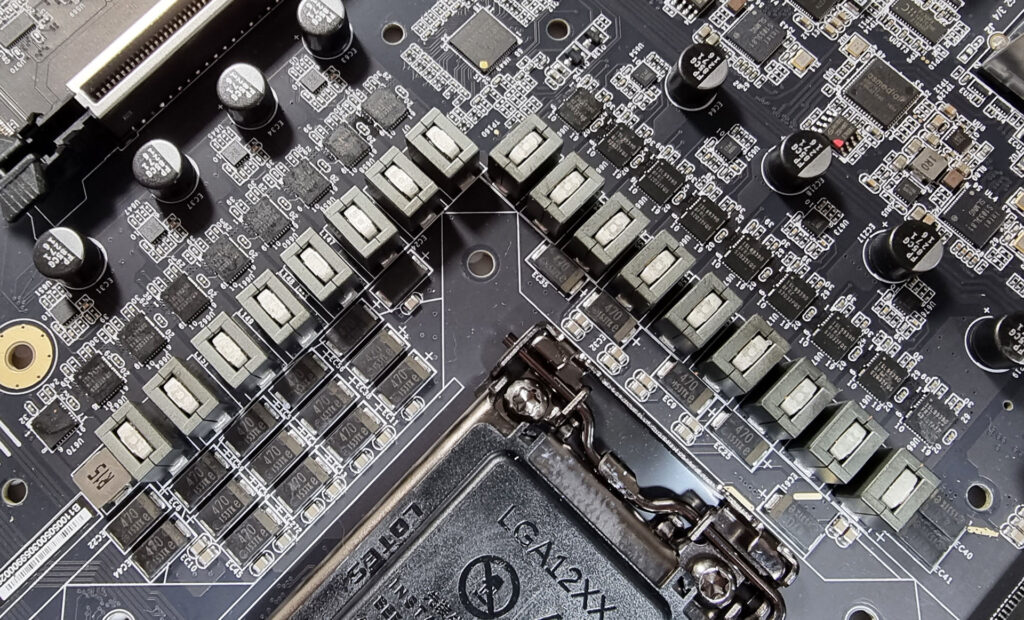
The VRM, short for Voltage Regulator Module, is the circuitry that converts 12V into CPU core voltage and maintains regulation under load.
A VRM has three jobs that matter to you:
- Conversion: turn 12V into the voltage the CPU needs efficiently
- Regulation: keep voltage stable under changing load, including fast transient spikes
- Thermals: do all of the above without overheating, because heat forces throttling and reduces reliability
Why VRM quality changes real behavior
Modern CPUs operate at the limits of power, temperature, and voltage. The VRM is part of the power and thermal envelope. If the VRM is underbuilt or poorly cooled, it will run hotter. As VRM temperatures rise, the board may reduce CPU power limits, or the VRM itself may trigger thermal protection. In the worst cases, you get instability.
This matters most in long, steady workloads:
- CPU rendering
- video encoding
- software compilation
- simulation and scientific workloads
- sustained productivity tasks that keep cores active for minutes or hours
Gaming can still hit high power spikes, but the spiky nature of many games often makes them less punishing for VRM thermals than sustained all-core work.
Phase count marketing: why it misleads
Boards are marketed with phase counts because they are easy to print. The issue is that phase counts are not presented consistently. Two boards advertising the same number can be built very differently. Some designs use doublers or other arrangements that change how “phases” behave under load. Some vendors count rails that do not feed the CPU cores. Some count in ways that look better on a spec list than they behave in reality.
Even if the phase count were perfectly standardized, it would still not be sufficient. A board with fewer high-quality stages can run cooler and perform better than a board with more low-quality stages. And a board with excellent stages can still run hot if the heatsinks are decorative.
The VRM parts that matter, and what they mean in practice
Power stages are the heart of VRM capability. Better power stages handle more current more efficiently and generate less heat for a given load. That typically improves sustained behavior and reduces the chance of throttling.
Chokes and capacitors are used for signal smoothing and transient suppression. They contribute to stability and power delivery quality, especially under rapid load changes. They also matter for long-term reliability.
The controller and firmware determine how the VRM responds to load, including transient response and features such as load-line calibration. You do not need to tweak these, but they can explain why two boards with similar hardware can behave differently.
VRM cooling: what to look for in real boards
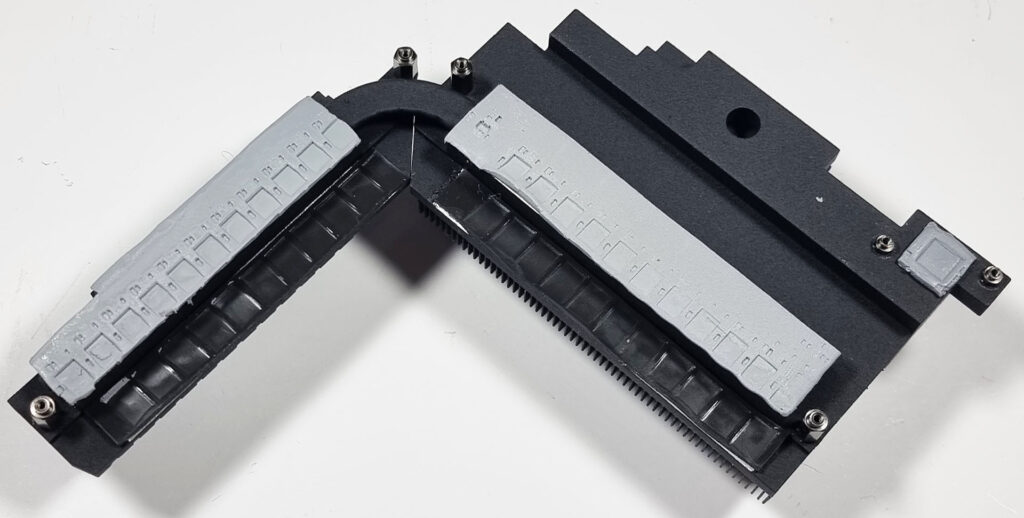
Heatsinks matter. The problem is that motherboard heatsinks are often sold as design elements.
An effective VRM heatsink needs:
- Mass to absorb and spread heat
- Surface area to transfer heat to the air
- Good contact to the power stages via properly applied thermal pads
- Airflow to move heat away
A flat, smooth “armor plate” can look expensive and perform worse than a chunkier finned heatsink. Fins matter because surface area matters, and airflow is what turns surface area into cooling.
Airflow and case choice can decide whether a VRM is fine or terrible
VRM cooling is heavily airflow dependent. Put a borderline board in a restrictive airflow case with low fan speeds, and it can run significantly hotter. Put the same board in a case with strong intake airflow, and it can perform perfectly.
This is why the same board can be described as “fine” by one person and “runs hot” by another. The environment matters:
- case intake area
- fan count and fan speed
- GPU size and heat output
- ambient temperature
- whether the build is tuned for silence
If you are building a quiet PC, VRM headroom matters more. Quietly builds and deliberately reduces airflow, so the board must handle it.
Matching VRM needs to the CPU class and workload
A practical way to choose:
- Midrange CPU, typical gaming and general use: a competent midrange VRM is usually fine
- High core count CPU, productivity, or creator workloads: prioritize VRM thermals and heatsink design
- High power CPU, sustained all core loads: avoid entry tier boards and avoid thin VRM heatsinks
If your workload is “short bursts and idle,” you can buy a different tier than if your workload is “all cores pinned for an hour.”
Going deeper: transient response, load line, and why it matters even at stock
Even at stock settings, CPUs require rapid current changes. When load changes quickly, voltage can dip or spike. VRM design and tuning are about keeping voltage within safe, stable bounds while responding quickly.
You will see terms such as load line calibration, often abbreviated as LLC. This is essentially how the board manages voltage droop under load. Some droop is normal. Too much droop can cause instability under load. Too little droop can cause overshoot and increase heat and stress.
For most builders, you do not need to tune LLC manually. What matters is that the board behaves predictably with sensible defaults. Higher-quality boards tend to behave better here, but this is not guaranteed. This is another reason why VRM testing in reviews can be more useful than counting phases.
Practical VRM checks before buying
If you want a quick decision process:
- Avoid boards with tiny, thin VRM heatsinks if you are pairing with a high-power CPU
- Prefer boards that have real VRM thermal testing in reviews for high-end CPUs
- If you are building a quiet or small form factor, bias toward stronger VRM headroom
- Do not assume chipset tier guarantees VRM quality, but do assume entry tier boards are more likely to cut corners
CPU power connectors: EPS basics and the easy way to avoid a dumb problem
Motherboards and PSUs can be incompatible in boring ways, and this is one of them.
Most modern boards use an 8-pin EPS connector for CPU power. Many boards add an extra 4-pin header or a second 8-pin header. People see that and assume they must populate everything, or the system will not work.
In most builds, the primary 8-pin EPS connector is the one to use. The extra connector is there for additional headroom, handling extreme loads, or simply because the vendor expects the board to be paired with high-power CPUs.
The problem is not “do I need both?” The problem is that people accidentally use the wrong cable, use an adapter, or draw CPU power from a daisy-chained connector when the PSU has a dedicated EPS cable.
Safe approach:
- Use the correct EPS cable from the PSU, not a PCIe 8-pin cable.
- If your PSU provides a second EPS cable and your board has a second connector, it does not hurt to use it.
- Avoid questionable adapters unless you have no other option; if you do use one, do not be surprised if stability issues appear under load.
If you are building with a high-power CPU and you plan to sustain all-core load, the power delivery chain matters. PSU quality, cable quality, and connector choice can be the difference between stable and flaky.
8) PCIe lanes and lane sharing: the part that ruins builds
Lane sharing is where builds go from “this looks great on paper” to “why did my drive disappear?”
CPU lanes vs chipset lanes
A system has two main pools of PCIe connectivity:
- CPU direct lanes: used for the GPU slot and at least one NVMe slot, sometimes more, depending on the platform
- Chipset lanes: used for additional NVMe slots, additional PCIe slots, USB controllers, SATA controllers, networking, and other onboard devices
Chipset lanes share an uplink to the CPU. That means multiple devices compete for the same upstream bandwidth, and the board must route lanes carefully.
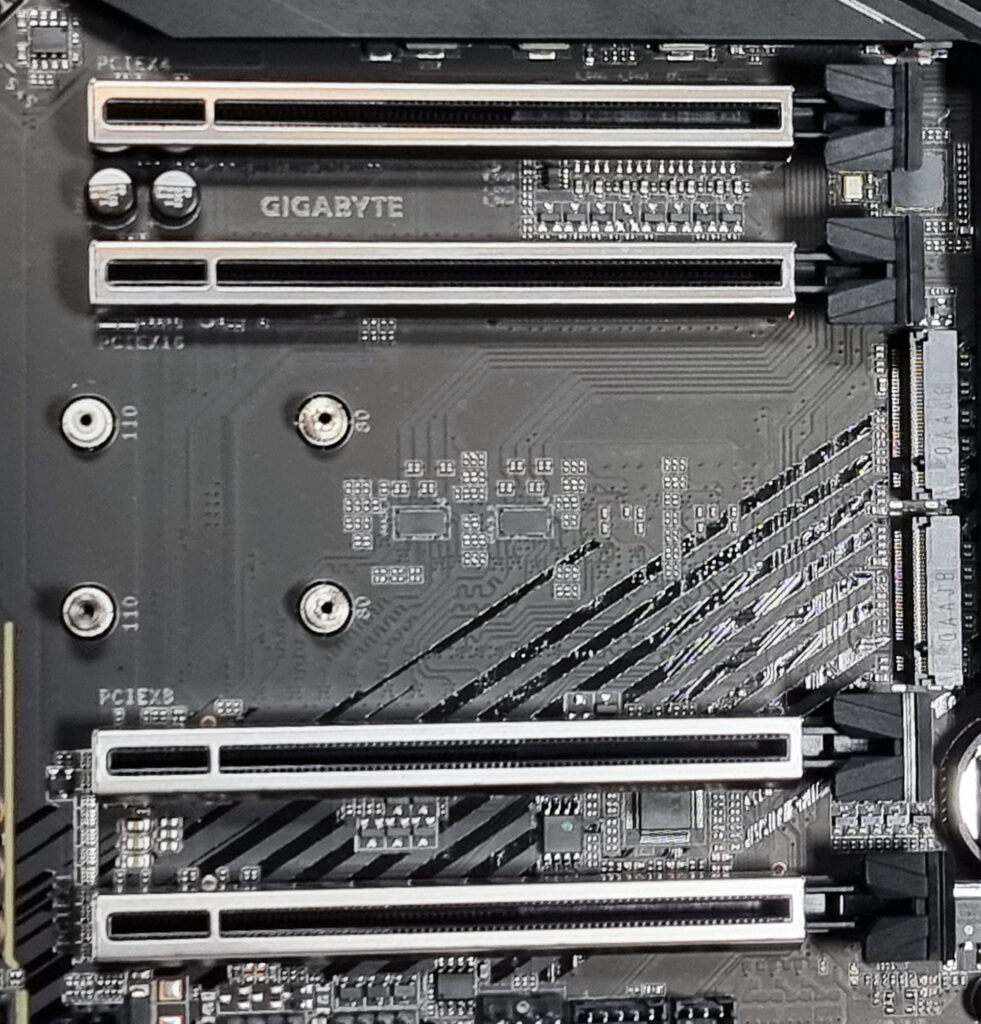
Lane sharing is not a flaw; it is a trade-off.
Motherboards have finite lanes. Vendors want to advertise lots of ports. They do this by sharing resources or by turning off certain ports when others are in use.
Common lane-sharing scenarios:
- Populate M.2 slot 2, and two SATA ports are disabled
- Populate M.2 slot,3, and a PCIe x1 slot is disabled
- Populate an M.2 slot,ot, and another M.2 slot drops from x4 to x2
- Use a specific M.2 s, lot, and the secondary PCIe slot changes behavior
This is only a problem if it breaks your intended configuration.
Physical slot length vs electrical wiring
A full-length PCIe slot does not guarantee an x16 electrical interface. Many boards use full-length slots for spacing and appearance, but wire secondary slots as x4 through the chipset.
This matters for add-in cards that expect certain bandwidth. Always check the manual for the actual wiring.
The habit that prevents most surprises: read the manual before you buy
If you plan to use more than one NVMe drive, or to use SATA drives and add cards, open the manual before purchase. Look for:
- The storage section that explains M.2 and SATA sharing
- The PCIe slot wiring table
- The block diagram is present
Most board vendors document the rules but do not publish them on the product page.
Concrete lane-sharing example scenarios
Scenario A: one GPU, two NVMe drives, two SATA drives
This is common. The pitfalls usually arise when one of the M.2 slots disables some SATA ports. If you plan to use SATA for bulk storage, confirm that the SATA ports you intend to use remain active when both M.2 slots are populated.
Scenario B: one GPU, three NVMe drives, no SATA
This is becoming common. The pitfalls usually involve the third M.2 slot being slower, sharing lanes, or being placed in a thermally poor location. You also need to confirm that populating the third slot does not disable a PCIe slot you might need later for a capture card or networking card.
Scenario C: one GPU, two NVMe drives, capture card
Here, the pitfall is physical slot access and electrical wiring. Modern GPUs often block adjacent slots. Even if the slot is physically accessible, it may be wired through chipset lanes and shared with storage. This is not automatically bad, but it must be verified.
Scenario D: storage-heavy build with multiple SATA drives and an HBA
Here, the pitfall is that consumer boards often lack sufficient independent SATA ports once M.2 slots are populated. This is where you either choose a higher-tier board with better routing or accept that you may need a storage controller and check slot wiring and bifurcation support.
PCIe bifurcation, for advanced builds
Bifurcation is the ability to split a PCIe x16 link into multiple links, such as x8 and x8, x8 and x4, or x4 and x4. This matters for multi-NVMe adapters, certain workstation builds, and some compact builds.
Do not assume bifurcation exists. Check CPU support, BIOS support, and whether the vendor exposes the settings.
9) M.2 and storage planning: slot types, heat, placement, and real-world speed
M.2 marketing makes storage look simple. “Four M.2 slots” sounds like four identical high-speed options. They rarely are.
Not all M.2 slots are equal.
M.2 slots can differ by:
- CPU connected vs chipset connected
- lane width, often x4 vs x2
- PCIe generation support, such as Gen4 vs Gen5
- physical placement, including under the GPU or near the VRM heat
- lane sharing behavior with SATA ports or PCIe slots
This is why you cannot shop by slot count alone.
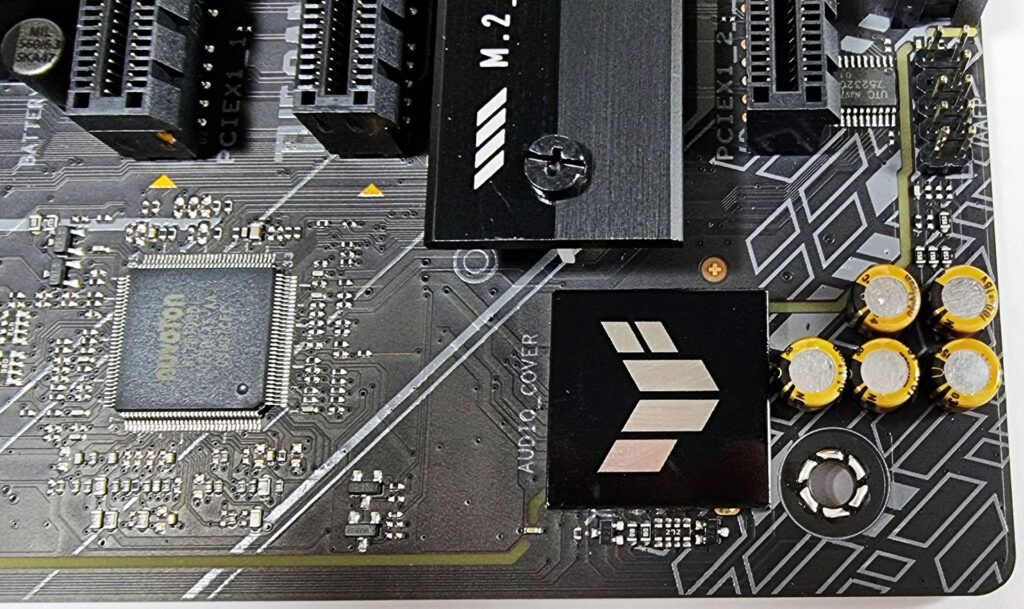
CPU connected vs chipset connected M.2
For many users, a chipset-connected NVMe is completely fine. The difference becomes more pronounced when multiple drives are active simultaneously or when you perform heavy, sustained transfers.
A practical way to plan storage:
- OS and applications on a fast NVMe drive
- Second NVMe drive for games, projects, or scratch space if needed
- SATA SSDs or HDDs for bulk storage if you want cheap capacity
If you do heavy creator workloads, place your highest-performance drive in a CPU-connected M.2 slot when possible, especially if it is used for scratch or active project storage.
PCIe Gen4 vs Gen5: Do you need it?
Gen5 SSDs can deliver very high peak sequential speeds, but they often run hot and throttle without adequate cooling.
For most buyers:
- Gen4 SSDs are already extremely fast for games and general use
- Gen5 makes sense for workflows that benefit from high sequential throughput, or for users who want the latest platform capabilities and accept the thermal cost.
If your workflow does not routinely move large files, SSD generation is unlikely to be the first bottleneck.
M.2 thermals: where drives live matters
NVMe drives throttle when hot, especially during sustained writes. The biggest contributors to heat are sustained writes, poor airflow, placement under a GPU that dumps heat into the board, and compact cases with limited ventilation.
Heatsinks help, but airflow and placement often matter more than heatsink thickness.
Practical M.2 thermal advice:
- If you have a choice, avoid placing your hottest drive under the GPU
- Favor M.2 slots exposed to airflow in high-power GPU builds
- In mini ITX builds, plan for drive thermals because airflow is limited, and some drives live on the back of the board
- Use the board’s M.2 heatsinks if included, but do not treat them as a complete solution if the slot is in a hot location
SATA is still useful
SATA is slower than NVMe, but it remains useful for bulk storage, cheaper secondary SSDs, reusing older drives, and for storage that runs cool and does not throttle as much.
The SATA gotcha is that SATA ports are often disabled when certain M.2 slots are populated. This is normal. It is also why you should read the manual.
10) Rear I/O and internal headers: daily usability and case compatibility
You can build a powerful PC and still hate it if the ports don’t meet your input/output requirements. Got a lot of devices:? Input and output are important considerations when buying a new motherboard.
Read I O: count your real devices
Most people underestimate how many USB devices they use:
- keyboard and mouse
- headset dongle or DAC
- webcam
- external SSD or HDD
- controller receiver
- phone cable
- microphone interface
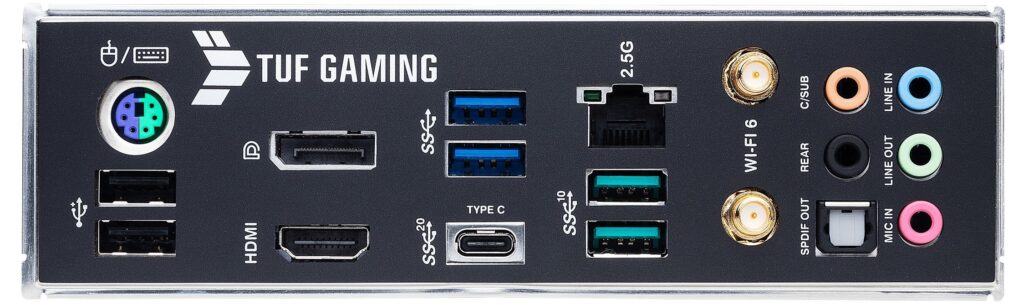
Then decide what you actually need:
- Rear USB-C for external SSDs or docks
- Enough USB-A for dongles and peripherals
- High-speed USB ports if you use fast external storage
- Optical audio out if you use it
- Display outputs if you rely on integrated graphics
A board can be expensive yet still have rear I/O that doesn’t make sense for your setup. Count ports like you are building a workstation, not reading a marketing page.
Internal headers: the classic front panel mismatch
Modern cases often include a front USB-C port. Not all boards include the internal header needed to make it work.
Before buying:
- If your case has a front USB-C, confirm the motherboard has the correct internal header
- Confirm the board has enough USB headers for all front USB A ports
- Confirm the board has enough fan headers for your cooling plan
Fan headers and fan control are part of a good build
Fan control quality matters for noise and thermals. Good boards support sensible fan curves, per-header control, and predictable behavior.
Also count headers. If you run out, you will rely on splitters and hubs, which adds complexity.
11) BIOS, stability, and troubleshooting features
These features do not sell boards as well as RGB, but they are the ones you care about when something goes wrong.
BIOS Flashback
BIOS Flashback lets you update the BIOS without a CPU installed. It matters when your CPU needs a newer BIOS, when the system will not POST, and when you want a recovery path after a bad setting.
Debug LEDs and postcode displays.
Debug LEDs labeled CPU, DRAM, VGA, BOOT, or a postcode display can dramatically reduce troubleshooting time. Without them, troubleshooting becomes guesswork.
If you value your time, prioritize boards with:
- debug LEDs or a postcode display
- a clear CMOS button or easily accessible jumper
- a BIOS interface that clearly labels settings
Default power behavior and enhancements
Some boards ship with aggressive power defaults designed to look good in benchmarks. That can increase CPU heat, VRM heat, total power draw, and fan noise. A good board gives you clear control over power limits and makes it easy to disable enhancements to restore baseline behavior.
12) Networking and audio: what matters, what is marketing
Ethernet: 1GbE vs 2.5GbE vs 10GbE
1GbE is fine for basic use. 2.5GbE is a practical upgrade and increasingly common, especially useful for local transfers. 10GbE is excellent if you have a NAS or a workflow that benefits from it, but it is wasted money if your network cannot use it.
WiFi onboard
WiFi is useful if you need it, but performance depends on router placement, interference, antenna placement, and building materials. For consistent latency and reliability, Ethernet remains the baseline.
Audio
If you use USB audio or an external DAC, motherboard audio matters less. If you use analog outputs directly from the board, implementation quality matters more. If you truly care about audio quality, external audio remains the cleanest way to avoid electrical noise inside the PC.
13) Picking the right motherboard tier for your build
Simple gaming and everyday builds
Priorities include a VRM that matches your CPU class, at least two M.2 slots, sufficient rear USB ports, a front USB-C header if your case requires it, and debug LEDs for easier troubleshooting. For these builds, the chipset tier is often secondary. A good B-tier board can be the right answer.
Creator and workstation style builds
Priorities include VRM thermals under sustained load, multiple M.2 slots with minimal lane-sharing pain, usable PCIe slots for add-in cards, high-speed USB, and networking that matches your workflow. This is where higher chipset tiers make sense, because I/O headroom becomes practical.
Quiet PC builds
Priorities include VRM thermal headroom, good fan control, sensible M.2 placement, and enough fan headers to avoid splitters everywhere.
Small form factor builds
Priorities include VRM thermals, M.2 thermals and placement, realistic I/O expectations, and planning for a single PCIe slot.
14) Motherboard buying checklist
Compatibility:
- correct socket for your CPU
- CPU supported by BIOS out of the box, or BIOS Flashback available
- form factor fits your case
Power and stability:
- VRM heatsinks look substantial and properly placed
- board tier matches CPU power and workload type
- Reviews mention stable behavior under sustained load
Memory:
- correct memory type
- prefer two sticks for stability at higher speeds
- Check QVL if you are pushing high speed or high capacity
Storage and lanes:
- Enough M.2 slots for your plan
- Check the manual for M.2 and SATA sharing behavior
- Verify PCIe slot electrical wiring if you need to add cards
I/O and headers:
- rear USB matches your device count
- front USB-C header if your case needs it
- enough fan headers for your cooling plan
Networking and extras:
- Ethernet speed matches your setup
- WiFi only if you need it
- Audio features matter mainly if you use an analog output
15) FAQ
Does a Z or X chipset make my PC faster?
Not directly. It mostly provides connectivity headroom and, depending on the platform, overclocking features. The performance differences you see are usually caused by default power limits, memory behavior, and VRM thermals, not by the chipset name.
Do I need PCIe 5.0?
For GPUs, most gamers do not need PCIe 5.0 today. For storage, PCIe 5.0 SSDs can help with specific heavy workloads, but they run hotter and require more cooling. If you are buying PCIe 5.0 for practical reasons, storage is usually the stronger case than GPU.
What does the E mean on AMD chipsets?
In practice, E tier aligns with stricter PCIe 5.0 requirements, often including the GPU slot. Non-E boards may still support PCIe 5.0, but routing constraints and vendor choices can limit availability.
Why do some M.2 slots disable SATA ports?
Because the board has a finite number of lanes and controllers, vendors often share resources between M.2 and SATA to offer more paper options. The manual will usually state exactly which ports are mutually exclusive.
Why is my full-length PCIe slot only running at x4?
Physical slot length is not the same as electrical wiring length. Vendors use full-length slots for spacing and appearance, but wire secondary slots for x4 through chipset lanes. This is common and not inherently problematic, but it matters if you expect a certain amount of bandwidth for an add-in card.
What are Intel P cores and E cores?
Intel’s modern desktop CPUs often use a hybrid core design with two core types. P cores are designed for high single-thread performance and latency-sensitive work. E cores are smaller and more power-efficient, designed to scale multi-threaded throughput and handle background work.
What is Intel Thread Director?
Thread Director is Intel hardware guidance for the operating system scheduler. It helps the OS decide whether to run a thread on a P core or an E core based on the thread’s behavior and requirements. It informs the scheduler rather than replacing it.
Why do some boards perform better in reviews with the same CPU?
Usually, because of higher default power limits, more aggressive boost behavior, better VRM thermals allowing sustained boost, or better memory training and stability at higher RAM speeds.
Is a more expensive motherboard always more reliable?
N. Price can correlate with better VRMs, better troubleshooting features, and more connectivity, but it can also correlate with cosmetics. Reliability depends more on VRM design and cooling, BIOS quality and update support, and sensible layout choices.
Do I need BIOS Flashback?
If you are building on a platform with frequent CPU updates or buying older board stock, BIOS Flashback can save you from a non-booting system. If you make it often, it is one of the best features you can buy.