











Best 5 External Hard Drive Recovery Software in 2026

Maybe you accidentally deleted a folder full of family photos. Perhaps you formatted the wrong drive. Or worse, your external drive suddenly shows up as RAW and Windows tells you it needs to be formatted before you can use it.
In most cases, your files are still there. They are just hidden from view. The right software can bring them back. Our team spent weeks testing the leading data recovery tools on real external hard drives. We put them through various data-loss scenarios to find out which actually work.
Our Testing Methodology: How We Reviewed These Tools
For our tests, we used two popular external drives: a Western Digital My Passport 2TB mechanical hard drive and a Crucial portable SSD. These represent the two most common types of external storage people use today.
On each drive, we created three different data loss situations:
- Accidental deletion: We deleted about 5GB of mixed files, including photos, documents, and videos. Then we continued using the drive normally for a few days to simulate real-world conditions.
- Quick format: We formatted the drive using the quick format option. This is what most people do when they accidentally click the wrong button. After formatting, we wrote a small amount of new data onto the drive.
- RAW partition: We deliberately corrupted the partition table so that the drive appeared as RAW and unreadable in Windows. This is one of the most frightening scenarios for any external drive owner.
Each tool was tested separately on each scenario. We ran multiple scans to ensure our results were consistent.
Top 5 External Hard Drive Recovery Software: In-Depth Reviews
The top five hard drive recovery software programs are listed here, along with a thorough technical evaluation of each program and an examination of how well it performs in real-world disk failure scenarios.
1. EaseUS Data Recovery Wizard
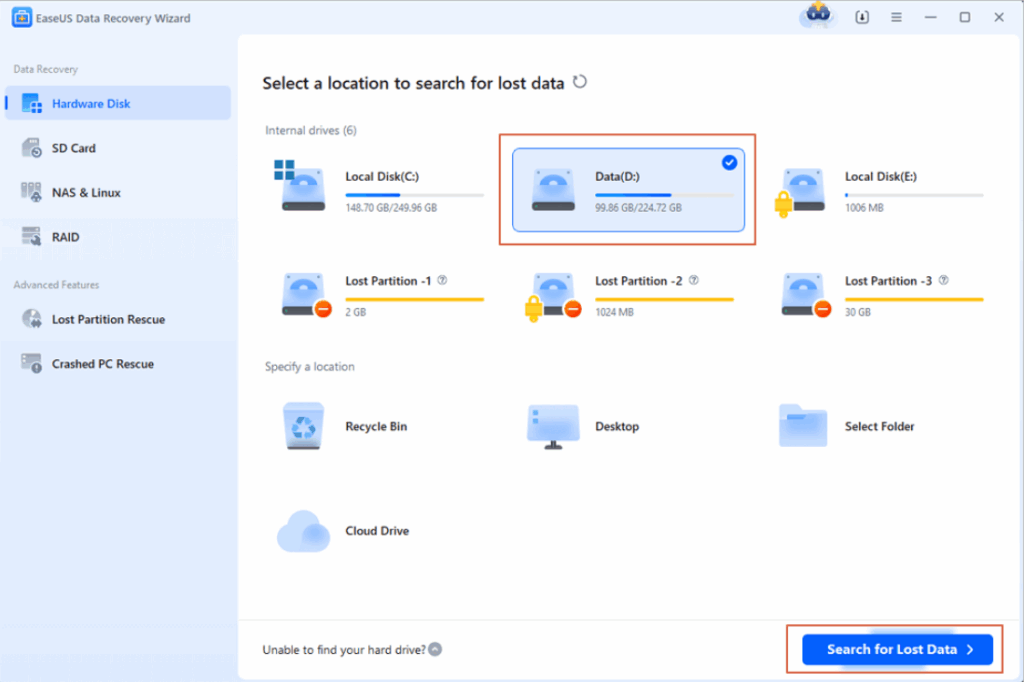
EaseUS Data Recovery Wizard takes the top spot in our testing for good reason. This software delivered the strongest overall performance across all three of our data loss scenarios. It found 85.5 percent of our test files on average, which was the highest consumer-grade result we recorded.
Pros:
- Excellent recovery rate across all scenarios
- Very easy to use with a clear three-step process
- Works with both HDDs and SSDs
- The free version allows recovery of up to 2GB of data after sharing
Cons:
- Paid version costs $89.95 per year
- The free version limits
Performance Analysis
What makes EaseUS stand out is its new recovery engine introduced in version 20.1. This engine is specifically designed to improve results on USB drives, SD cards, and external hard drives that have seen years of repeated use. In our tests, it performed exceptionally well on the WD My Passport, recovering files with their original folder structures intact.
The software supports all the major external drive brands you are likely to own, including Seagate and Western Digital. Its deep scan feature thoroughly examines every sector of your drive, while the preview function lets you see your files before you commit to recovering them. This saves time because you do not have to recover everything just to find out what is there.
Free Tier Limit
EaseUS offers a generous free recovery limit of 2GB after sharing to social media. This is significantly more than most competitors. If you have a small number of important files to recover, you might not even need to pay for the full version. For larger recovery jobs, the paid version removes all restrictions.
2. Recuva
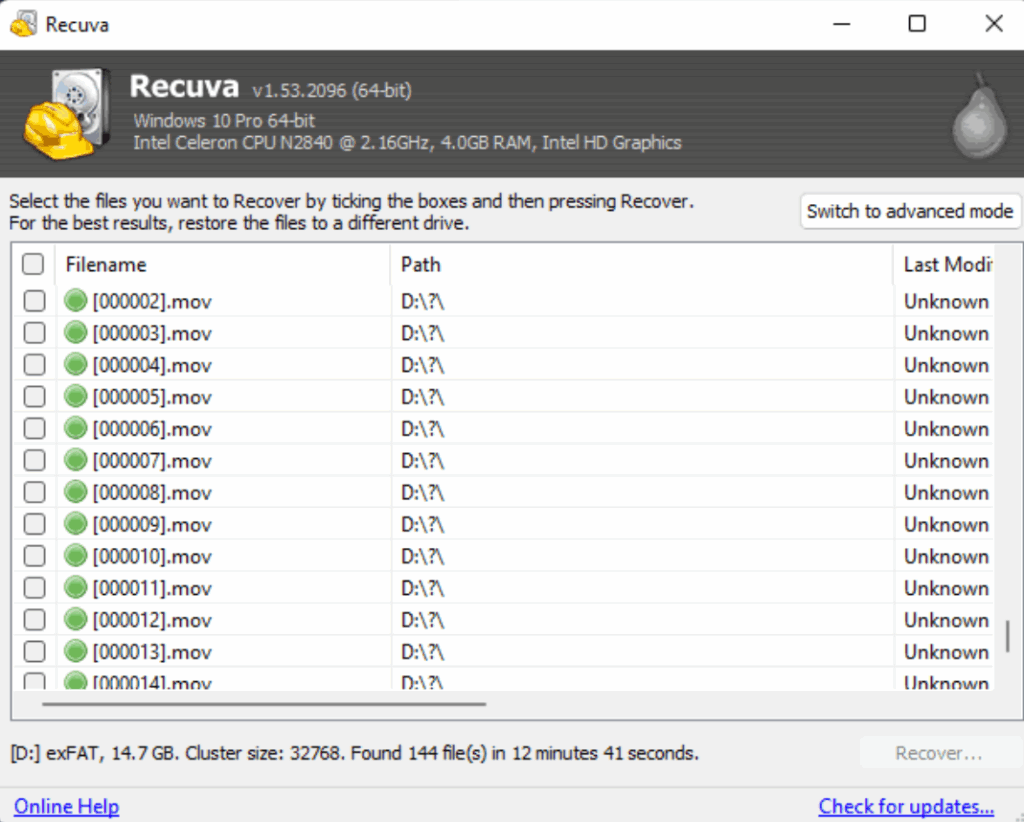
Recuva is the old reliable of data recovery. This Windows-only tool has been around for years and remains completely free for basic use. If you accidentally deleted a few files and want a quick, no-cost solution, Recuva is your best bet.
Pros:
- Completely free for basic use
- Very lightweight and fast
- Simple wizard-style interface
- Good for simple deletion recovery
Cons:
- Shows its age with an outdated interface
- Struggles with complex recovery scenarios
- Missing modern features like scan resume and reliable previews
- Recovery rate drops significantly on formatted drives
Performance Analysis
In our simple deletion test, Recuva recovered about 74 percent of our files. That is respectable for a free tool. However, when we moved to the quick format scenario, its recovery rate crashed to just 41 percent.
The software feels dated in 2026. It lacks basic quality-of-life features that modern users expect, such as the ability to pause and resume a long scan. The recovery chance labels it displays are not always accurate.
Free Tier Limit
Recuva is genuinely free with no recovery limits in its basic version. The Pro version costs $24.95 and adds features like virtual hard drive support and automatic updates. For most casual users, the free version is more than adequate.
3. TestDisk
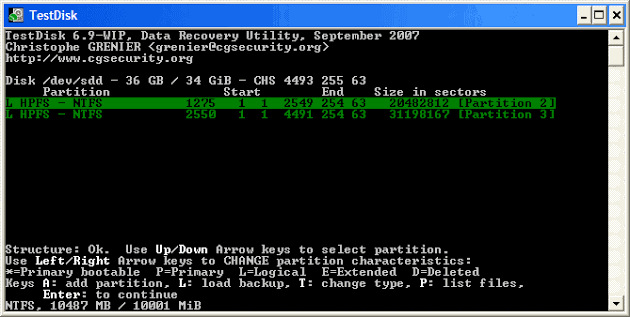
TestDisk is a completely free open-source utility that has been around since 1998. It is not a user-friendly graphical tool but a command-line program built for power users.
Pros:
- Completely free with no recovery limits
- Excellent for recovering lost partitions and fixing boot sectors
- Runs on Windows, Mac, and Linux
- Portable with no installation required
Cons:
- Text-based interface, not suitable for beginners
- Poor for recovering individual deleted files
- Risk of causing further damage if used incorrectly
Performance Analysis
TestDisk specializes in rebuilding partition tables and repairing boot sectors. When your external drive shows up as RAW or a partition disappears, TestDisk can often restore the drive structure and make your files accessible again. In tests, it achieves a very high success rate for partition recovery, comparable to paid professional tools. However, it struggles with simple file deletions, and its companion tool, PhotoRec, is better suited for that purpose.
The command-line interface requires careful reading of the documentation. This tool is best for technically inclined users who need to recover a lost partition without spending money.
Free Tier Limit
TestDisk is completely free with no data caps or premium versions. It is open-source and always will be.
4. Stellar Data Recovery
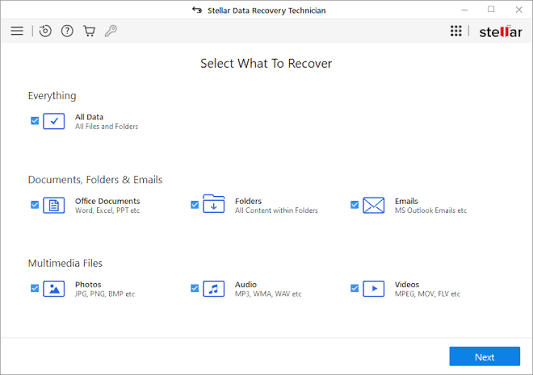
When your external drive becomes completely unreadable, showing up as RAW or asking to be formatted, Stellar Data Recovery is the tool you want. This software has professional-grade scanning capabilities that thoroughly analyze damaged drives.
Pros:
- Excellent for RAW drive recovery
- Supports recovery from 185 different file types
- The free version allows up to 1GB of recovery
Cons:
- Deep scans can be slow
- The pricing structure is confusing with multiple tiers
- Annual subscription model, though lifetime options exist
Performance Analysis
The software supports a wide range of storage devices, including internal hard drives, external hard drives, SSDs, USB flash drives, and memory cards. It can recover from formatted drives and even repair corrupted photos and videos at the higher tier levels.
The interface is straightforward enough for beginners to use, though some of the more advanced features require a bit of learning.
Free Tier Limit
The free version of Stellar lets you scan your drives, preview your data, and recover up to 1GB of data. This is a reasonable amount for testing purposes. Paid plans start at $59.99 per year for the Standard version, which removes all recovery limits.
5. Disk Drill
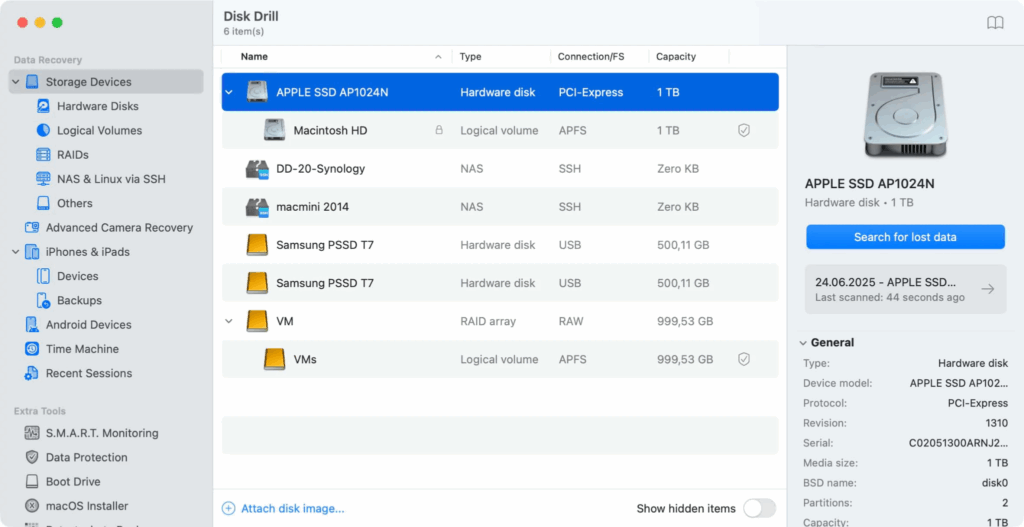
Disk Drill is a polished, modern data recovery tool that works on both Windows and Mac. It has a beautiful interface that feels like a proper Mac app, but more importantly, it gets the job done.
Pros:
- Works on both Windows and macOS
- Modern, attractive interface
- Extra data protection tools included
Cons:
- Free version limited to 50 MB of recovery
- Recovery rate slightly lower than EaseUS at 85.8 percent
- Perpetual license costs $89
Performance Analysis
Disk Drill’s deep scan takes longer but is thorough. The software supports recovery from PCs, Macs, hard disk drives, solid-state drives, memory cards, and even digital cameras. It has been around for over a decade and handles all the common recovery cases, including deleted files, formatted drives, missing partitions, and corrupted SD cards.
Where Disk Drill falls slightly is in its overall recovery rate. In an independent benchmark, Disk Drill achieved a 75.8 percent recovery rate. That difference matters when you are trying to recover critical files.
Free Tier Limit
Disk Drill’s free version allows 500MB of recovery. You can use it to test the software and recover a few small files, but larger recoveries will require the paid version.
How to Choose the Right Software for Your External Drive
Not all data recovery situations are the same. The right tool for you depends on your drive type and what went wrong.
Mechanical HDD vs. Portable SSD Recovery
The type of external drive you own makes a huge difference in your chances of recovery.
Mechanical hard drives, or HDDs, are the traditional spinning disk drives. When you delete a file from an HDD, the data does not immediately disappear. The drive simply marks that space as available for new data. Until something new is written over that spot, your file remains recoverable. This gives you a good window of opportunity to run recovery software.
Solid-state drives, or SSDs, are different. Most modern SSDs support a feature called TRIM. When you delete a file from a TRIM-enabled SSD, the drive actively erases that data to keep the drive performing well. This means recovery from an external SSD is much harder and sometimes impossible. If you lose data from an external SSD, stop using it immediately and run recovery software as soon as possible. Every minute counts.
Logical Corruption vs. Physical Damage
This is the most important question you need to answer: is your drive logically damaged or physically broken?
Logical corruption means the drive hardware is fine, but the file system is damaged. The drive lights up, spins up, and appears in your computer’s disk management, but you cannot access your files. Maybe it shows as RAW. Maybe it asks to be formatted. This is exactly the situation that software can fix. All the tools we reviewed above are designed for logical recovery.
Physical damage means the hardware itself is broken. You might hear clicking sounds, grinding noises, or the drive might not spin up at all. The drive might get very hot. In these cases, no software can help. Running recovery software on a physically damaged drive can actually make things worse by causing more damage to the platters or read heads. If you suspect physical damage, stop immediately and send the drive to a professional data recovery lab with a cleanroom environment.
Conclusion
These tools cover different failure cases, so it does not make sense to name one as the best choice for every user. The right option depends on what happened to your external drive and what you need to achieve first. If you accidentally deleted a few files, Recuva is a fast, free fix. If your drive shows up as RAW or you lost a partition, Stellar Data Recovery or TestDisk can rebuild the structure. And for a balanced, all-around performer, EaseUS Data Recovery Wizard delivers consistent results across most scenarios.
Beyond recovery software, consider a broader strategy. If the data matters, always start with data recovery before any repair step. Use a reliable recovery tool to save your files from the drive first.