










Create Better Videos Faster with Clideo AI
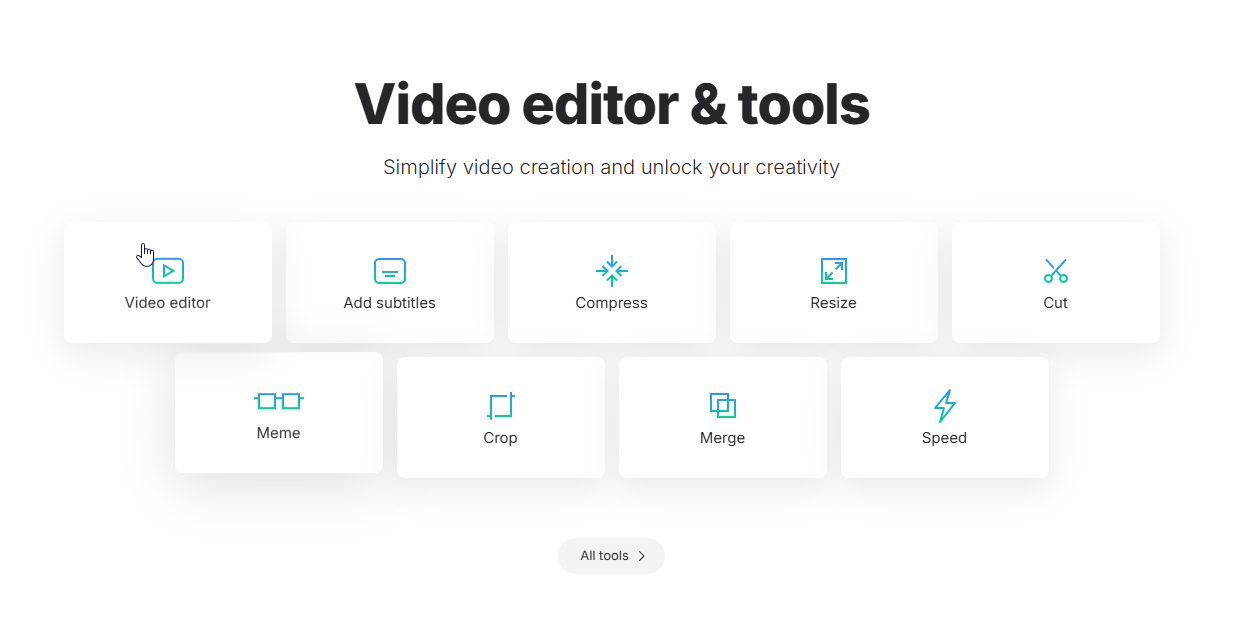
Nobody’s got a spare afternoon to wrestle with clunky editing software anymore. Between work, errands and just trying to have a life, most of us need something that gets a video looking good without eating up the whole evening. That’s really the gap Clideo AI fills.
Maybe you’re running a small shop and need product clips for Instagram. Maybe you post reels every day and you’re tired of switching between four different apps. Or maybe you just want your holiday footage to look like something other than a shaky phone recording. Whatever the reason, Clideo cuts out most of the hassle. It’s browser-based, so there’s nothing to install, and you don’t need to know the first thing about editing to use it properly.
Let’s go through what it actually offers.
So what is Clideo, exactly?
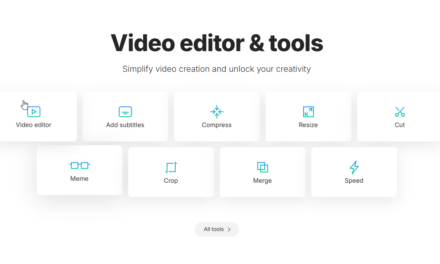
It’s an online video editor — nothing to download, works on your laptop, your phone, doesn’t matter which. Mac, Windows, Linux, Android, iPhone, all covered. You upload your clips, do your edits, hit export. That’s the whole flow.
It’s also not some niche tool nobody’s heard of. Millions of people use it every month, and they’ve collectively pushed out hundreds of millions of videos through the platform. When a tool gets used that much, it’s usually because it actually works, not because of clever marketing.
What makes it worth your time
Everything lives in one place
Instead of bouncing between separate apps for cutting, adding music, and slapping on text, Clideo puts it all on one timeline. Drag your video, photos and audio in, arrange them however your story needs to flow, then tweak each piece — crop it, bump the saturation, slow it down or speed it up, adjust the volume. It’s fairly intuitive once you’re in there.
Text that doesn’t look like an afterthought
Good captions can carry a video, especially on social. You can throw in as much text as you want and mess with the font, size, weight, colour, even add a background behind it so it’s readable over busy footage. There’s also a decent stash of shapes, GIFs, stickers, emojis and stock images if you want the video to have a bit more character.
Picture-in-picture and split screens, without the headache
If you want two shots running at once — a reaction cam over your main clip, say, or a side-by-side comparison — you can just drag things into position. Split screens, collages, picture-in-picture, whatever layout fits what you’re making.
This is where the AI part earns its keep
Honestly, this is the bit that saves the most time. Rather than sitting there recording narration over and over until it sounds right, you can generate an AI voiceover instead. And if you’re on the premium plan, there’s a wider set of AI tools available that handle a lot of the fiddly, repetitive editing work for you. It’s not flashy, but it quietly speeds up the whole process.
No installs, no storage eaten up
Because it all runs in the browser, there’s nothing sitting on your hard drive. Start editing on your laptop at lunch, finish it on your phone that evening. Nothing to sync manually, nothing taking up space.
You don’t need editing experience
The layout is built so beginners aren’t lost within five minutes, but it still has enough depth that people with more editing background don’t feel boxed in either.
It handles pretty much any file you throw at it
MP4, MOV, AVI, PNG, JPG, MP3, AAC — the usual suspects and then some. Export in HD or 4K, and your original quality stays intact unless you deliberately change it.
Actually making a video: the short version
- Get your files in. Pull them from your device, Google Drive, or Dropbox — or skip this step and build from scratch.
- Put it together. Drop everything onto the timeline, reorder as needed, edit each clip, add your text.
- Export it. Pick your export settings, download it or send it straight to the cloud.
That’s genuinely it. No tutorial required.
Should you actually use it?
If you want something fast that doesn’t demand a film degree, yes. It’s not trying to compete with Premiere Pro or Final Cut, and it shouldn’t — that’s not the audience. It’s for people who want a good-looking video without the learning curve, and the AI tools inside Clideo AI make that even quicker.
FAQs
Can I add music to my videos? Yes — upload your own audio, pull from the built-in music library, add sound effects, record your voice, or just generate an AI voiceover instead.
Can I come back to a project later? If you’re on premium, yes, your projects get saved. Free users need to finish in one sitting.
What does premium actually add? Bigger file uploads, more AI features, longer project storage, and no watermark on your exports.
Can I put my own watermark on instead? Premium users can upload a PNG watermark and adjust its size, position and transparency.
What file formats work with Clideo? Most of the common ones — MP4, MOV, AVI, PNG, JPG, MP3, AAC, and more.
What resolution can I edit in? HD and 4K are both supported, and your original quality is kept unless you change it on export.
How do I mix videos, photos and audio in the same project? Drag and drop them onto the timeline and arrange them in whatever order you need.
Editing a video shouldn’t take longer than making the video was worth. Clideo AI keeps it simple enough that you’ll actually finish the project instead of abandoning it halfway through.