















Reformat an External Hard Drive Without Losing Data – A Complete Beginner’s Guide

Formatting an external hard drive may seem like a huge step, especially if it involves your precious files. If your drive shows up as RAW, spits out file system errors, or refuses to work between Windows and Mac, a reformat is sometimes the only fix. But the good news is that formatting doesn’t have to be a permanent data loss.
With the right approach and tools, you can safely recover your files, then reformat your drive with complete confidence. This guide explains every step of reformatting, from understanding what reformatting does to recovering data with professional software to completing the Format on an external hard drive for Windows and Mac.
Part 1: Why You May Need to Reformat an External Hard Drive.
External hard drives are reliable workhorses, but they are not immune to problems. A perfectly good drive can start acting up in ways that leave users frustrated and confused, sometimes overnight, or over time.
Reformatting is more of a calm, strategic process if you know why you have to do it, rather than a reactive process. The four most common reasons why people need to reformat their external hard drive are:
- Drive not recognised or showing RAW Format:
One of the most common problems is when Windows tells you the drive is RAW. A RAW drive has lost its file system and is therefore not accessible to the operating system.
You could see messages such as:
- You need to format the disk before you can use it.
- Drive is not accessible.
- “The file or directory is corrupt and cannot be read.”
In such cases, formatting can restore functionality, but it also puts your files at risk.
- File system errors or corruption:
Power failures, improper ejection, bad sectors, and software crashes can damage a drive’s file system. When things get so corrupt that you need to rebuild the file structure, reformatting is often recommended.
- Windows and Mac incompatibility:
A drive formatted for one operating system may not work correctly with another. For example:
- NTFS is designed primarily for Windows.
- APFS is designed for Mac.
- exFAT is cross-platform compatible.
If you’re changing operating systems, reformatting may be necessary.
- Sluggish performance or frequent crashes:
Over time, file system problems can cause slow performance, freezing, or random disconnects. Reformatting can help with a fresh start and better stability.
Part 2: What Actually Happens When You Reformat a Drive?
One of the most common misconceptions about reformatting is that it instantly and permanently wipes out all data. The reality is more nuanced—and far more hopeful—for anyone who has accidentally formatted a drive or been forced to format by a system prompt. What actually happens depends on the Format you use.
| Type | What it does | Can data be recovered? |
| Quick Format (default on Windows/Mac) | Removes the file system index (address book). The actual data remains on the disk untouched. | ✅ Yes – high chance if no new data is written to the drive |
| Full Format (Windows: uncheck “Quick Format”) | Writes zeros or random data to every sector, overwriting all content. | ❌ Very low to impossible – overwritten data is extremely hard to retrieve |
The Quick Format is like ripping the table of contents out of a book. The chapters are all still there – you don’t have a guide to find them quickly anymore. Provided the data underneath hasn’t been overwritten with new data, professional data recovery software for external hard drives can rebuild that table of contents and find your files for you.
A Full Format, on the other hand, is more like shredding each page of the book individually. When it’s done, there is little to recover. That is why acting quickly – and stopping all writes to the drive the moment you realise data is at risk – is the single most important thing you can do to maximize your chances of successful recovery.
Part 3: Common Scenarios Where Data Gets Lost Before or After Formatting
Data loss during a reformat is rarely by design. It usually happens due to one of these situations:
- Formatting The Wrong Drive By Mistake: When you are in a hurry, managing multiple drives, it is surprisingly easy to format the wrong one. One wrong click in Disk Management or Disk Utility and the files you thought were safe are gone.
- Forced Format Due To System Prompts: Windows often displays a message saying ‘You need to format the disk before you can use it. Many users panic, click Format, and don’t realize they could have recovered their data first.
- External Hard Drive Not Recognised and Needs to Be Initialized. The most common reason a new prompt to ‘initialize the disk’ appears when connecting an old drive is that the drive is corrupted. If you continue without saving data, you may lose data immediately.
- Virus or Corruption Requiring Reformat: Malware can render a drive inaccessible, leading users to believe that a full format is the only solution — when data recovery might still be feasible.
In all of these scenarios, stop using the drive immediately and proceed to Part 4 below. Every file you copy to the drive after a format has the potential to overwrite recoverable data permanently.

Part 4: How to Reformat an External Hard Drive Safely – Step by Step
Now that you know what reformatting is and what can go wrong, here is the safe, methodical approach that protects your data while still allowing you to fix your drive. Follow these steps in order— skip Step 1 and you’ll lose data permanently.
Step 1: Back Up or Recover Data First (Critical Step)
The most important thing to do before you even think about formatting is to stop using the drive. Don’t put new files in it, don’t try to defragment it. Just pull it out and get it ready for recovery.
If your files are still available, immediately copy them elsewhere. If they are unavailable due to a RAW, corrupted, or unreadable drive, you will need to use a dedicated data recovery tool.
4DDiG Data Recovery is one of the most reliable options available today and a professional-level tool built specifically for scenarios like this. Here’s why it’s special:
- 4DDiG Data Recovery supports recovering data from formatted, corrupted, RAW, and even badly damaged drives, covering all possible scenarios of data loss you might encounter.
- It can recover over 2,000 file types, including photos, videos, Word files, PDFs, spreadsheets, and more.
- Free scan to preview all recoverable files so you know exactly what you are getting back before you commit to a recovery.
- The interface is designed for beginners – no command lines, no technical experience, no IT background necessary.
Step 2: Recover Data Using 4DDiG
Follow these simple steps to recover your files before reformatting. On most drives, the whole process takes less than an hour:
- Download and install 4DDiG Data Recovery for a Mac or Windows computer. Be sure to install it on a drive other than the one you are recovering.
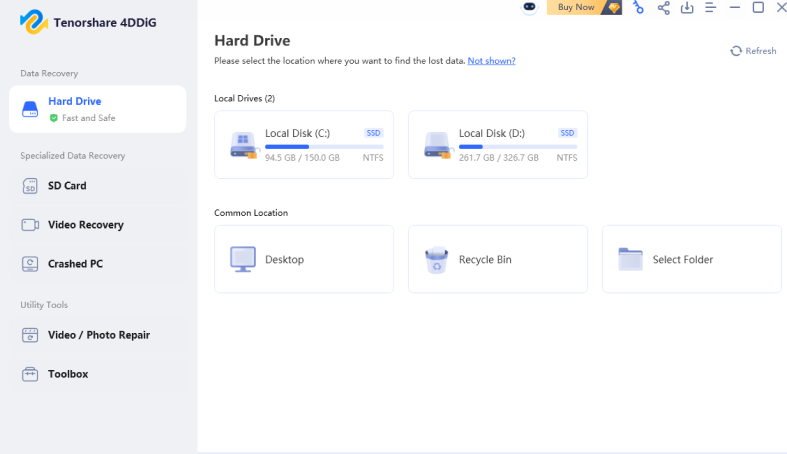
- Start up the software and connect your external hard drive. You can select it from the list of available drives on the home screen.
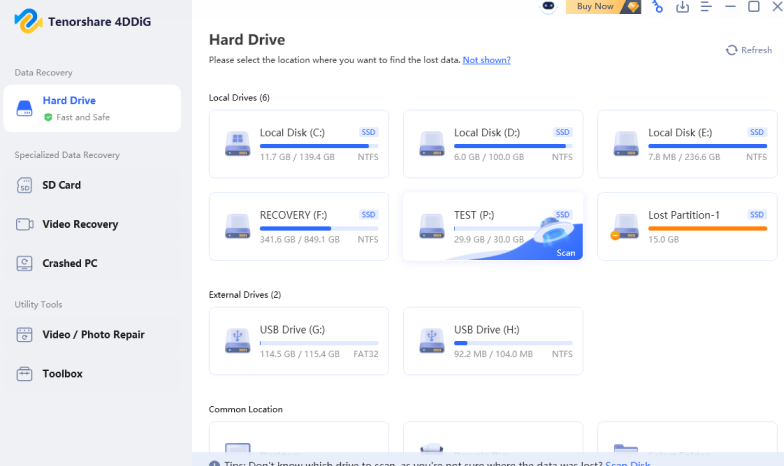
- Press ‘Scan’ to begin the deep scan process. 4DDiG scans all recoverable sectors and surfaces of corrupted, deleted, or lost files.
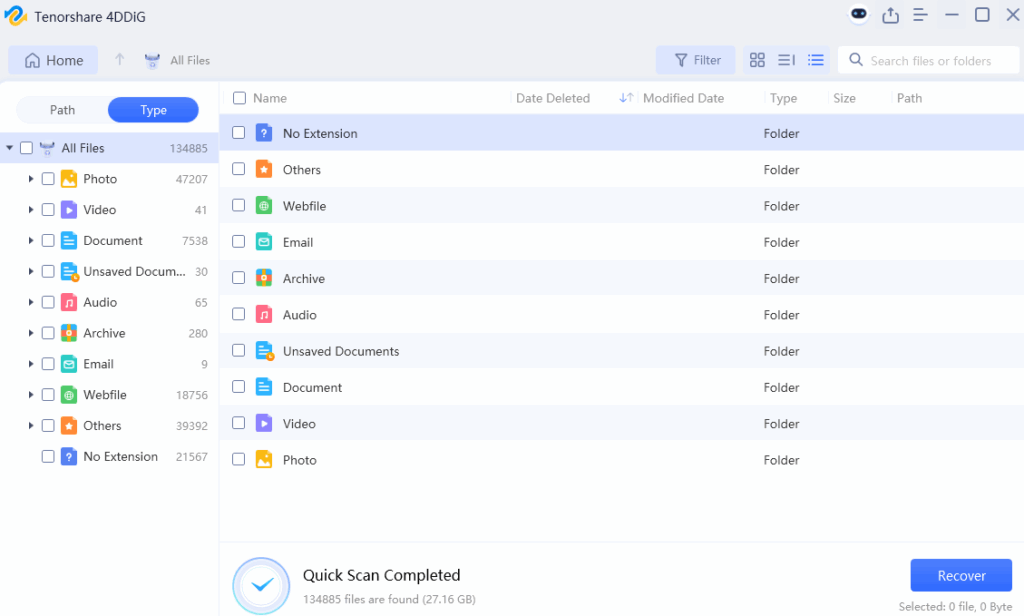
- Preview the recoverable files. Filter by file type or folder structure to find what you need exactly
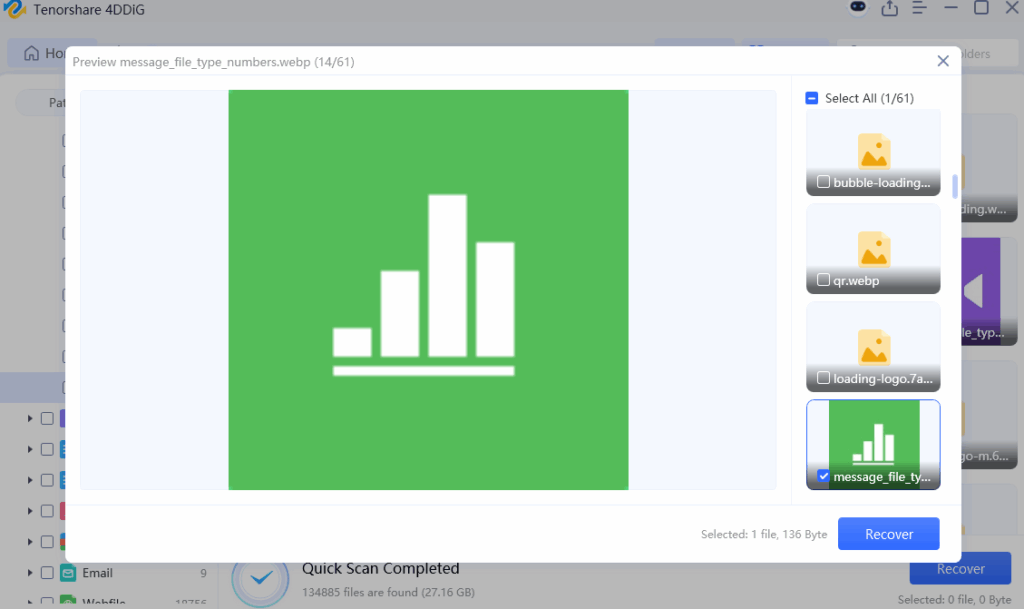
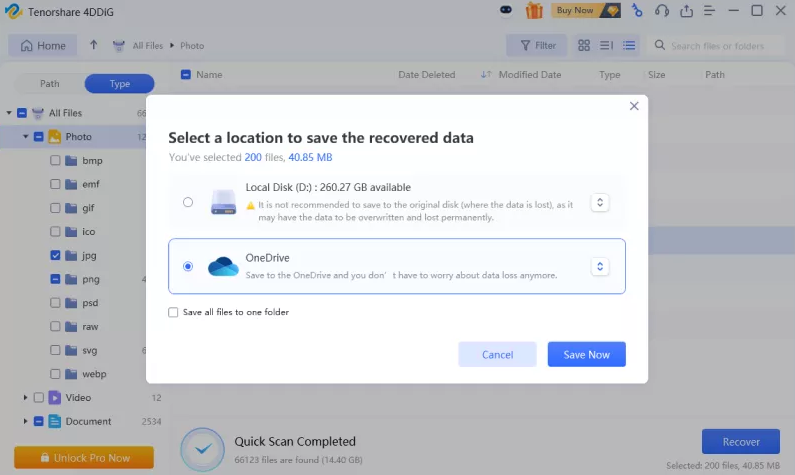
- Select the files you want and click “Recover”. Save to another drive, not back to the same external drive from which you are recovering.
Step 3: Reformat the External Hard Drive on Windows
Now that you’ve safely recovered your data, it’s time to give your external hard drive a fresh start. Here’s how to do it right in Windows with the built-in Disk Management tool:
- Right-click the Start button and select Disk Management.
- Find your external hard drive in the list. Check the size and label to make sure it is the correct drive.
- Right-click the drive partition, then choose Format.
- Select your file system. If you will only use the drive on Windows, choose NTFS. If you need cross-platform compatibility with Mac, choose exFAT.
- Keep ‘Perform a quick format’ checked unless you want to wipe all data specifically. Click OK to confirm this.
- Allow the process to finish. Your drive will be ready to go with a clean file system.
Step 4: Reformat the External Hard Drive on Mac
For Mac users, it’s a bit different. Mac has a built-in application called Disk Utility, which provides a clean graphical interface to manage drives:
- Open Finder, go to Applications > Utilities, and open Disk Utility.
- Select your external hard drive in the left panel. Click on it to highlight it.
- Click the Erase button on the top toolbar.
- Select the type you need. APFS for Mac-only drives (faster and more efficient on modern Macs), or exFAT for drives you want to share with Windows.
- Name your drive and click Erase to confirm.
- When Disk Utility completes, it will remount the drive for you automatically — clean and ready to use.
Part 5: Tips to Avoid Data Loss in the Future
Reformat and restore your data, and then build better habits to keep you from having to go through this again. Five practical tips:
- Always Back Up Important Files Regularly: Make multiple copies of important documents, photos, and videos.
- Avoid Unplugging The Drive Improperly: Always use the “Safely Remove Hardware” option before unplugging external storage devices.
- Use Antivirus Protection: Malware can damage file systems and lead to corruption.
- Check Disk Health Periodically: Use the built-in tools or third-party disk monitoring software to check the drive’s health regularly.
- Do Not Format When Unsure: If drives suddenly become inaccessible, first find out why. Most of the cases that seem to require formatting can be fixed with external hard drive recovery.
Part 6: Final Words – Reformat Smartly, Not Fearfully
Sometimes you need to reformat an external hard drive. Corruption, incompatibility, RAW file systems, or errors that will not go away: formatting can bring your drive back to life. But the most important rule is simple:
Recover first, then Format, if important files are missing:
- Stop using the drive right away.
- Back up the external hard drive recovery before making changes.
- Use reliable data recovery software for external hard drive backup recovery, such as 4DDiG.
- Save the recovered files in another storage medium.
- Reformat the drive using Windows’ Disk Management or macOS’ Disk Utility.
Follow the right sequence, and you can solve drive problems and protect the data you care about most.