













Best RAW Drive Recovery Software for Windows in 2026
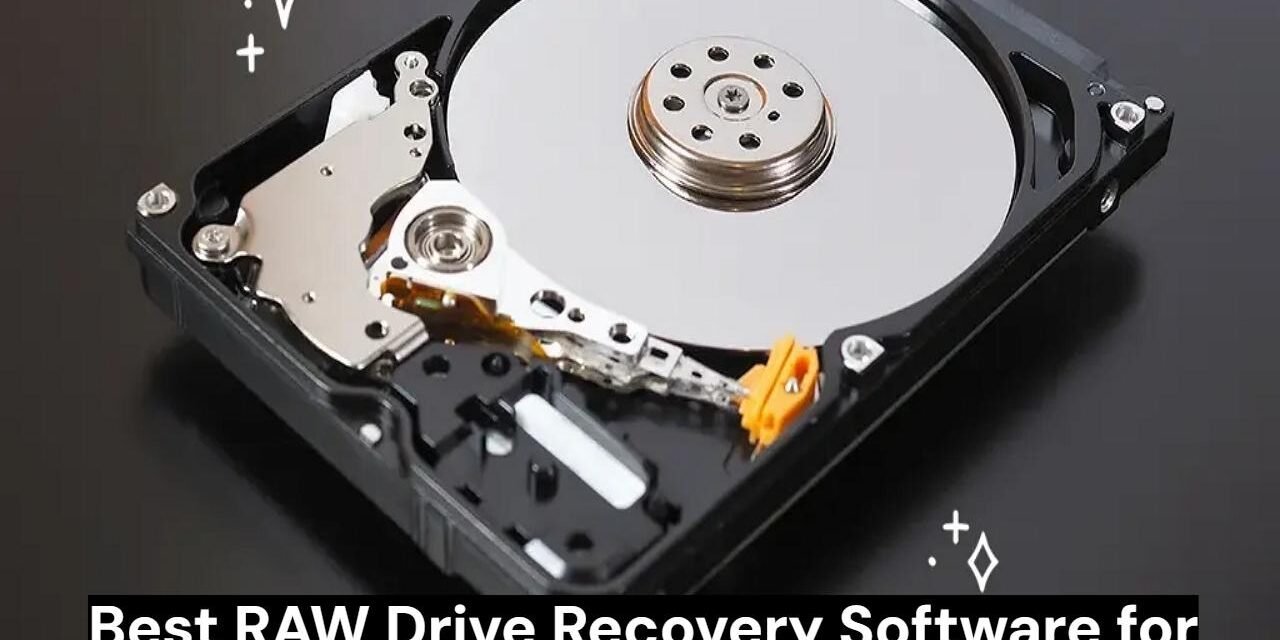
Not being able to access the hard disk on the computer is irritating. It indicates a RAW hard drive. File system failures, data corruption, malware, and viruses like Trojan can severely harm the hard drive, causing access errors. Formatting the hard disk is the sole remedy, although it’s perilous if it contains crucial data. In this guide, we tested the best RAW hard drive recovery tools for Windows in 2026 to help you restore your data quickly and safely.
Why Does a Drive Become RAW?
When the hard disk gets raw, your computer can’t identify the data structure on it, making it unable to access your information. Hard drive formatting is the only option to delete everything. Let’s see some reasons why it’s caused:
Common Causes of RAW Drives
- MFT or DBR Damaged File System Metadata
Damage to the MFT and DBR prevents Windows from recognizing the partition.
- Unsafe External Drive Ejection
USB drives and external hard disks removed without “Safely Remove Hardware” can disrupt read/write processes and corrupt partitions.
- Virus or Ransomware Attacks
Some malware directly targets partition tables and file system data, rendering drives RAW or unusable.
- Physical Bad Sectors
Bad sectors on old hard drives and SSDs can destroy crucial file system sections, preventing the OS from reading the device.
Top 5 RAW Drive Recovery Software in 2026
The table below gives a quick comparison of the best RAW drive recovery tools for Windows users.
| Tool | Primary Type | What It Helps With |
| EaseUS Data Recovery Wizard | Beginner-Friendly Recovery Tool | Data recovery from RAW partitions, formatted drives, erased files, and corrupted HDD/SSD |
| R-Studio | Professional/Enterprise Recovery | Network recovery, advanced RAID rebuilding, forensic recovery |
| DiskGenius | All-in-One Recovery & Partition Tool | RAW partition repair, partition management, BitLocker recovery |
| DMDE | Technical & Budget-Friendly Recovery | Deep partition scanning, damaged drive recovery, and low-level disk editing |
| Hard Disk Sentinel | Disk Health & Monitoring Tool | Drive failure detection, SSD/HDD health monitoring, and RAW error prevention |
Top 1:EaseUS Data Recovery Wizard
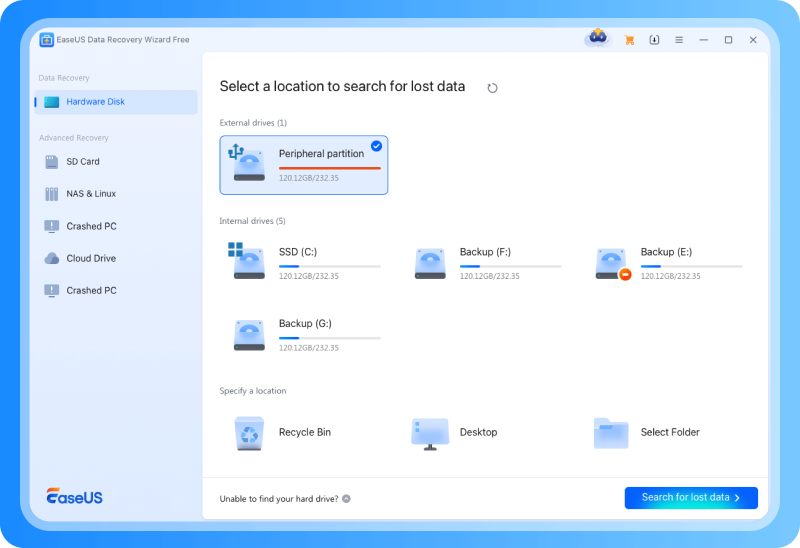
Data recovery software EaseUS Data Recovery is currently the best. This tool can recover data from RAW drives, hard drives, SSDs, and more. The utility recovers data from 2,000+ storage devices. It recovers data from RAW drives quickly and effortlessly, unlike other data recovery applications.
EaseUS Data Recovery’s deep scan mode recovers infinite data with a 98.6% data recovery rate, which is superior to most online RAW drive data recovery tools.
Key Features
- Supports FAT, NTFS, exFAT, HFS, HFS+, and EXT.
- Compatible with 2000+ storage devices such as hard disks, RAW drives, etc.
- Strong and reliable data recovery for various data loss circumstances.
- Supports over 1000 data types, including films, images, and documents.
- Preview huge video and image files in real-time before recovery.
- Provides repair tools for corrupted JPG, PNG, MP4, MOV, DOCX, XLSX, and PDF files.
- Recover from RAW disks, formatted, corrupted, or damaged storage devices in a few clicks.
- Windows PE bootable recovery media for malfunctioning systems
- Raw hard disk recovery mode for inaccessible partitions.
- The free version recovers up to 2GB of deleted data.
Top 2: R-Studio
By 2026, R-Studio ranks among the most powerful RAW disk recovery solutions. It is a favorite of enterprise IT teams, forensic professionals, and data recovery specialists. Besides recovering data from damaged RAW partitions, RAID arrays, and commercial storage systems, it also helps Windows users to get their data back from Linux and macOS file systems.
Key Features
- Implemented advanced RAID reconstruction for RAID 0, 1, 5, 6, 10, and JBOD arrays.
- Network recovery over LAN and internet connections
- Conducted RAW drive recovery, including deletion, formatting, and repartitioning.
- Compatible with NTFS, FAT, exFAT, ReFS, HFS+, APFS, ext2/ext3/ext4, UFS, and others.
- Built-in disk imaging tools to safely clone failing drives before recovery
- Emergency bootable recovery environment for non-booting systems
- Advanced hex editor for manual disk structure analysis
- Built-in file viewer for previewing recoverable files
Top 3: DiskGenius
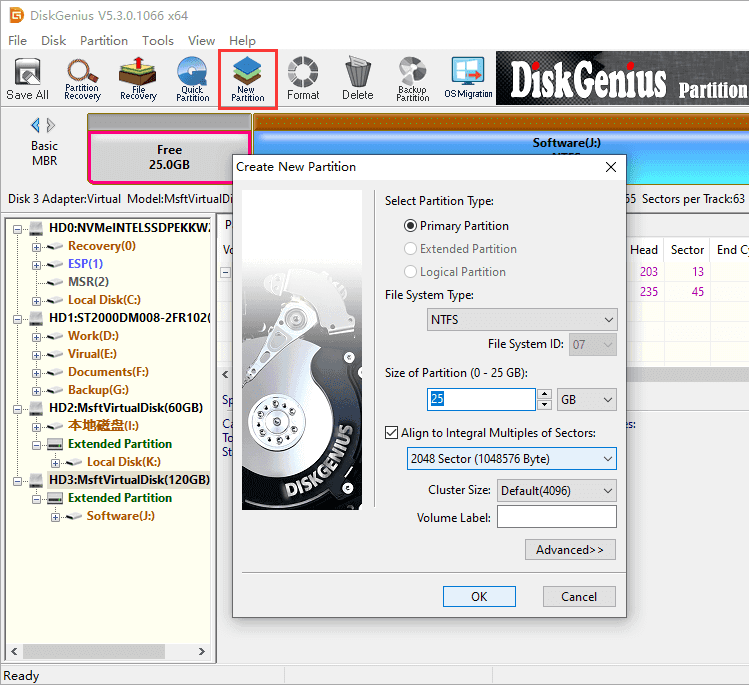
The next top choice tool is DiskGenius driver recovery software. It is also a reliable choice for expert users who need features that go beyond just recovering files, for example, a partition management program. In addition to RAW partitions, the software can rebuild partition tables, restore boot sectors, recover BitLocker partitions, and clone failing disks.
Key Features
- RAW partition recovery with deep scanning technology
- Recovery from deleted, formatted, corrupted, and inaccessible partitions
- Built-in partition manager for MBR and GPT repair
- BitLocker-encrypted drive recovery support
- RAID reconstruction and virtual RAID support
- WinPE bootable USB creator for recovering unbootable PCs
- Sector-by-sector disk imaging and cloning functionality
- Improved scanning engine for data fragmentation recovery.
- Supports HDDs, SSDs, USB drives, SD cards, RAID arrays, and virtual disks.
Top 4: DMDE
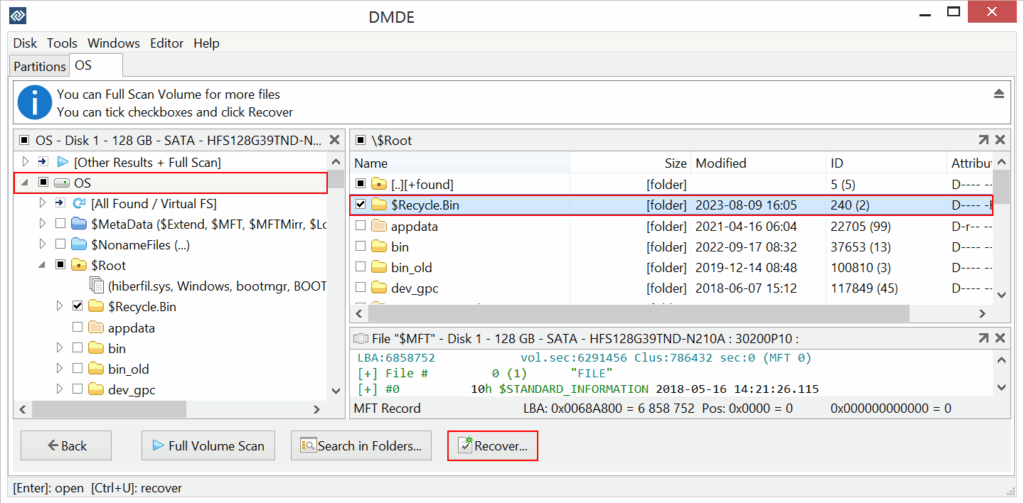
DMDE is a lightweight yet robust RAW drive recovery software popular with technicians and expert users who need specific low-level recovery features at a low price. DMDE can recover missing partitions, reconstruct damaged file systems, and recover inaccessible data from badly ruined drives despite its simple interface.
Key Features
- Free recovery of up to 4000 files from a selected directory
- Quick Scan and Full Scan modes for RAW partition recovery
- Advanced partition reconstruction algorithms
- RAID constructor for rebuilding damaged RAID arrays
- Disk cloning and sector-by-sector imaging tools
- Extended disk editor and cluster mapping utilities
- Portable version available without installation
Top 5: Hard Disk Sentinel
The last tool on the list is Hard Disk Sentinel. This tool offers a disk monitoring and prevention program that detects storage issues before a drive becomes RAW or fails as Gen5 NVMe SSDs become more popular in 2026, firmware-level faults and heat deterioration have increased.
Key Features
- SMART-based disk health and failure monitoring
- Real-time temperature and performance tracking
- Predictive failure analysis and early warning alerts
- Detailed disk health reports and diagnostics
- Disk testing, repair, and benchmarking tools
- Automatic backup scheduling for proactive data protection
- Multi-device monitoring for complex storage setups
How to Recover Data from a RAW Drive
Here’s how to recover data from a RAW Drive:
Step 1. Attach your RAW drive to the computer and launch the EaseUS Data Recovery Wizard. It will scan the disk for the RAW partition and pick “Search for Lost Data.”
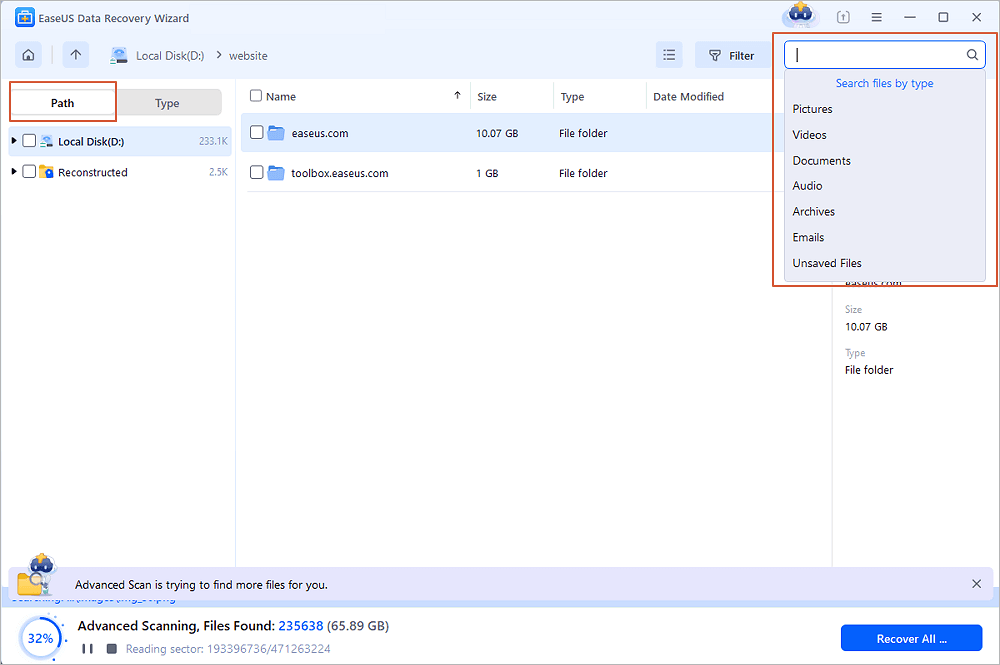
Step 2. Software runs “Quick Scan” and “Deep Scan” automatically. Use the “Filter” option to find files faster.
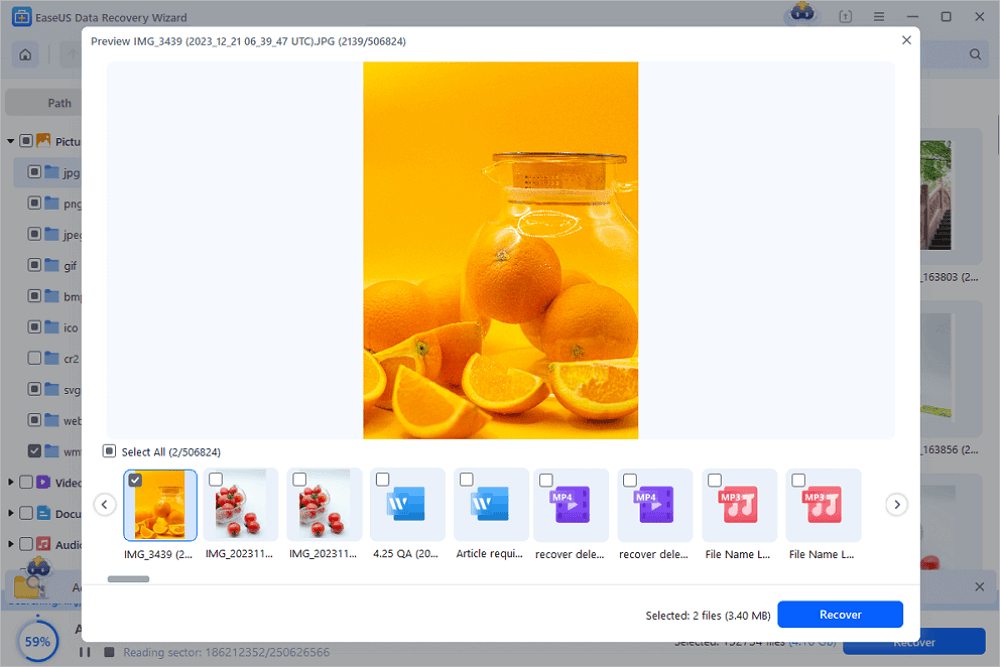
Step 3. Review scan results and preview photographs, videos, documents, and other files before recovery.
Step 4. Select the files you want and click “Recover.” Save the files to a different drive to avoid duplication of data.
Advanced Tips: Can You Fix a RAW Drive Without Software?
Before formatting a RAW partition, attempt these manual repairs. The best solutions for minor corruption, driver conflicts, and wrong disk settings are these.
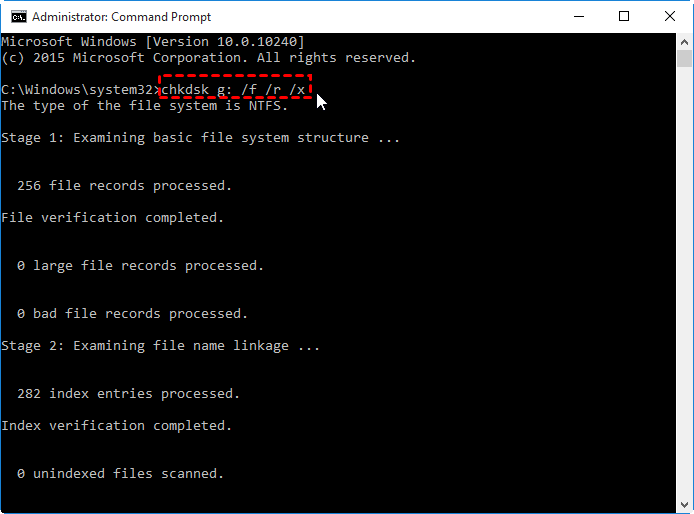
Method A: Use CMD (CHKDSK) to Repair File System Errors
The CHKDSK command fixes logical file system issues and discovers bad sectors. Follow these steps:
Step 1. Press Windows + S, input “cmd,” and select “Run as administrator.”
Step 2. Enter the command below:
“chkdsk f: /f /r /x.”
(Instead of “f”, write your drive letter)
Step 3. Restart your device after the scan to check the drive’s accessibility.
Method B: Update Drivers or Change the Drive Letter
Windows may display a disk as RAW due to obsolete storage drivers or drive letter problems. How to update the driver:
Step 1. Open “Device Manager” with Windows+X.
Step 2. Expand “Disk drives.”
Step 3. Right-click on the faulty drive and choose “Update driver.”
Step 4. Select “Search automatically for drivers.” Once the update is complete, restart your device to check.
Method C: Reassign the Partition in Disk Management
Reassign the drive letter in Windows Disk Management if the partition is healthy but unavailable.
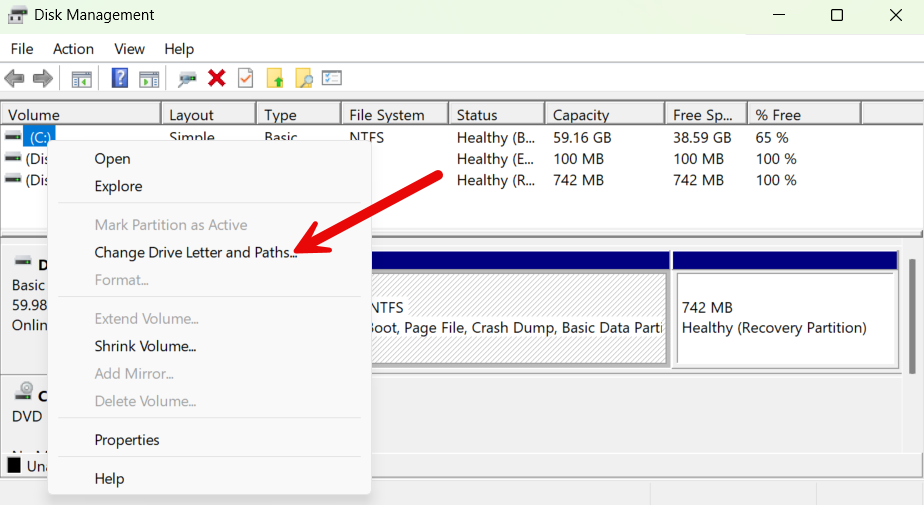
Step 1. Press Windows + X and select “Disk Management.”
Step 2. Locate the RAW drive.
Step 3. Right-click the partition and select “Change Drive Letter and Paths.”
Step 4. Assign a new letter and confirm the changes.
FAQ
Q1: Is RAW drive recovery actually effective?
Yes. Inaccessible RAW partitions can be recovered using modern raw disk recovery programs, especially if the drive has not been formatted or wiped. Deep scan and AI-assisted reconstruction improved recovery in 2026.
Q2: Which free RAW disk recovery program is best?
RAW partition recovery, deep scanning and file preview make EaseUS Data Recovery Wizard Free one of the best free solutions.
Q3: Can I convert RAW to NTFS without losing data?
Recover files via raw hard drive recovery. Format the RAW partition to NTFS in Disk Management, then restore the recovered data following data security.
Conclusion
RAW drive data loss is challenging but data recovery software can help. This article lists the finest RAW drive data recovery software to assist you in choosing and recovering your lost data. Back up files often to avoid data loss. EaseUS Data Recovery Wizard is the finest raw drive recovery program in 2026, owing to its ease of use, high recovery rate, and compatibility with the latest storage systems.