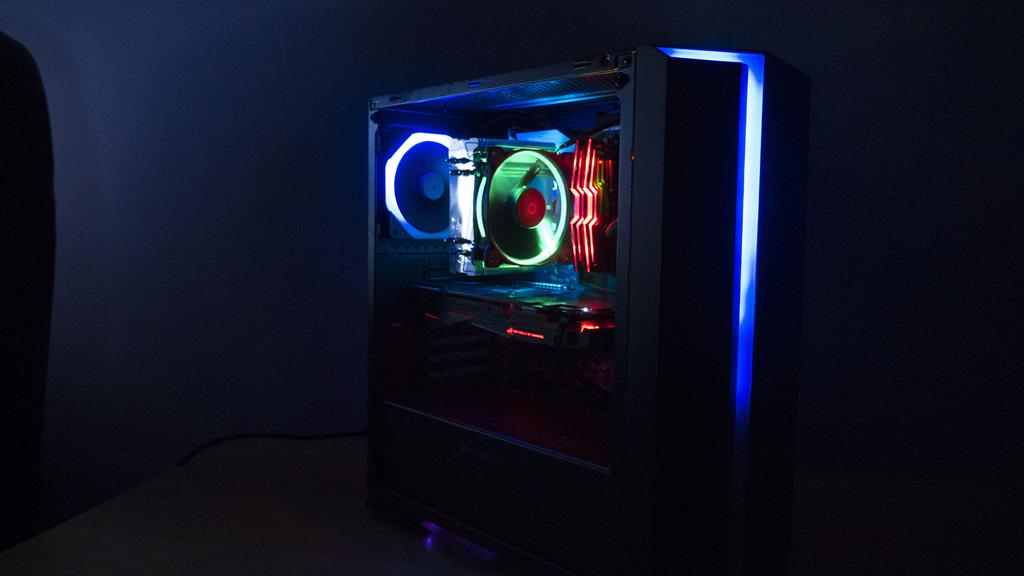
















GL.iNet Flint 3 – Wifi 7 Router Review. Bringing powerful OpenWRT firmware together with the latest WiFi standards

EnosTech Verdict
The GL.iNet Flint 3 router is their first home router to come with the latest in WiFi 7 technology. They recently released the Slate 7, which was their first travel router to feature WiFi 7, but now they’ve bought out something for home, and boy, is it a beast of a router. It looks and plays the part very well indeed.
Featuring tri-band support across the 2.4GHz, 5GHz, and 6GHz spectrum and with speeds of up to 9300Mbps (688Mbps on 2.4GHz, 2882Mbps on 5GHz, and up to 5765Mbps on 6GHz), this router is more than going to be able to serve you both at home and at the office. It also features MLO for WiFi 7 devices (basically, your device can connect to multiple Wi-Fi bands at the same time, thus improving throughput and speed over WiFi). All of the Ethernet ports are 2.5GbE, which further future-proofs the needs of your network. Well, at least until 10Gig becomes the standard, but don’t panic, we are a while away from that yet.
Pro’s:
- All ports are 2.5GbE
- WiFi 7
- Based on OpenWRT Snapshot v23
- Future proof
- More features than you can shake a stick at
- User-friendly (but also has LuCI support should you need it)
- Tri-Band support
Con’s:
- Qualcomm SoC/Chipset – Not ideal for native OpenWRT firmware
- Slower Wireguard performance than its predecessor

GL.iNet Flint 3 – Manufacturer’s Video
Pricing
If you missed the early bird offers, the router is currently retailing for £156.70 on Amazon UK and for $189.90 on Amazon US. Now, to be honest, this isn’t bad considering some of your off-the-shelf router manufacturers are easily charging double, if not more, for WiFi 7 with fewer features. So I feel GL.iNet has come in at a sensible level here. Of course, the Flint and Flint 2 are still available if the Flint 3 is just out of your price range.
Specification
| Interface | 1x 2.5GbE WAN Ethernet Port 4 x 2.5GbE LAN Ethernet Ports (one of the LAN ports can be reconfigured as an additional WAN port for failover/redundancy) 1x USB 3.0 Port 1x Reset Button |
| CPU | Qualcomm Quad-core @1.5GHz |
| RAM / Storage | DDR4 1GB / eMMC 8GB |
| Protocol | IEEE 802.11a/b/g/n/ac/ax/be |
| WiFi Speed | 688Mbps (2.4GHz), 2882Mbps (5GHz), 5765Mbps (6GHz) |
| Antennas | 4 x Foldable External Wi-Fi Antennas |
| Ethernet Speed | 10/100/1000/2500Mbps |
| Power Input | DC5521, 12V/4A (5.5 x 2.1mm) |
| Power Consumption | 25W without USB, 37.2W with USB |
| Operating Temperature | 0 ~ 40°C (32 ~ 104°F) |
| Dimension / Weight | 240 x 157 x 74 mm / 848g |
A Closer Look

Looking at the front of the packaging, once again GL.iNet has gone for a sleek look with the Black and White theming. There’s also some nice Purple and a nice illustration of what the router looks like. Most of their packaging is clean and not overwhelming, and the Flint 3 is no different here. Excuse the box being a little battered at the bottom, I think overzealous couriers have been handling it.
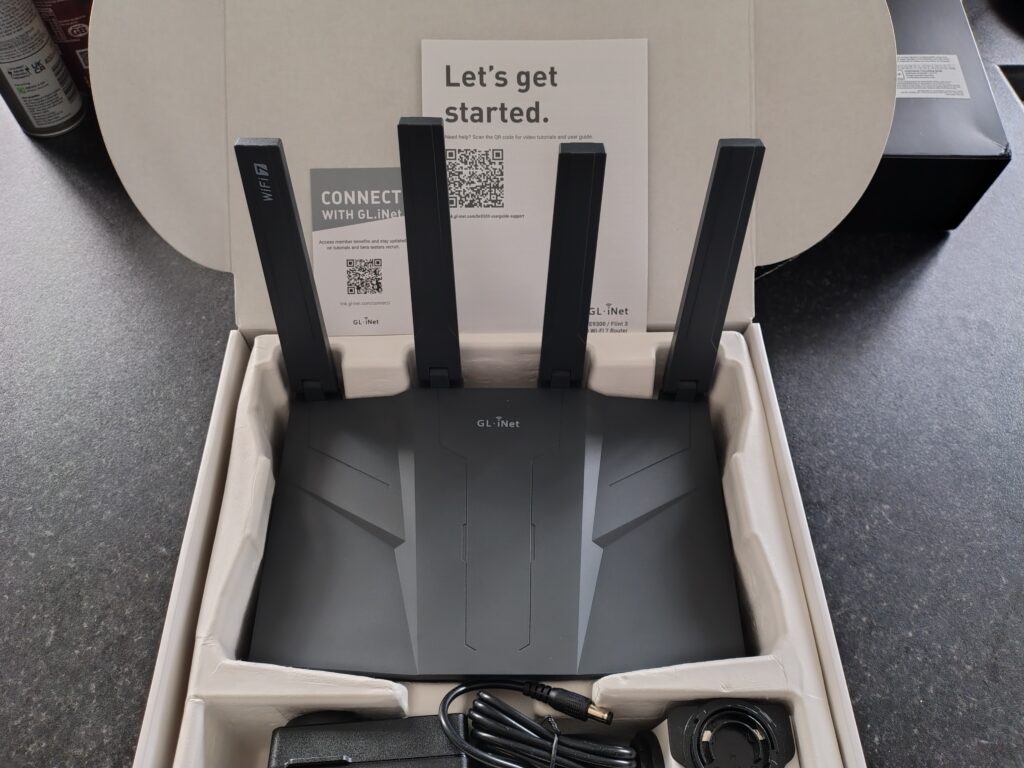
Opening up the box, you can see the router, plug, and adapters, as well as the get started guide and an opportunity to connect and register with their community. One thing I like about GL.iNet is that they are always welcoming feedback and design ideas, and often encourage users to try and participate in their beta program.
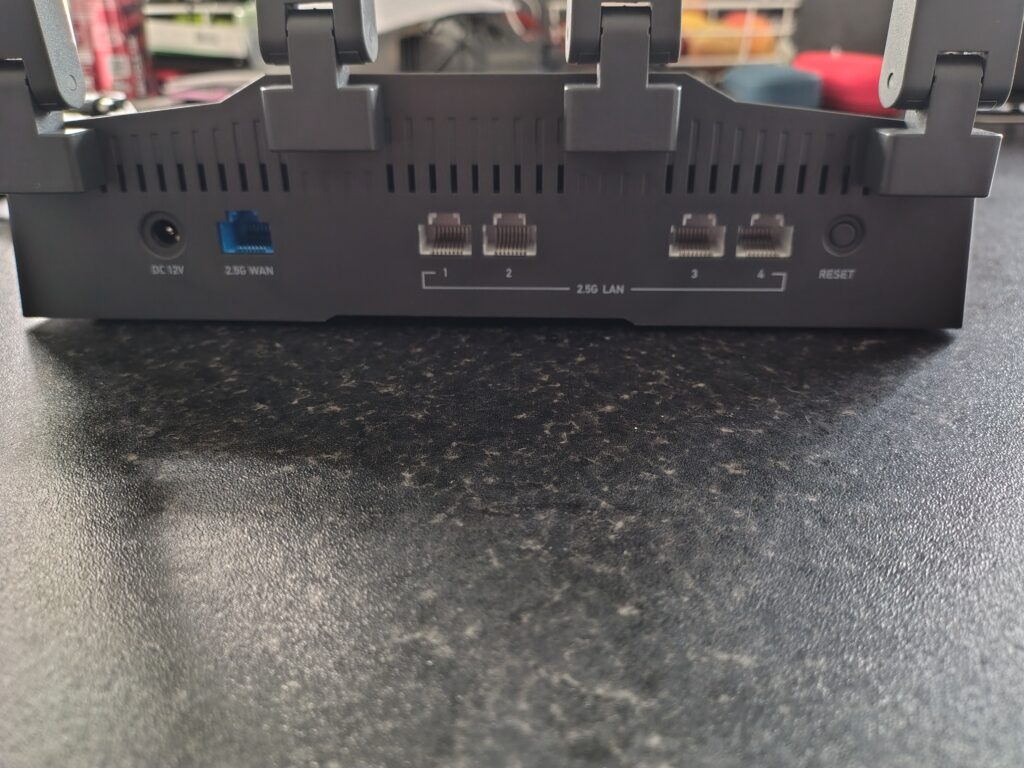
As you can see, the Flint 3 is a chunky piece of equipment. All the ports are nicely labelled, and the WAN port is coloured Blue. The router has sufficient ventilation to help keep it cool, but yeah, it’s a combination of bulky but still aesthetically pleasing.
Initial Set Up and Features
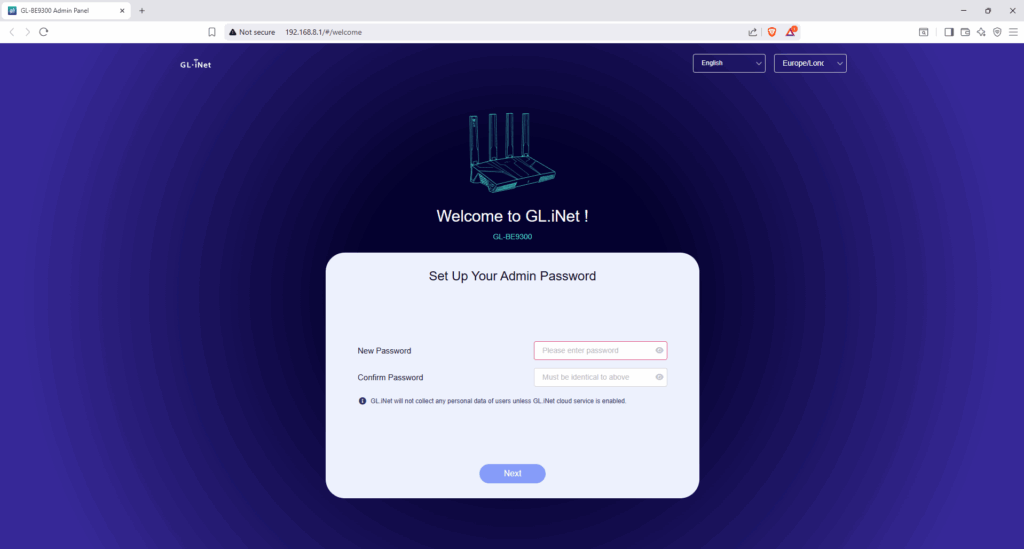
When you first power on the Flint 3, you should ideally go to its web interface and configure things from there. By default, GL.iNet routers usually use a default IP of https://192.168.8.1; you can change this down the line if needed. The first thing you should do is change the admin password to help make things nice and secure.
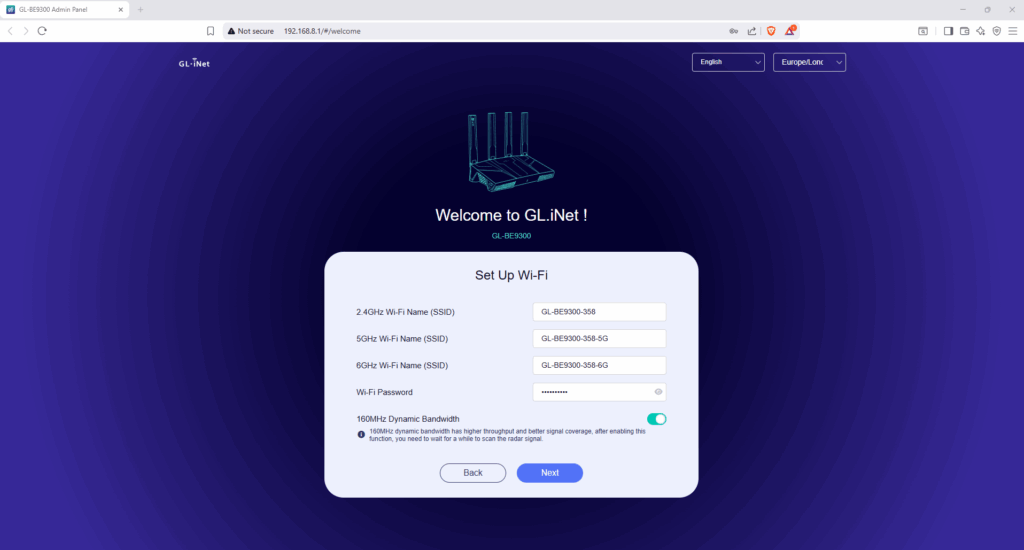
The next step is to configure the SSID/WiFi network name. Generally, best practice is to separate the bands into different names. However, I generally combine them all under the same name. This isn’t a problem if you wish to do the same. You also have the option to enable 160Mhz bandwidth. It pretty much does what it says on the tin. You may just need to wait a minute or two before connecting devices for the relevant channel scans to complete.
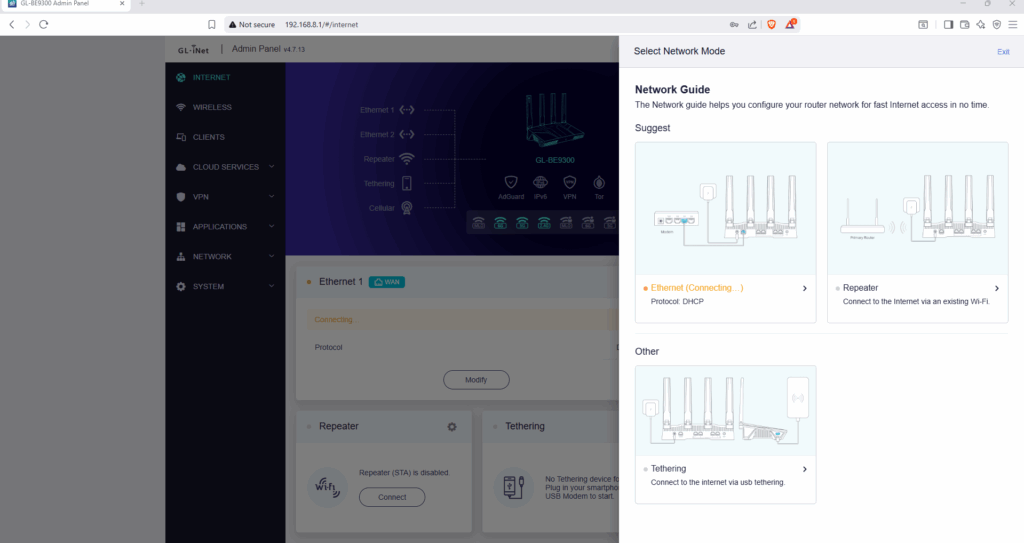
Now, a menu will pop up asking how you need to configure the device. I have an FTTP (Fibre to the property connection) and already know my settings, so I just clicked exit on this and then proceeded to configure the device manually. But you can see how user-friendly GL.iNet is making OpenWRT. This is awesome, not so long ago, you needed a fair bit of technical know-how to set up an OpenWRT device, but not anymore. It’s almost plug-and-play like any other router. If you have a true full fibre service, then you just need to know your broadband login/account details. But apart from that, it should be pretty straightforward.
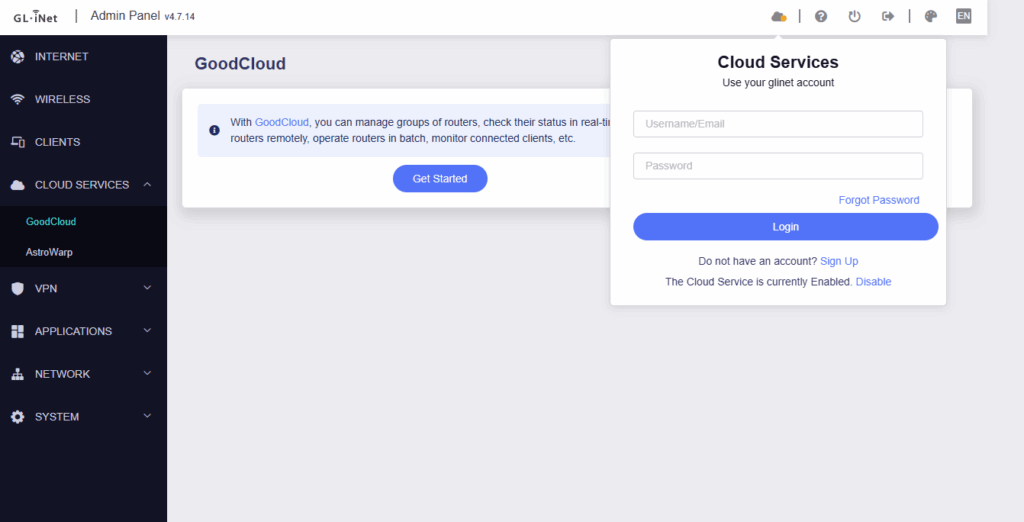
Good to see the Flint 3 supports GoodCloud. I haven’t personally experimented with this yet. But it allows you to manage multiple GL.iNet routers over their cloud-based service. Great if you have a bunch of users with travel routers, or routers located in different buildings. Allows them to be remotely managed.
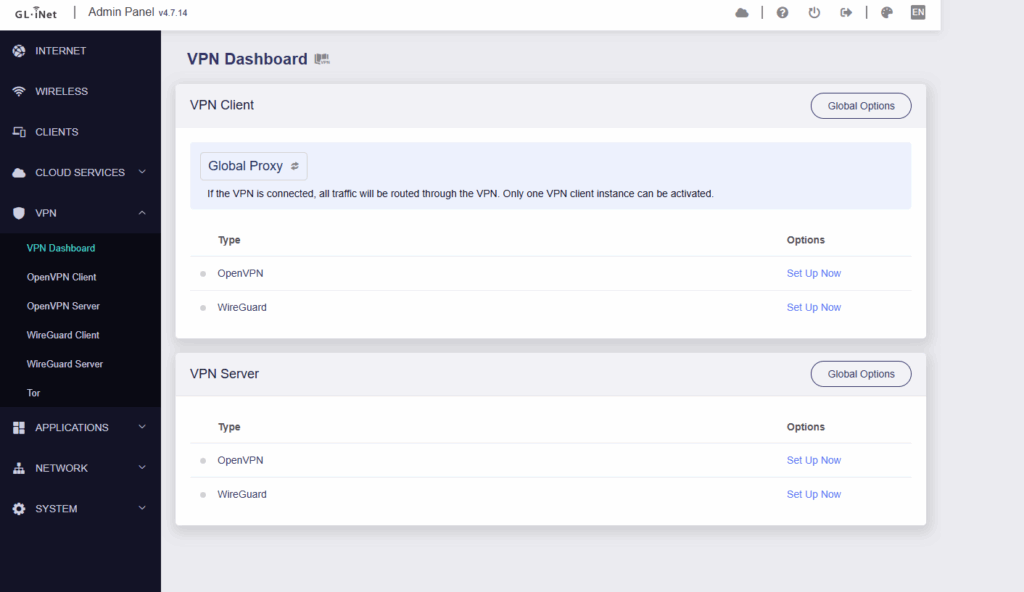
Of course, the Flint 3 allows you to set up a VPN. You can set up either a client (to route all your devices through an existing VPN connection). Or you can set up a server to connect to remotely. You have the option of OpenVPN, or WireGuard software to configure. Now WireGuard is the faster option; however, the Flint 3 has received some criticism as WireGuard’s performance is slower than on the Flint 3 than on the Flint 2. You can also set up Tor connectivity if this is more your thing.
| Model: | Maximum WireGuard Speed | Maximum OpenVPN Speed |
| Flint 2 | Up to 900Mbps | Up to 190Mbps |
| Flint 3 | Up to 644Mbps | Up to 142Mbps |
Now in this case, the Flint 2 uses a widely more supported chipset (MediaTek Filogic 830) but is a WiFi 6 device, whereas the Flint 3 uses a Qualcomm chipset to give WiFi 7 and 2.5GbE ethernet ports. So you have the choice whether you want the latest technology, but compromise on VPN quality. Or whether you want to stick with the previous generation device and have a much more widely supported device when it comes to OpenWRT. It’s caused a bit of controversy in the GL.iNet community. What do you think? We’d be interested to hear your comments and thoughts.
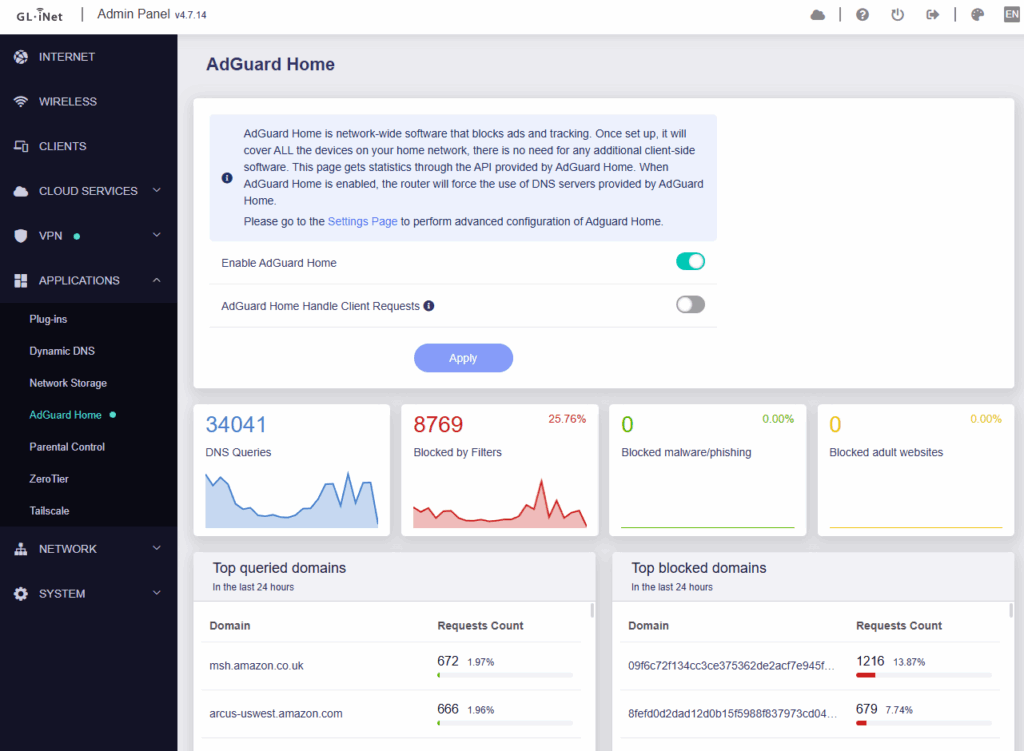
Another great feature is the inclusion of AdGuard Home. We’ve seen this before on previous GL.iNet models, but I just wanted to touch on it again. AdGuard Home can be used to block browser advertisements and various telemetry/tracking by using blacklists. I always opt to have this set up. As you can see on my network, it’s blocked 25% of traffic, which it believes are advertisements, or services trying to track usage. Granted, it won’t block everything, but 25% is a considerable amount of traffic going on. There’s money to be made from all these services, harvesting and selling data (think streaming services, smart home devices, and phones, tablets, etc, always phoning home). I always advocate setting this up. Or if you have a spare Raspberry Pi lying around, this or Pi-hole. Whichever you prefer the most. Not many router manufacturers offer this yet, so it’s great to see Gl.iNet continue to provide it by default.
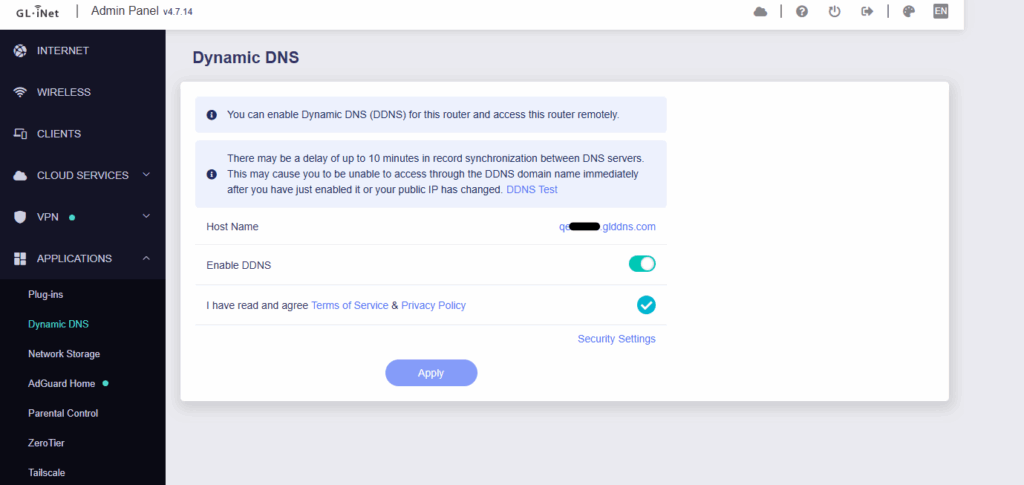
One thing that does frustrate me slightly, if you rely on a Dynamic DNS service, out of the box, you can only configure GL.iNet’s own DDNS service. I get it, it’s far easier to tie everything into the GL.iNet ecosystem this way; however, even supporting something like DuckDNS would be a huge win for me. Now, there are ways around this if you know your way around LuCI and OpenWRT. But it would be nice to have this offered by default, rather than be forced to use GL.iNet’s service only.
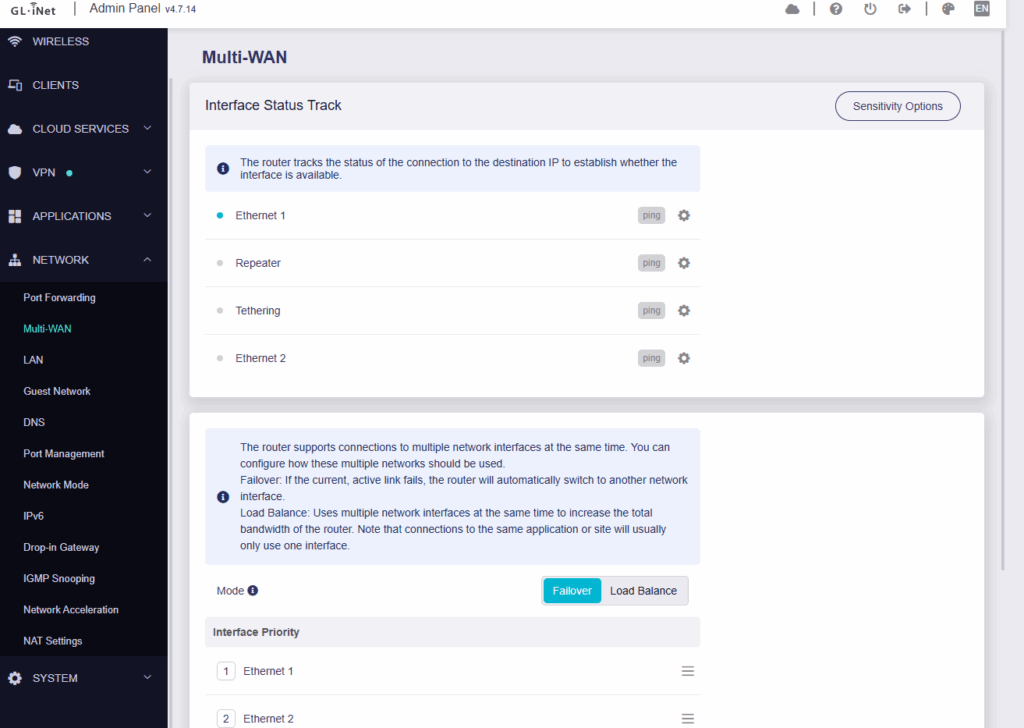
Another nice feature I wanted to highlight was the ability to set up Multi-WAN or Failover connectivity. Picture your home internet having an outage. You can pre-set up a secondary connection to failover, too (say you have a primary and secondary connection available). If the first connection goes offline, the router can be configured to automatically fail over to the secondary connection. Alternatively, you could tether a mobile phone as a backup connection and allow the router to use this temporarily. You can also load balance between your primary and secondary connections.
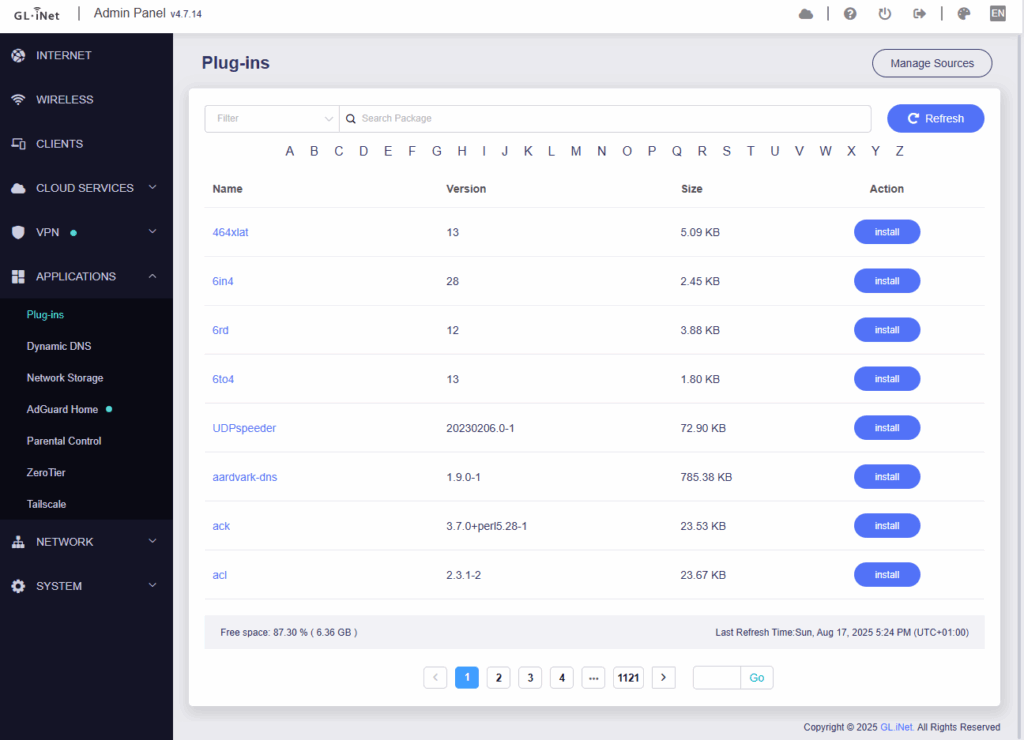
Of course, if you are an OpenWRT power user, you have the option to install lots of 3rd party apps, or packages as they are called. The 8GB storage is ample enough to install a few extra features should you need them.
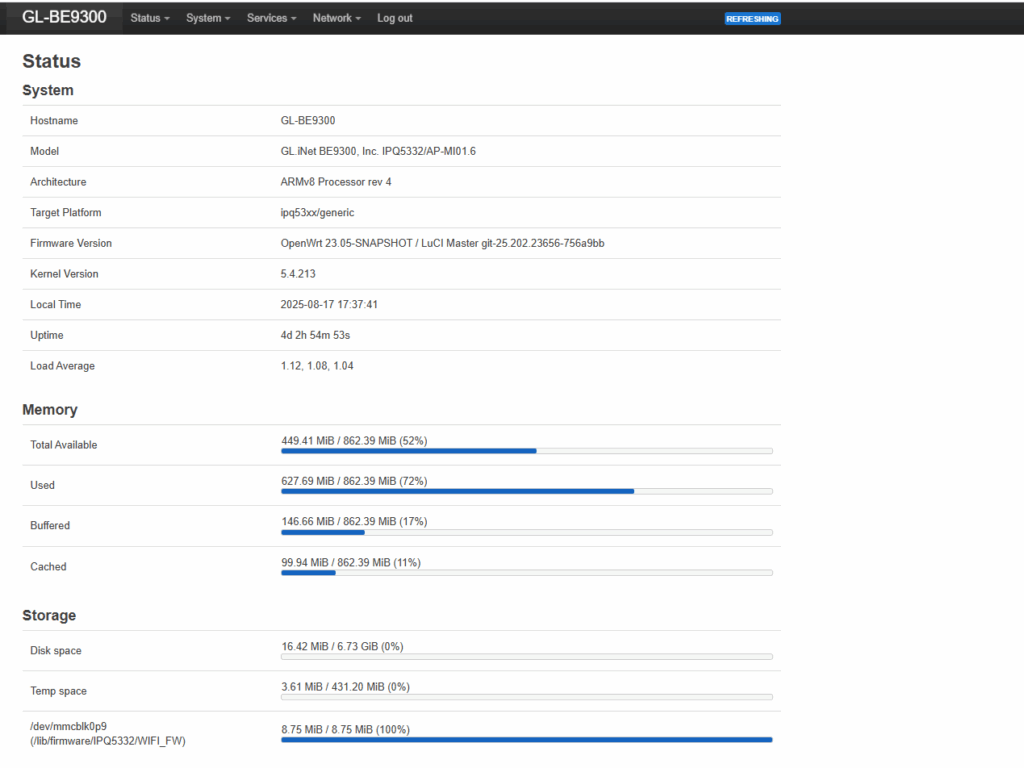
As I mentioned earlier, full LuCi backend support is available for these routers too. Amazing if you do need to delve in and make significant changes. Just be careful, though, as you could end up needing to perform a factory reset if something goes wrong or you apply a firmware update. But it’s so awesome to have the ability to delve right in and really customise the router according to your needs.
Wired and WiFi Performance
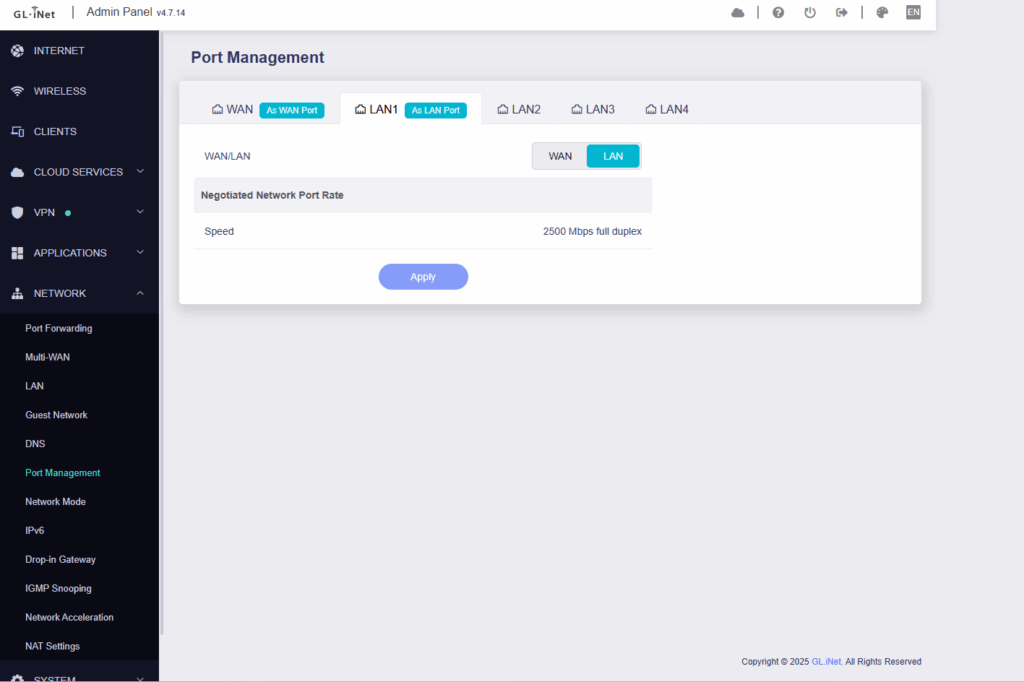
At home, I run a 2.5GbE wired network, and on the first port is a 2.5GbE unmanaged switch. The router has detected this and set the port speed accordingly. You can cycle through the different ports up the top and keep an eye on speeds just to make sure everything is running as it should.
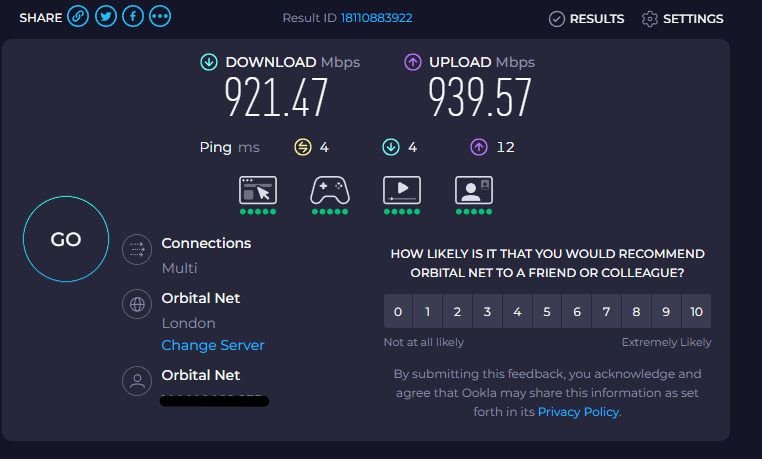
Over a few days, I ran multiple speed tests from a wired connection, and every single time the result was flawless. I have a symmetrical 900/900 fibre service, so the router isn’t going to have a problem with those kinds of speeds (or higher in some cases). If you’re testing your own connection, then it’s always best to perform those tests while hard-wired into the router.
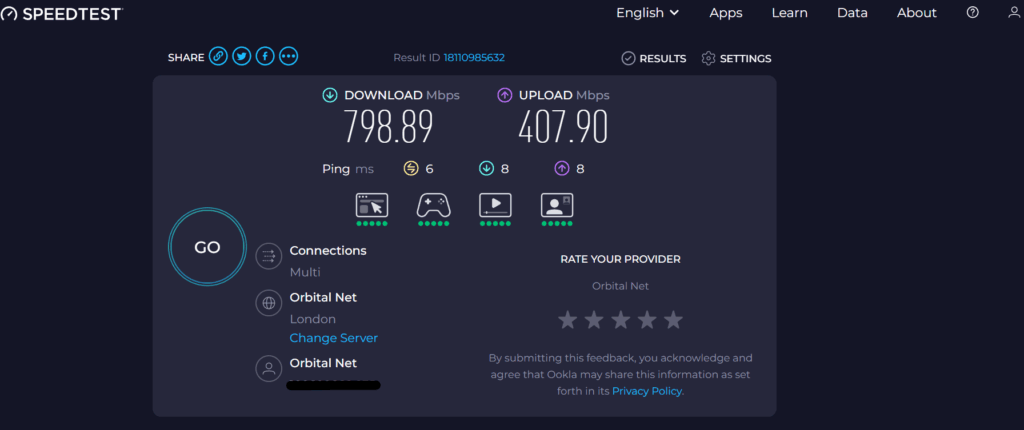
Now, unfortunately, my WiFi 7 adapter was being more stubborn than a government mule and kept reverting back to WiFi 6. So whilst I investigate and potentially replace that, I’ve done some tests using a WiFi 6 adapter. My broadband connection and the router terminate upstairs, so this was taken in the bedroom opposite, about 10 feet away. Such an amazing result.
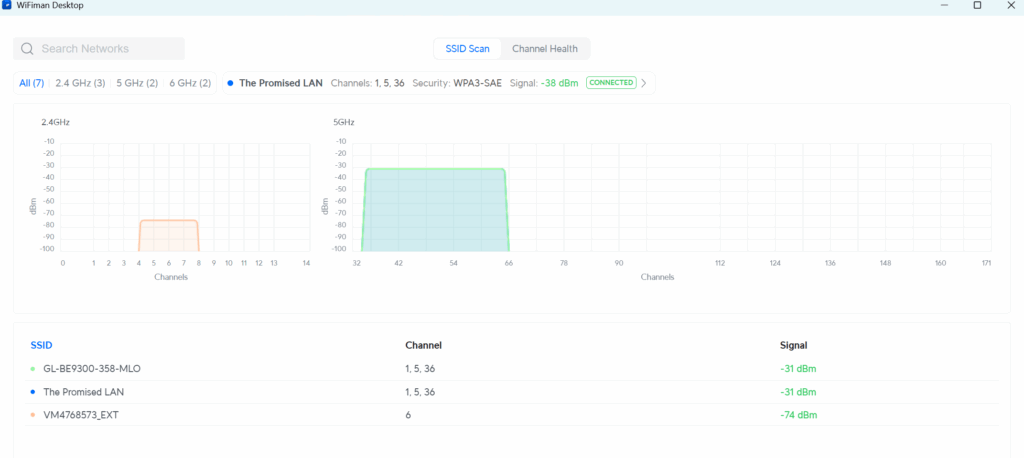
I like to use Ubiquiti’s WifiMan to monitor signal strength and channel congestion. Purely because it displays the result in a nice user user-friendly manner. Between -30 to -50dBm is a perfectly acceptable result, and as you can see from 10 feet away, I was getting an awesome -31dBm.
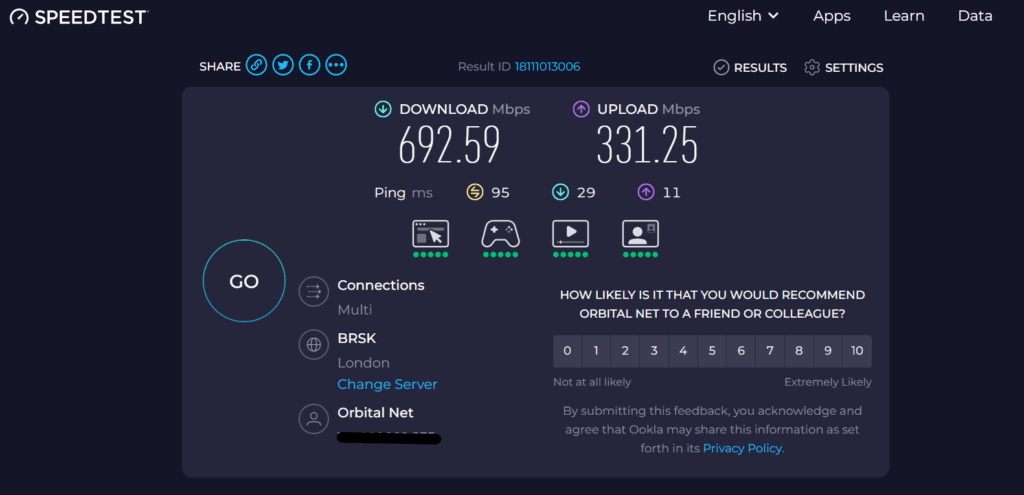
Now remember, earlier I said my router is upstairs. A WiFi router will normally penetrate outwards and upwards from the antenna. Bear in mind, I am now sitting downstairs, directly under the router. That’s still an amazing result. In fact, that’s some of the fastest results I’ve been able to achieve over WiFi. I think if my WiFI 7 adapter had been working correctly, I potentially would have gotten an even more impressive result. But regardless, you can see a massive improvement even with just WiFi 6.
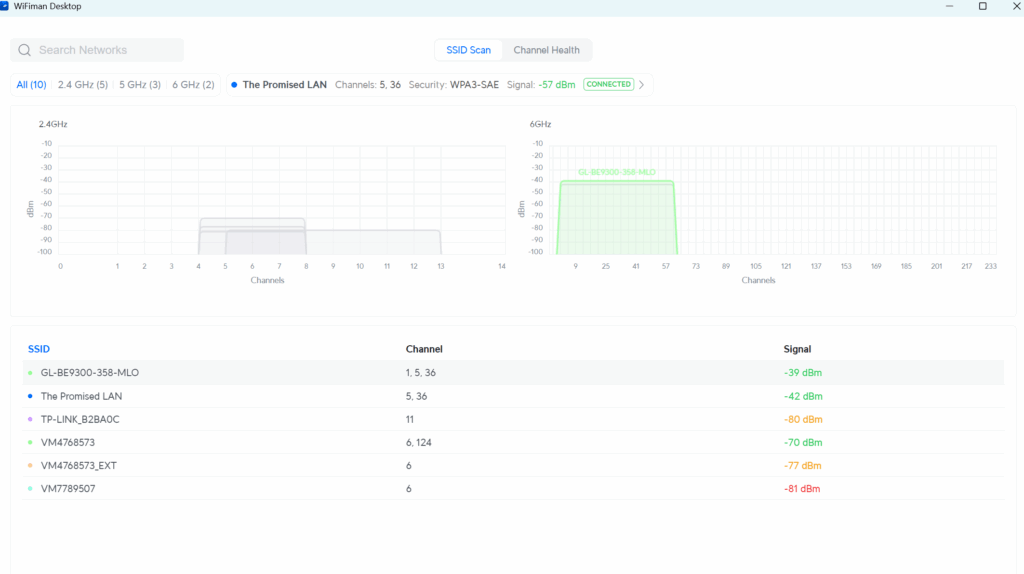
Another WiFiMan scan and even directly underneath the router, it’s still coming in at a nice and clean -39dBm. I’m more than happy with that. My previous setup consisted of 2x TP-Link AX55 in an EasyMesh configuration didn’t even come close to these results.
Final Words
So, from a value for money and feature set perspective, this is an incredible router for home or work. The Qualcomm chipset is a bit of a questionable choice, given that other routers with Qualcomm chipsets are often not well supported or developed on by the OpenWRT community due to difficulties around the QSDK. This can make true OpenWRT support more difficult as it complicates development. There are some Qualcomm devices where OpenWRT works, though.
Whereas the Flint 2 is fully supported by the OpenWRT community, meaning you can flash vanilla OpenWRT onto it. It’s going to be interesting to see what happens with the Flint 3 long term and whether the community will be able to make the Flint 3 as awesome and as well respected as the Flint 2. I think it will be hindered somewhat by the chipset, but we will see. For a WiFI 7 and 2.5GbE device, though, you really won’t get much better at the moment for all the features that the Flint 3 offers. Don’t get me wrong, the GL.iNet fork of OpenWRT is incredibly friendly and easy to use. But some power users prefer the native builds of OpenWRT
AdGuard Home, Failover, Multiple VPN support, USB Tethering, WiFi 7 with MLO, 2.5GbE, custom packages, parental controls, it’s almost impossible to go through everything in one review, but there are so many features that the Flint 3 and Gl.iNet range of routers offer, they really are becoming a serious contender in the home networking industry. Their continued innovation makes a change to the standard off-the-shelf manufacturers, and those companies could certainly learn a thing or two from GL.iNet and the OpenWRT community.
But yeah, if you want a decent WiFi 7 and 2.5GbE device, then we’d recommend purchasing the GL.iNet Flint 3. Alternatively, the Flint 2 is still a viable contender if you aren’t quite ready for WiFi 7 yet.