














TerraMaster F4-425 NAS Storage Review

With so much going on behind the scenes, it was absolutely amazing of TeraaMaster to send us one of its F4-425 4-Bay NAS devices. This is going to let us back up and store all our photos, videos, and even keep website backups on our local server. While I do love some good cloud storage, it isn’t always needed, and sometimes it is just nice to have everything on a local drive. The F4-425 is so simple and easy to use that anyone can do it, and best of all, it connects to all our PCs, laptops, and phones at home, so I can make sure everyone’s devices are backed up.
The F4-425 is a decently priced 4-bay NAS, and while it doesn’t come with hard drives, you can use almost any standard hard drive you wish. Setup is easy and can be completed within minutes of plugging it in and turning it on. There are loads of options from auto-backup across multiple devices and plenty of secondary apps you can use to turn it into a media server and more. If you don’t have a NAS device in your office or home, it may be time to seriously consider one like the F4-425!
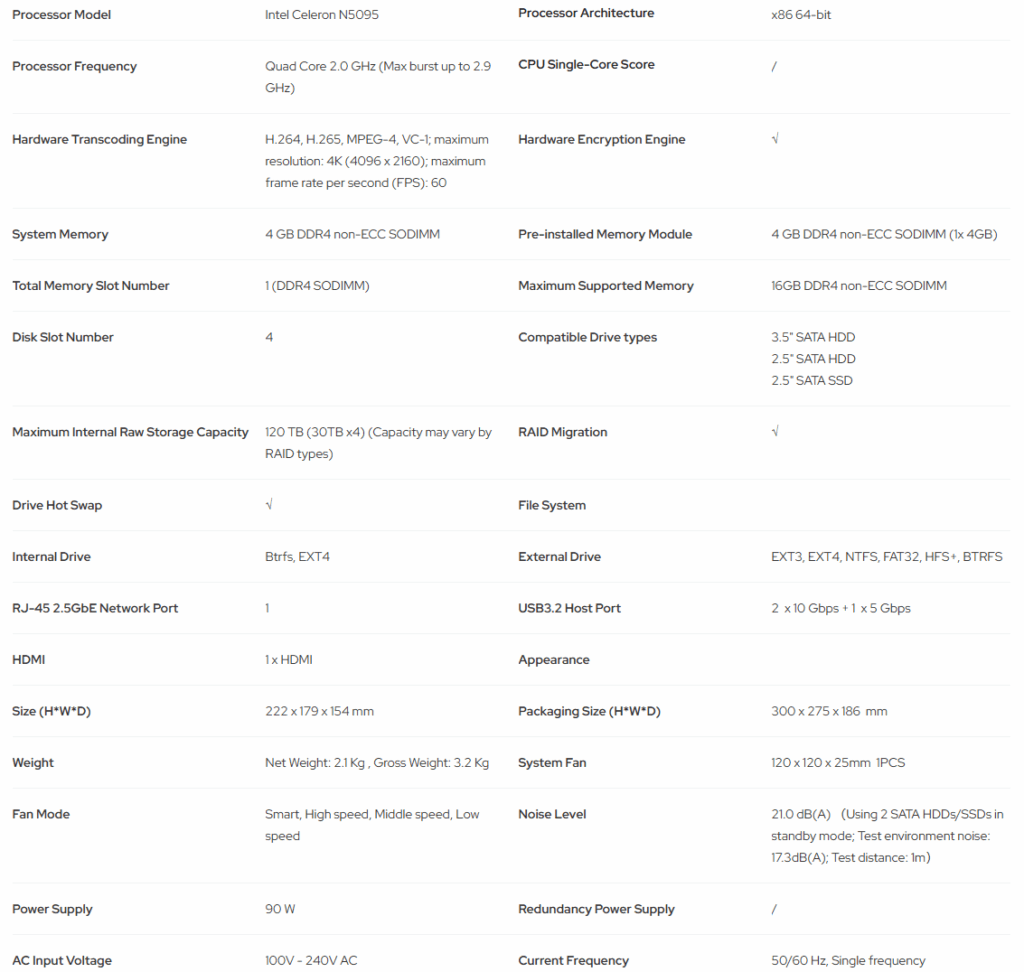
Specification
Closer Look
For those of you worried about items getting damaged during transit, worry not. TerraMaster has made sure that the F4-425 is nicely packed in its box using foam padding, and even covering the NAS itself to protect from any unwanted scratchs and marks.
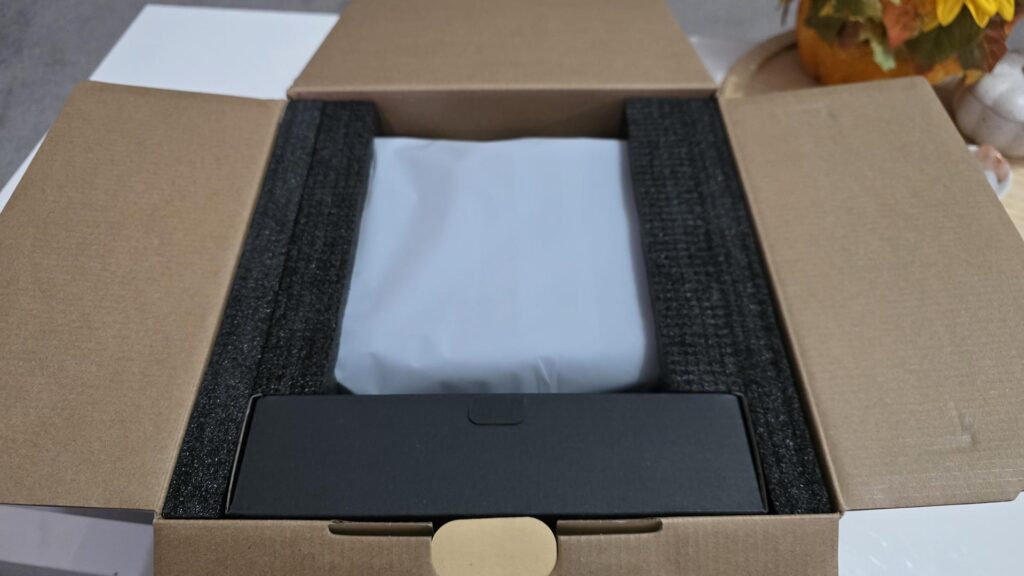
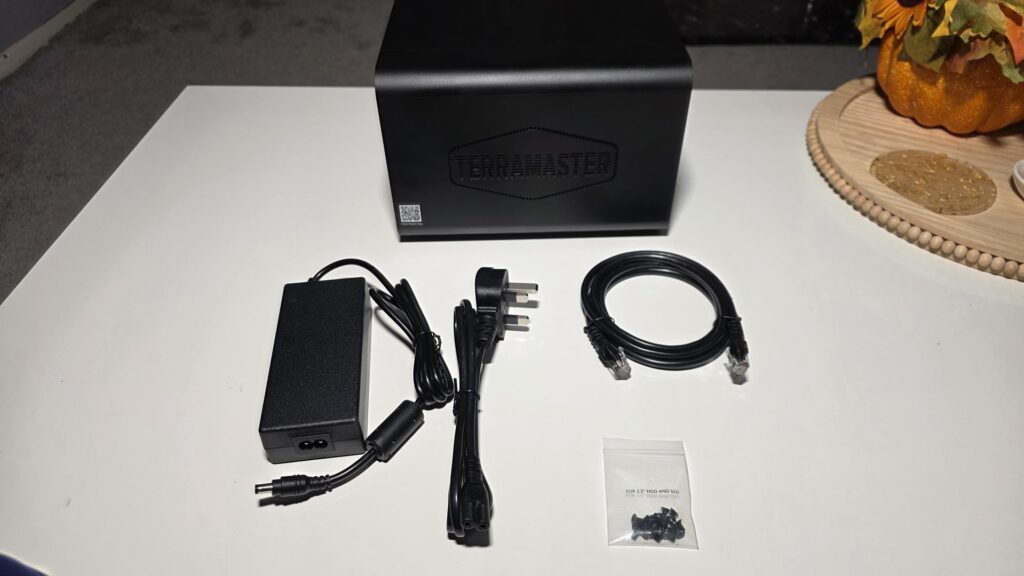
Getting everything out of the box, and we have the F4-425 NAS itself, the power and ethernet cables, and a pack of screws which will be used to install hard drives into the drive bays.
The F4-425 is all black, with minimal branding, and shouldn’t draw too much attention to itself. It is here to do a job and not be flashy like we see with a lot of gaming PCs. At the same time, it will fit in well and not cause any eye sore wherever you decide to put it.
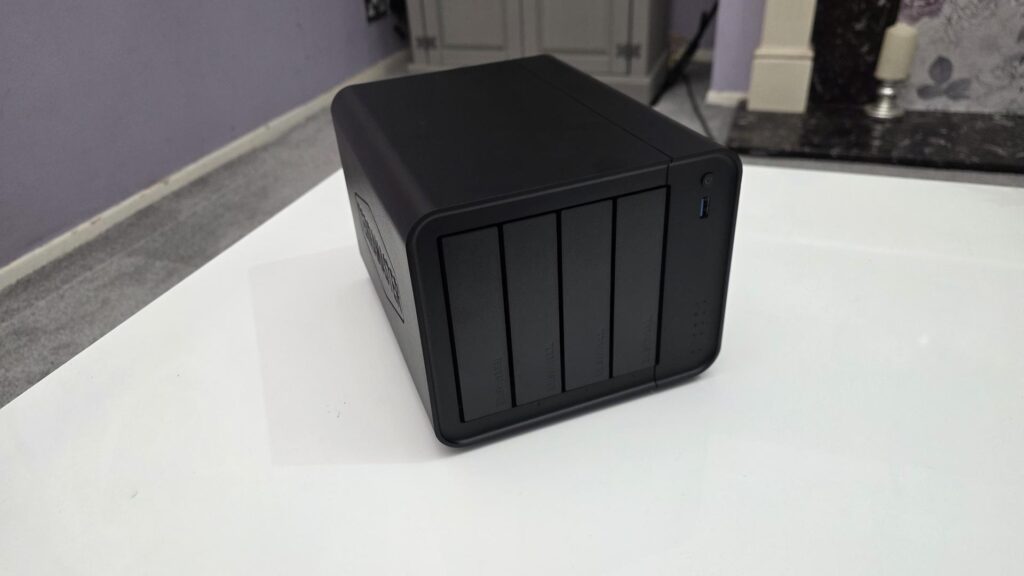
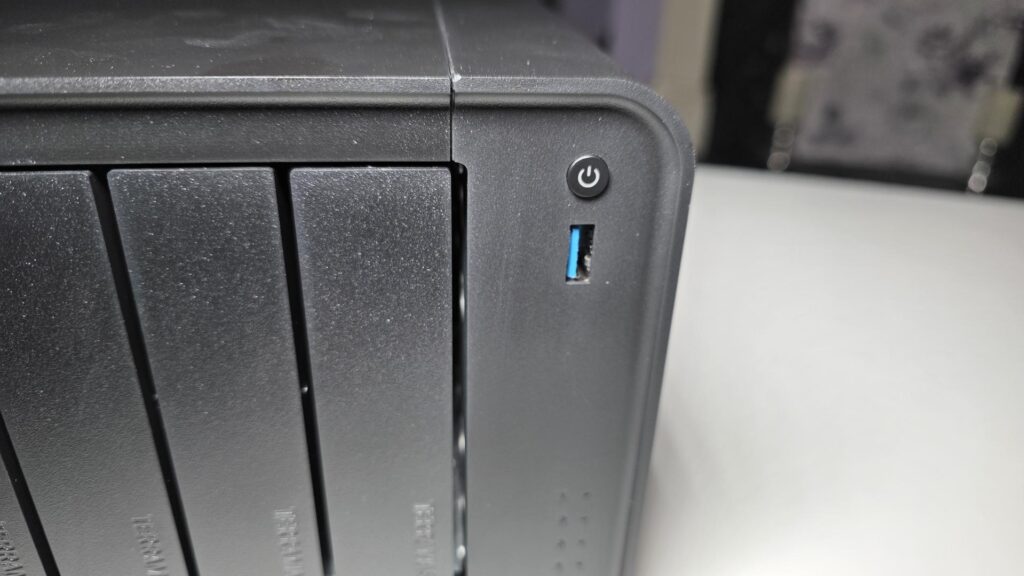
On the front of the NAS, to the right of the bay drives, you will find a power button and a USB 3.2 10Gbps port for easy access. There are two more USB ports on the backside which we will look at in a moment.
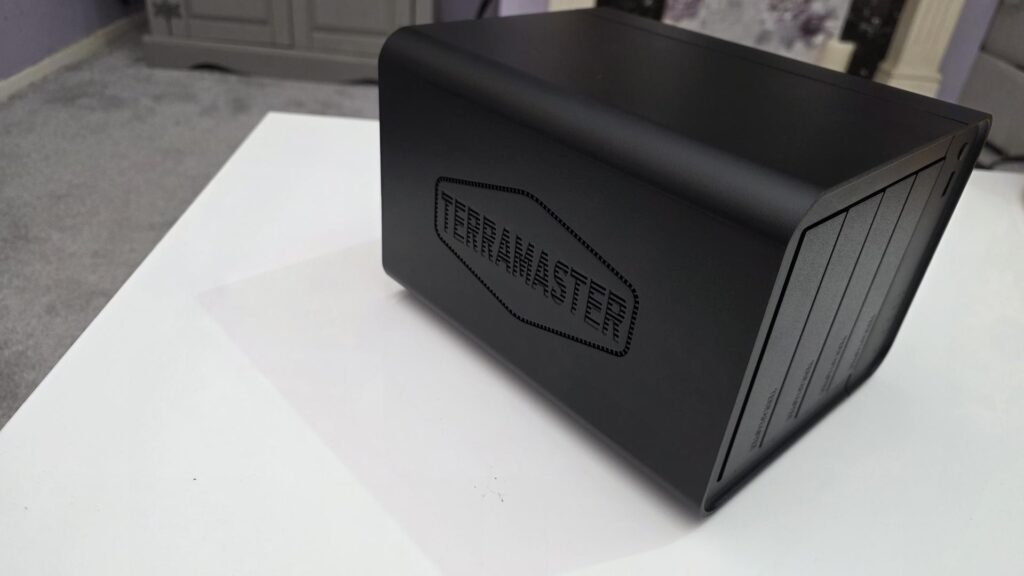
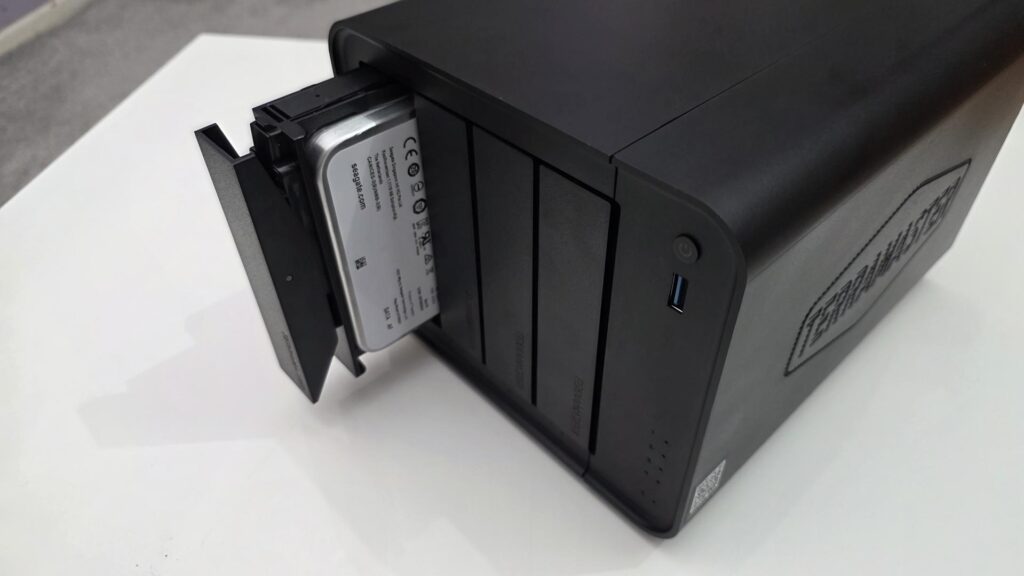
On the side is a TERRAMASTER logo, and while big, it is engraved into the casing, so while it can be seen, it doesn’t really stand out too much.
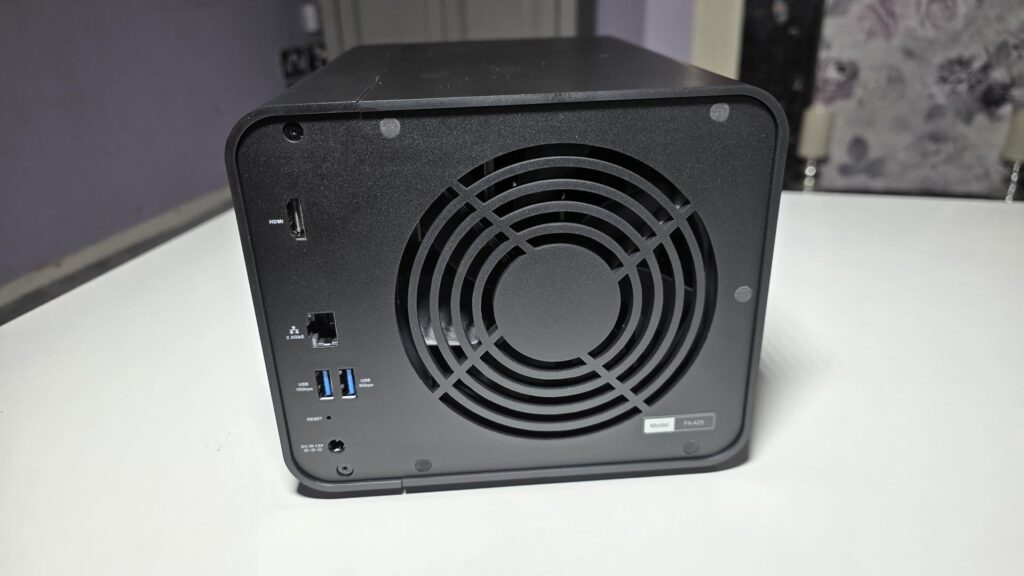
On the back side, we can see the cutout for the fan. The fan isn’t overly loud and really shouldn’t cause any noise pollution, even if the NAS is set up close to you.
The following ports can be seen:
1x HDMI
1x USB 3.2 10 Gbps
1x USB 3.2 5Gbps
1x 2.5GbE Network port
Reset button
DC input
TerraMaster has kept things nice and simple; while there may not be an abundance of ports here, you really shouldn’t need them with a standard NAS such as the F4-425.
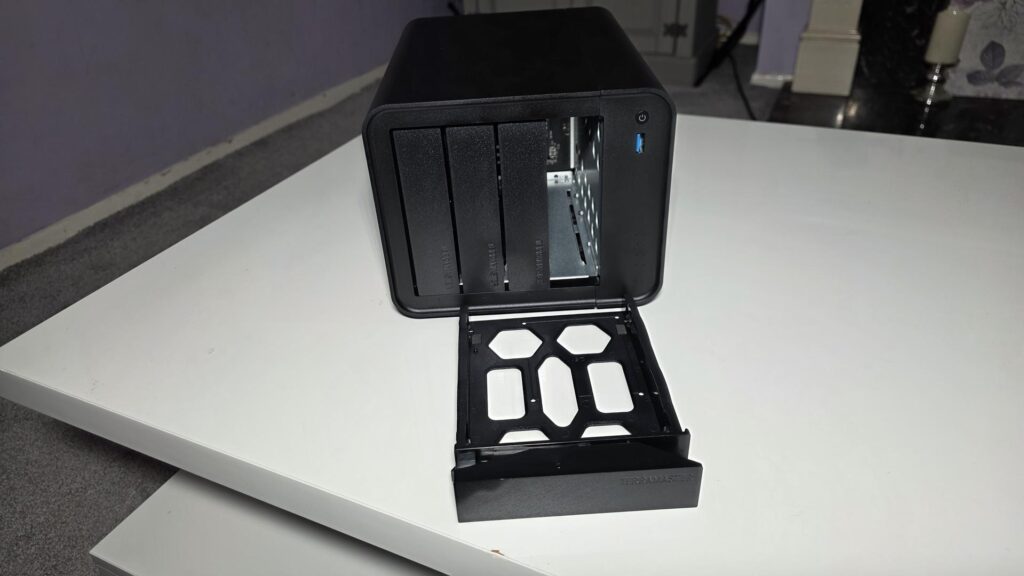
The drive bays are easy to remove. To do so, you just push the top of the bay you wish to take out; it will then allow you access to get your finger under the bottom, and it pulls out quite easily. Reinserting them is just as easy, but make sure to push the bay all the way in when doing so.
Inserting your hard drive into the drive bay is as easy as can be. If you are using a 3.5″ hard drive, there is no need for tools or screws. There are plastic arms on each side of the drive bay. Simply remove those, insert your hard drive, and then reattach the arms. Your drive will be securely in place in the bay. Of course, you will need to align the arms with the holes on the side of the hard drive, but this is quite easy and won’t take any time at all.
The F4-425 can manage up to 4x 30TB hard drives for a total of 120TB of space!
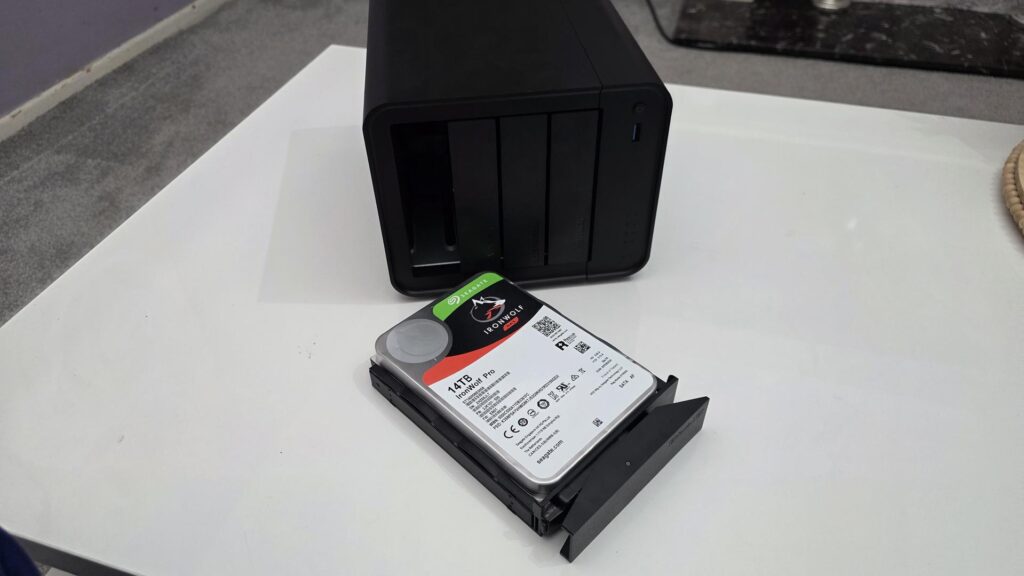
Once the drive is in the bay, simply insert the bay back into the NAS, and you will be good to go.
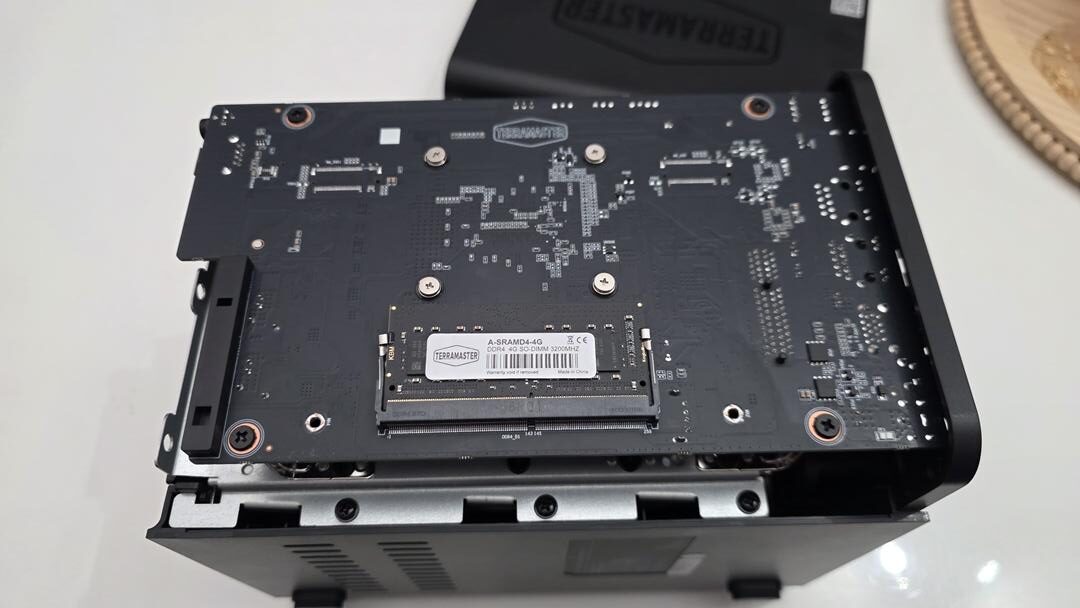
The F4-425 NAS comes with 4GB of 3200 MHz (MT/s) DDR4 laptop RAM as standard. This can easily be upgraded and only requires the removal of a few screws to get the cover off to allow you access. Depending on your use case, you may not need to upgrade the RAM. I know 4GB may not seem like a lot, but in our testing, it has been more than sufficient.
Software
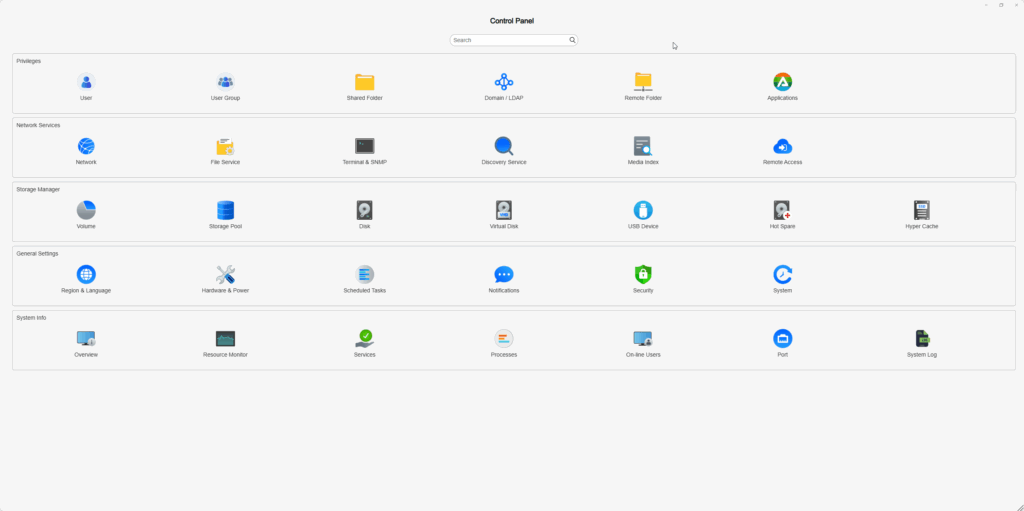
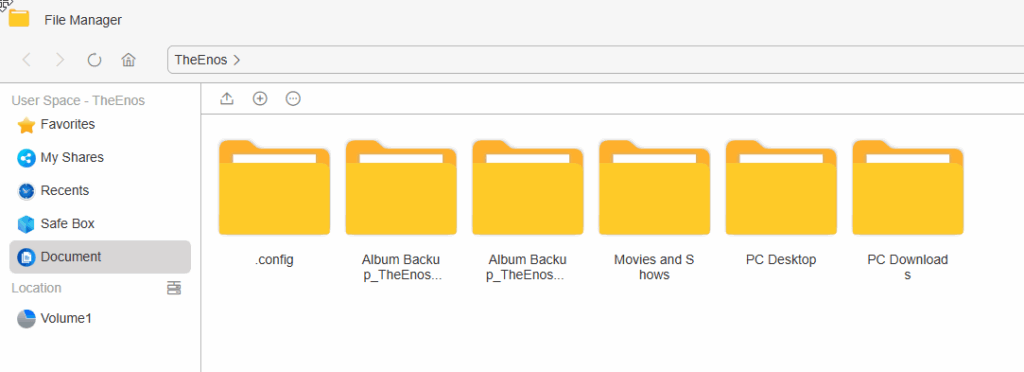
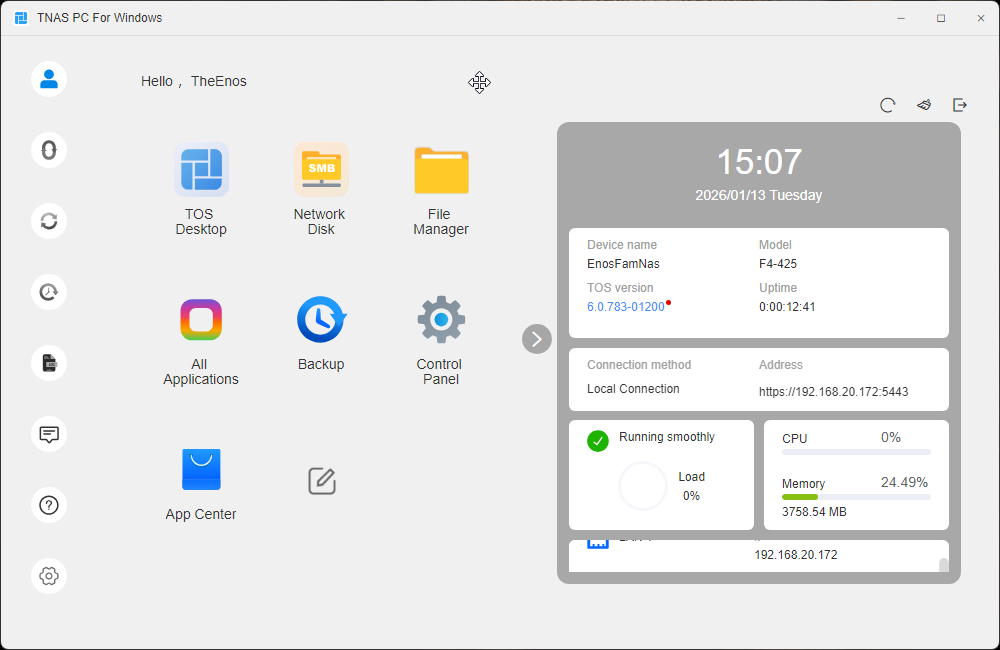
The TNAS software is very easy to use on both a mobile or PC. Just make sure you are on the same network as the NAS, and it should find it automatically. The video below is just a quick look around the mobile app so you can get a first-hand look at some of the features it has to offer.
You can set up auto backup so anytime you connect to wifi, your phone will automatically back up your photos or videos. You can set up smart photo management, favorites, and you can choose to view your files, but type if you’d like.
The TNAS app is available on Mobile, Windows, Linux, and Mac, so almost anyone can make use of it.
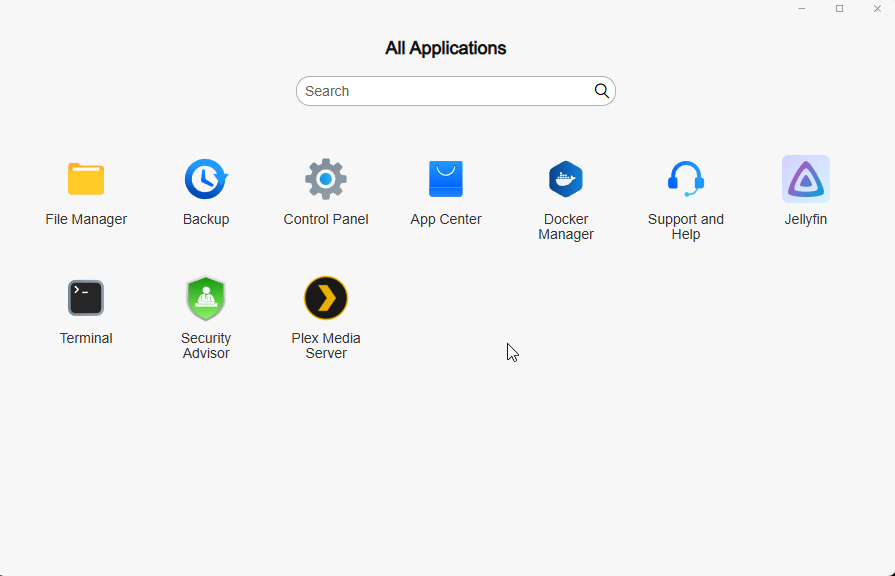
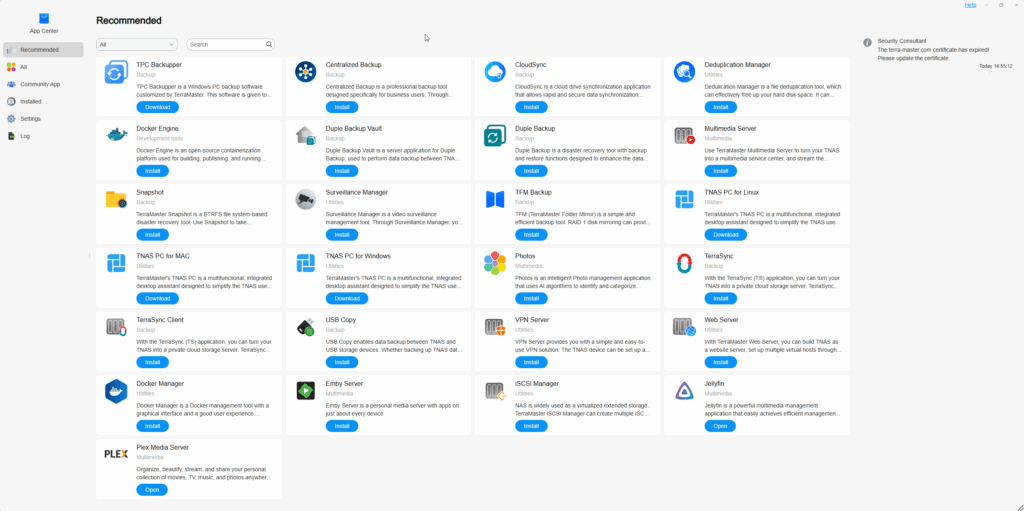
The PC app is a bit more intuitive. Not only does it offer similar features to the mobile app, but there is also so much more to be done. One of the main benefits is all the extra apps it offers. From backup apps, RSS, Docker apps, media server apps, and more, the F4-425 has quite a few apps, so you can easily make the most of your NAS. Installing the likes of Plex or Jellyfin will allow you to set up your NAS as a home media server, allowing you to easily share your media with family and watch it on your television.
Performance
This is where things get fun. How fast you download and upload to the F4-425 is going to be based on a few different things. First, you will have to consider your internet speeds. While Fibre connections are more popular, not everyone has one, and if you are on a slower connection, this could affect the overall performance of the NAS. Also, your PC or mobile specs will matter. If you are trying to download from your NAS to a standard hard drive, you will likely be limited by this, so keep that in mind.
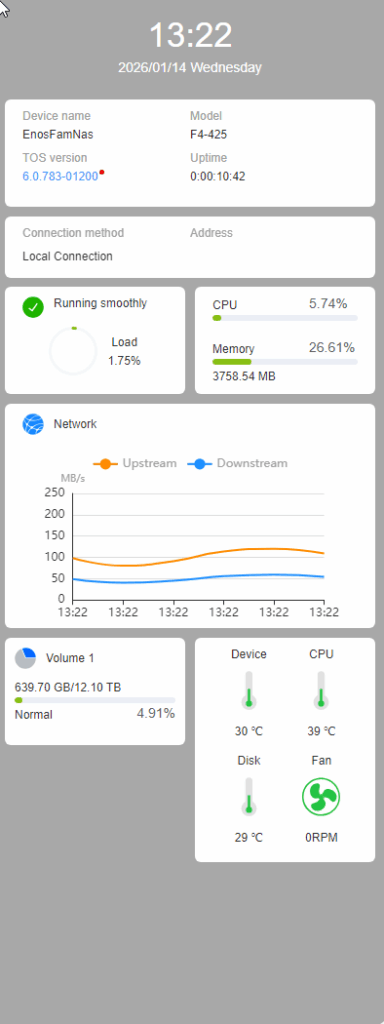
You can check how the device is performing right in the TNAS app. The screenshot below was in the middle of a 10GB file transfer from the NAS back to my main PC. This is over a 900 Mbps internet speed, transferring the files onto a Teamgroup T-Force G70 Pro 1TB NVMe SSD with a sequential read of 7,400 MB/s and sequential write of 5,500 MB/s.
The F4-425 stayed so cool during this transfer that the fan didn’t even need to kick in!
Final Words
I have been using the TerraMaster F4-425 for a few weeks now and am thoroughly impressed with it. From the ease of setup to using it, it just works. Anyone will be able to get this set up and working in no time, making it a great all-around NAS device. The only thing you need is a hard drive or two to get started.
The App Center is easy to navigate, has plenty of different apps to choose from, and will really help you take your F4-425 to the next level. It even has some apps that offer similar functions, such as Plex and Jellyfin, so users aren’t just stuck with what TerraMaster has given you. Alongside media server apps, you will find RSS, Docker, CloudSync, Backup apps, and more!
As for the hardware, the F4-425 comes with an Intel Celeron N5095 CPU, 4GB 3200 MHZ DDR4 SO-DIMM RAM, 2x 10Gbps USB ports, and a 2.5GbE network port. It supports up to 120TB of hard drive space across 4x 30TB hard drives and up to 16GB of DDR4 RAM. It has H.264, H.265, MPEG-4, and VC-1 transcoding with a maximum output of 4K at 60FPS.
The F4-425 is currently available on Amazon UK for £322.99 at the time of writing this review. For what it offers, this is a fair price as it’s not the most expensive, but at the same time, it’s not the cheapest either.
If you are looking for an easy-to-use, beginner-friendly NAS that has apps and features that even more experienced users can put to good use, the TerraMAster F4-425 is a solid offering. Also, if you don’t need 4-bays and want to save a little bit of money, TerraMaster also offers the F2-425, which is around £100 cheaper than the F4-425.