














5 Best SSD Data Recovery Software
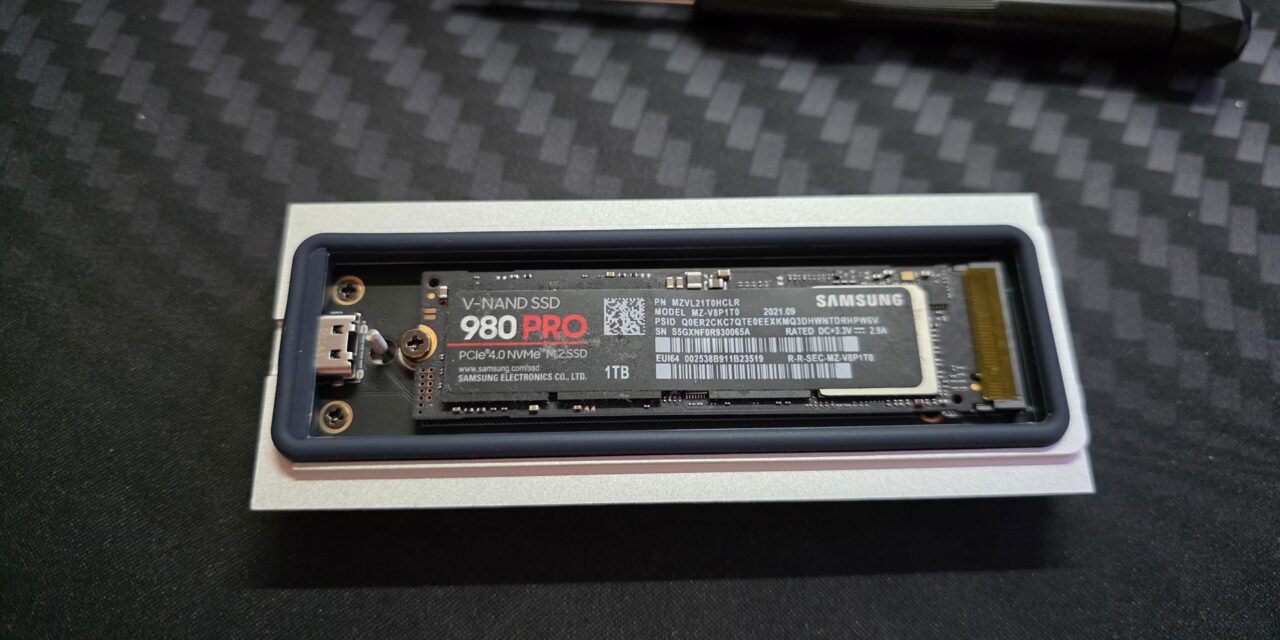
If you lost data on your SSD, you probably already know that recovery is sometimes possible with the right SSD data recovery software. The real question is which tool gives you the best chance.
Below, we compare top solutions and explain their strengths, limits, and ideal use cases so you can choose the right recovery tool for your situation.
What You Need to Know Before SSD Recovery
If this is your first time with SSD file loss, here is the clear answer: recovery can work, but the result depends on TRIM, timing, and any write activity after deletion. TRIM is a command used by modern operating systems to tell an SSD which data blocks are no longer needed. When you delete a file, the system marks its space as available and may immediately instruct the SSD to erase those cells internally. Once TRIM completes its cleanup cycle, the original data becomes inaccessible, even to professional recovery software.
At the same time, TRIM does not execute in every scenario. In cases of file system corruption, power failure, or when an external SSD connects through a USB bridge or hub that does not pass TRIM commands, blocks may remain intact. For this reason, a scan still makes sense. Even when deletion occurred, fragments may remain until overwrite or internal erase completes. Immediate action always improves recovery chances on SSDs.
What does a data recovery tool do?
- The tool checks file system metadata (such as NTFS or APFS records) to find deleted files that no longer appear in normal folders but may remain on the SSD.
- If metadata remains intact, the software can restore original file names and folder paths, which makes recovery results easier to review and sort.
- If metadata is missing or damaged, the software searches raw drive data for known file patterns (such as JPG, DOCX, MP4, and ZIP) and extracts files by type.
- In supported formats, preview lets you verify file quality before export, which helps when the scan returns a large number of results.
The most common causes of poor results are TRIM execution, new writes to the same SSD, long delay before scan start, and file system damage. External SSDs over USB may offer better odds in some cases because TRIM support is often less consistent than on internal SSD setups.
Important: Stop all write activity right after file loss. Install recovery software on another drive (if possible), then scan the SSD.
How We Selected the Best SSD Recovery Software Tools
Before we show the final list, it helps to explain the criteria behind the ranking. We selected these tools based on SSD recovery results, software behavior in real file-loss cases, and practical use during recovery. This way, the list reflects actual recovery value, not feature lists or marketing claims.
What we checked in each tool:
- Recovery performance in common SSD cases, such as deleted files, formatted partitions, and damaged file systems.
- File return with original names and folder paths when file system metadata remains intact.
- Signature-based recovery quality when metadata is missing, including detection quality for common file types.
- File system support across major formats such as NTFS, exFAT, and APFS.
- Preview quality and result structure, including filters, file categories, and scan result clarity.
- Free version limits, pricing structure, and overall value of paid licenses.
- Interface clarity for first-time users and control depth for advanced users.
- Recovery safety, including read-only scan mode and export of recovered files to another drive.
This selection method helps us identify tools that deliver real SSD recovery results, not broad feature claims.
5 Best SSD Recovery Software Tools
Now that the selection criteria are clear, here are our five top picks for SSD recovery.
Tools with stronger performance in real SSD cases and more reliable recovery output ranked higher in the list.
1. Disk Drill
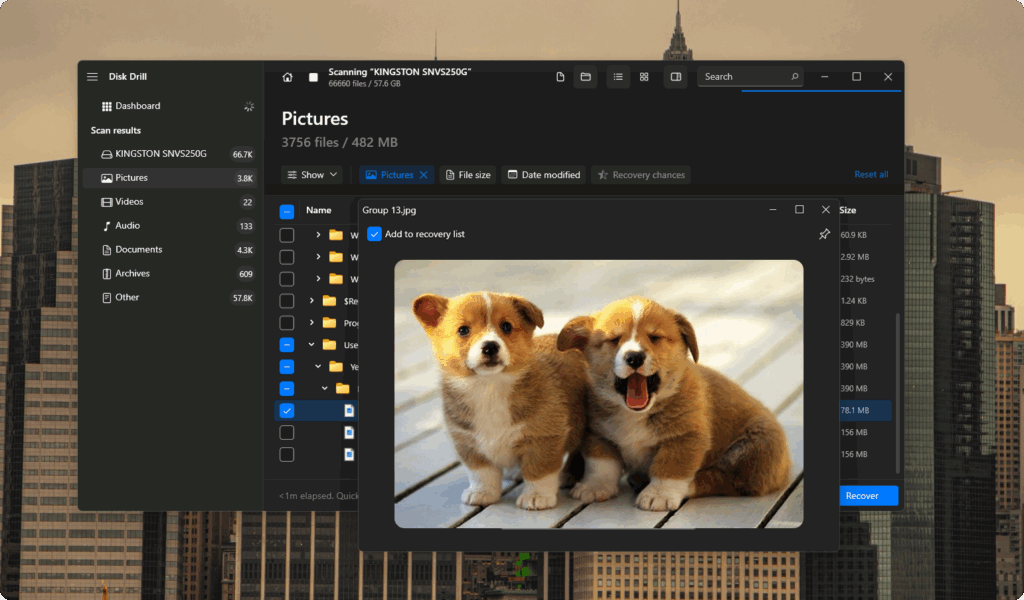
The first and highest-ranked tool in our list is Disk Drill. It takes the top spot because it combines strong recovery output, clear scan results, and a workflow that works well in real SSD file-loss cases. For SSD recovery, speed and clarity matter: users need fast access to scan results, file preview, and safe export steps without extra complexity. In this ranking, Disk Drill sets the benchmark for what the best SSD recovery software should provide on modern systems.
Platform support: Disk Drill works on Windows and macOS and supports SSDs, HDDs, USB drives, memory cards, RAID arrays, and disk images. It supports major file systems including NTFS, exFAT, FAT32, APFS, HFS+, and EXT. It runs on modern Windows versions and Mac systems, including Apple Silicon.
Pricing: Disk Drill offers a free option: the Basic tier lets Windows users recover up to 100 MB and preview recoverable items. Paid tiers include PRO subscription ($89) and PRO lifetime ($149), with unlimited recovery in both paid tiers.
Core capabilities for SSD recovery:
- Disk Drill supports common SSD loss cases such as deleted files, formatted partitions, and lost partitions, which makes it practical for everyday recovery incidents.
- The software shows recoverable files before export and includes preview support, which helps confirm file quality before recovery. It also displays a recovery chance indicator for found files.
- Disk Drill includes Recovery Vault, a metadata-based protection feature that can improve results in some future deletion cases for protected files.
- Disk Drill also includes byte-to-byte backup tools, which can help protect a failing drive before recovery attempts.
- The software also includes S.M.A.R.T. status tools that help assess drive health before recovery.
Disk Drill Pros:
- Clear interface and simple setup, which works well for first-time recovery cases.
- Broad device support, including SSDs, RAID arrays, and disk images.
- Free Basic tier gives users a practical test path with up to 100 MB recovery on Windows.
- Preview support and recovery chance indicators help users review results before export.
- One-time paid license structure (PRO lifetime) fits users who prefer a non-subscription model.
Disk Drill Cons:
- On macOS, the free version allows scanning and preview only.
2. R-Studio
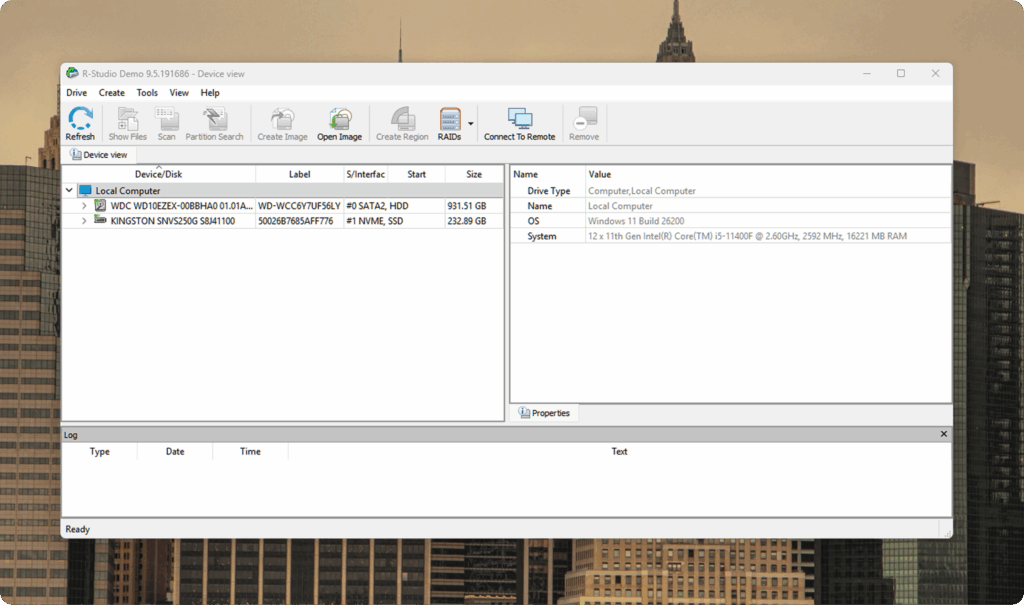
Second place in our list goes to R-Studio. This tool ranks high because it gives much deeper control than most consumer apps and handles complex recovery cases well, especially when file systems, partitions, or RAID structures are damaged. In this ranking, R-Studio stands out as a strong SSD data recovery software option for advanced users, technicians, and recovery labs that need precision over simplicity.
Platform support: R-Studio has versions for Windows, macOS, and Linux, and it works with local and network disks. It also supports a wide range of file systems, including NTFS, exFAT, APFS, Ext2/3/4, XFS, HFS/HFS+, and ReFS.
Pricing: R-Studio offers a demo download, and the main product page lists start from $49.99. The site also separates standard editions from higher-tier technician versions for commercial recovery work.
Core capabilities for SSD recovery:
- R-Studio supports recovery from formatted, damaged, or deleted partitions and also works when file systems are heavily damaged through raw file recovery (scan for known file types).
- The software includes advanced RAID reconstruction tools, including virtual RAID creation and automatic RAID parameter recognition for RAID 5/6 cases.
- It supports disk images and can process image files like regular disks, which helps protect the source drive before recovery work starts.
- R-Studio includes file preview features and recovery chance estimation tools, which help users review results before export.
- The product also includes S.M.A.R.T., network recovery support, and an emergency version for systems that do not boot normally.
R-Studio Pros:
- Strong support for advanced recovery cases, including damaged partitions and RAID recovery.
- Very broad file system support across Windows, macOS, Linux, and UNIX-related environments.
- Disk image, preview tools, and recovery chance estimation support a safer recovery workflow.
- Network recovery support can help in technician and business environments.
R-Studio Cons:
- The interface and feature depth can feel complex for first-time users.
- Many of its strongest capabilities target technical users, so it may be more than a home user needs for simple file deletion cases.
- Pricing and edition structure require more careful selection than simpler consumer tools.
3. DiskGenius
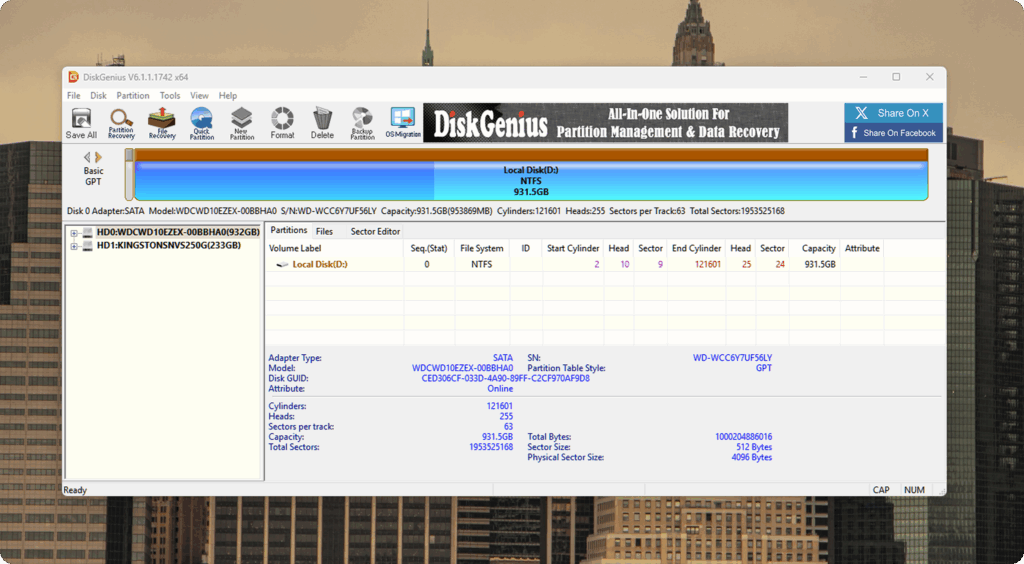
In third place, DiskGenius stands out for its hybrid approach: it handles file recovery, partition repair, and disk-level maintenance in one tool, which can be valuable in complex SSD recovery scenarios. This combination gives it an advantage in cases where file loss occurs alongside RAW partitions, partition table issues, or boot problems, not just simple deletion. It also works well for users who want recovery features and disk utilities in a single Windows-based package.
Platform support: DiskGenius runs on Windows and supports recovery from hard drives, external drives, SD cards, USB flash drives, virtual disks, and RAID drives.
Pricing: DiskGenius offers a free edition first, which works well as a free SSD recovery software option for scan checks and file preview before payment. The Professional license lists $69.90 on the edition comparison page.
Core capabilities for SSD recovery:
- Recovery support covers deletion, RAW partitions, partition loss, and OS crash cases, which match the most common SSD file-loss scenarios.
- Scan results appear during the scan, and a preview before recovery helps verify file quality before export.
- WinPE boot USB support helps with recovery when Windows fails to boot (for example, BSOD or system boot issues).
- Virtual disk load support (VMware, VirtualBox, Parallels, Hyper-V) allows recovery work without running the virtual machine itself.
- RAID recovery support includes virtual RAID creation across multiple RAID levels, which helps when an SSD sits inside a RAID setup.
DiskGenius Pros:
- Strong mix of file recovery plus partition tools in one Windows app.
- Good coverage for RAW partitions, lost partitions, and formatted drives.
- Preview before recovery supports faster validation of results.
DiskGenius Cons:
- Windows-only support limits users who need macOS or Linux recovery.
- Free edition serves best as a test path; paid use may become necessary for full recovery work.
4. UFS Explorer Professional Recovery
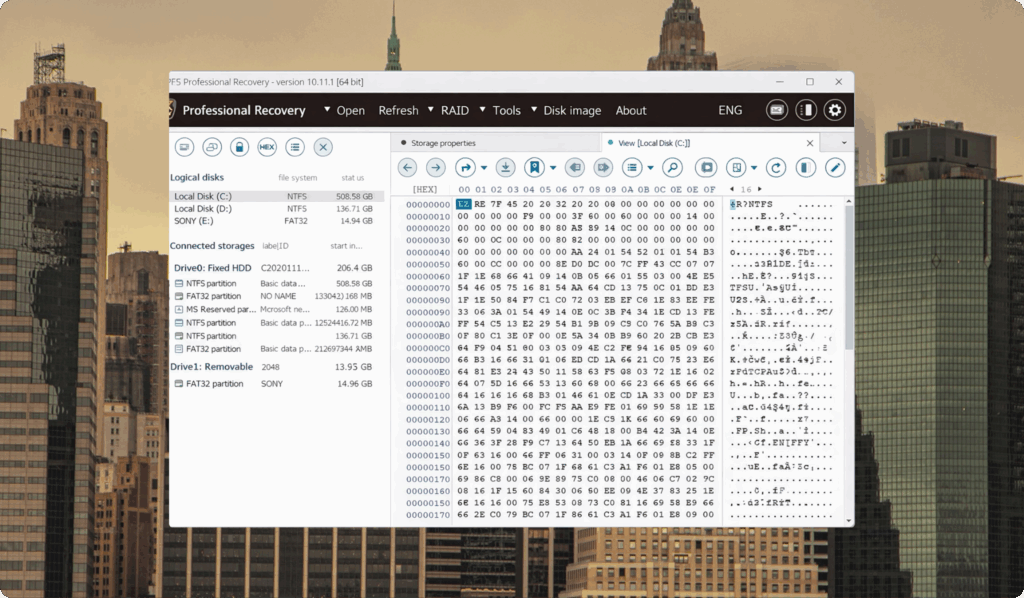
UFS Explorer Professional Recovery takes fourth place as the most technical entry in this ranking, with a toolkit built for cases where standard consumer apps often fail. It is a strong SSD recovery software option for labs, technicians, and advanced users who work with RAID arrays, encrypted storage, forensic images, and damaged file systems. In this list, it adds professional recovery depth and broad format support instead of a simple beginner workflow.
Platform support: UFS Explorer Professional Recovery is available for Windows, macOS, and Linux. It also supports x86, x86-64, and ARM/ARM64 systems, including Apple Silicon.
Pricing: A free trial with no time limit is available for evaluation. The listed starting price for this edition is €599.95, which places it in the professional tier.
Core capabilities for SSD recovery:
- Quick Scan and Deep Scan help search for lost data on damaged volumes, and scan settings give more control than most consumer tools.
- Multi-pass disk image creation with read-defect handling supports safer work on unstable drives and may improve results when the source has bad sectors.
- Broad file system support covers NTFS, exFAT, APFS, Ext2/3/4, XFS, Btrfs, ZFS, ReFS, VMFS, and many other formats across Windows, macOS, Linux, BSD, and Solaris environments.
- Automatic RAID metadata recognition and an adjustable RAID builder support complex reconstruction, including nested RAID and RAID-Z setups.
- Encryption support includes BitLocker, FileVault 2, APFS encryption, LUKS/LUKS2, and VeraCrypt when valid passwords or keys are available.
UFS Explorer Pros:
- Very broad support for platforms, file systems, RAID layouts, encryption methods, and image formats in one suite.
- Strong disk image tools with defect handling for damaged media cases.
- Free trial with no time limit helps users evaluate the software before a major purchase.
- Good fit for a technician and lab work with complex storage structures.
UFS Explorer Cons:
- High entry price compared with consumer recovery tools.
- Feature depth and interface complexity may exceed the needs of home users with simple deleted-file cases.
- This edition can feel excessive if the goal is basic SSD recovery on one personal system.
5. PhotoRec
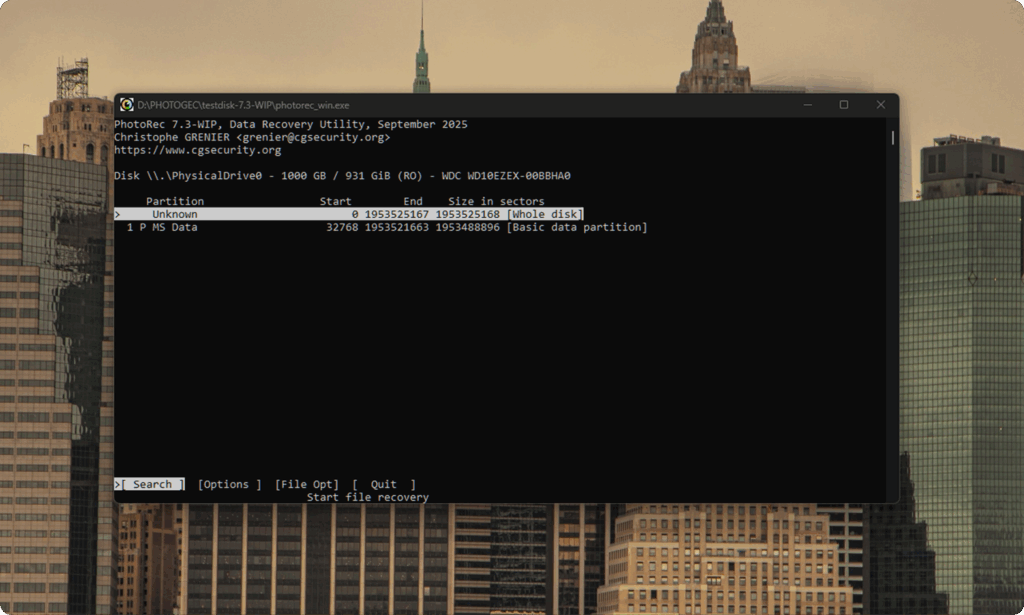
The fifth and final tool in our ranking is PhotoRec, which completes this list as the strongest no-cost option for raw file recovery when a paid license is not the right fit. It remains a practical SSD recovery tool for cases where file system records have been damaged or no longer exist, because it relies on file signatures instead of folder structure recovery. In this list, PhotoRec adds real value as a free fallback and a strong second-pass option.
Platform support: PhotoRec comes as part of the TestDisk package and runs on Windows, macOS, and Linux. The project also provides portable use in many cases, which helps with emergency recovery workflows.
Pricing: PhotoRec is free and open source, with no paid tier for core recovery use. This makes it a strong option when budget matters more than interface comfort or restored folder structure.
Core capabilities for SSD recovery:
- Signature-based recovery allows file return even when file system metadata has severe damage or no longer exists.
- Support for a wide range of file types gives it good coverage for documents, photos, archives, and media files.
- Read-only behavior toward the source media helps reduce extra risk during recovery work, which is important in SSD cases.
- QPhotoRec (Windows) provides a simpler interface option, while the core PhotoRec utility remains available for direct use.
- The portable package format helps with quick launch from a recovery USB setup.
PhotoRec Pros:
- Free and open-source access with no recovery cap.
- Strong raw file recovery when metadata has damage or no longer exists.
- Wide file-type support for many common formats.
- Cross-platform availability with portable use options.
PhotoRec Cons:
- Original file names and folder structure usually do not return.
- Interface can feel difficult for first-time users, especially in the command-line version.
SSD Recovery Software Comparison Summary
Before you choose a tool, it is useful to see the differences side by side. The table below highlights platform support, pricing structure, and the type of recovery case each solution handles best:
| Tool | Best for | Platform support | Free access / Limit | Starting paid price | File system support | Preview | Disk image | S.M.A.R.T. support |
| Disk Drill | Most users / balanced recovery | Windows, macOS | Yes – scan & preview + up to 100 MB recovery (Windows) | $89 | NTFS, exFAT, APFS, HFS+, FAT32, EXT | Yes | Yes | Yes |
| R-Studio | Technicians / advanced recovery | Windows, macOS, Linux | Demo – scan & preview, but export is capped. | $79.99 (Windows) | Very broad (NTFS, ReFS, APFS, EXT, HFS+) | Yes | Yes | Yes |
| DiskGenius | Recovery + partition repair | Windows | Free edition – scan & preview, no full export in free | $69.90 (Professional) | NTFS, exFAT, FAT32, EXT | Yes | Yes | Limited |
| UFS Explorer Professional | Labs / forensic & RAID cases | Windows, macOS, Linux | Trial – scan & preview, no full export | €599.95 | Very broad (NTFS, APFS, EXT, ZFS, Btrfs, ReFS, VMFS) | Yes | Yes | Yes |
| PhotoRec | Free raw recovery | Windows, macOS, Linux | Fully free – no export limits | $0 | Signature-based only | No structured preview | No | No |
Verdict
To wrap this up, here’s the bottom line: the top pick in our list remains Disk Drill because it offers the most balanced mix of recovery results, preview clarity, file system coverage, and a workflow that fits most SSD loss cases without complex setup. It is the best match when you need a reliable first attempt on a personal SSD, external SSD, or a standard Windows/macOS system. For us, Disk Drill is the best SSD recovery software by far.
R-Studio and UFS Explorer serve a different audience. R-Studio fits advanced users who need deeper scan control, RAID options, and technical recovery paths when partitions or file systems have serious damage. UFS Explorer moves even further into lab-level work, with broad support for RAID, uncommon file systems, and complex disk image formats, but its price and interface make sense mainly for professional recovery tasks.
DiskGenius fits Windows users who need recovery plus partition repair in one place, which helps when the SSD shows a RAW status or partition table issues. PhotoRec remains the best no-cost fallback for raw signature recovery, but it rarely preserves file names or folder structure.
FAQ
Can SSD data recovery software recover files from a formatted SSD?
Yes, in many cases it can, especially after a quick format. Recovery success depends on TRIM status, time after data loss, and any new writes to the SSD. A scan should start as soon as possible, and recovered files should go to another drive.
Why do recovered files sometimes lose names and folder structure?
This usually happens when file system metadata has been damaged or no longer exists. In that case, the software switches to signature-based recovery and restores files by type (such as JPG, DOCX, or MP4) instead of original names and folders.
Should I install recovery software on the same SSD with the lost files?
No. Installation on the same SSD can write new data to free blocks and reduce recovery chances. The safer method is to install the software on another drive, then scan the affected SSD and save recovered files to a separate location.