












Thermal Grizzly WireView Pro Review – A Must Have for your Peace of Mind
If I recall correctly, Nvidia introduced a 12VHPWR 16-pin or technically 12+4 pin power connector on its GeForce RTX 3090Ti graphics card. That was a hint that they would be using a new form factor connector on the next generation of graphics cards. We saw exactly that on the GeForce RTX 40xx series of graphics cards, with the exception of entry-level SKUs.
While the idea is lucrative, as instead of using up to 3 or in some cases 4 8-pin PEG connectors giving us a cable management challenge, let a single connector handle it all for us, with a capacity of delivering up to 600W power. However, this connector or its idea met a serious issue where many users reported instability issues or melting (overheating at its core), triggering another related issue of warranty claims. I am not delving into its details; we all know about it!
The same continues with the GeForce RTX 50xx series graphics cards, with users reporting the same issues with RTX 5090 and RTX 5080s. Regardless of whether it is a loss of connection or some other underlying issue, this unique situation presented an unequivocal yet complex challenge to the community – to come up with a genuine solution without violating the warranty!
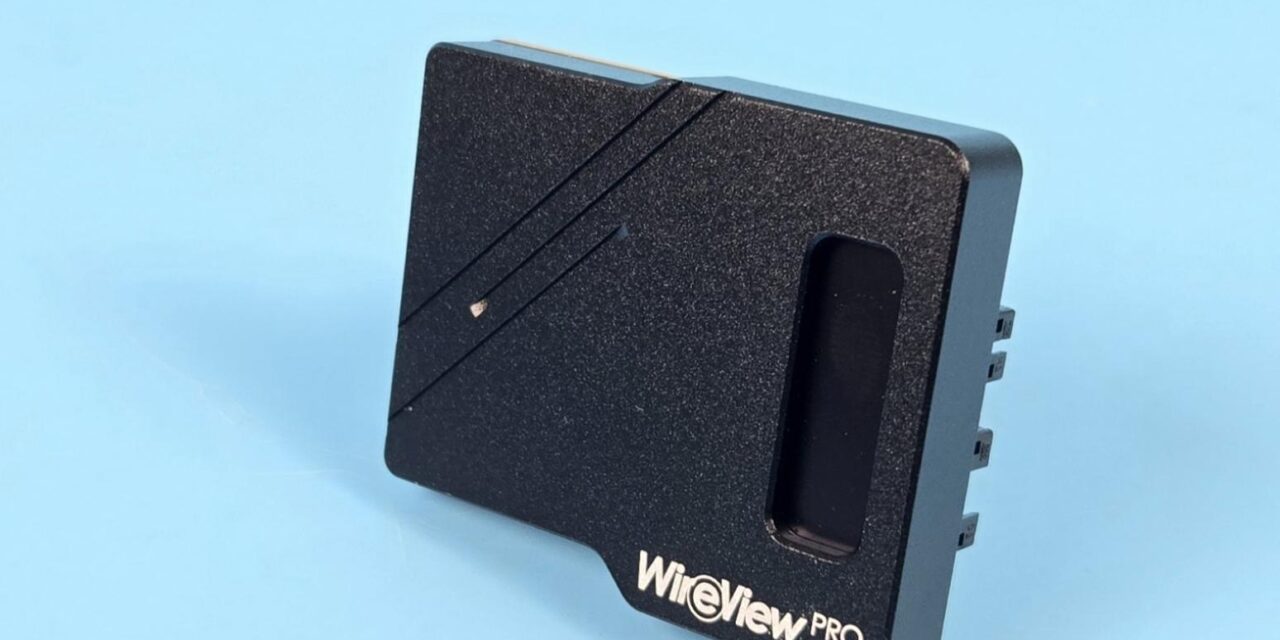
Many modders and vendors have ventured into this business, and we are taking a look at one of these solutions from Thermal Grizzly. It is WireView Pro, an adapter that technically sits between your graphics card and the PSU. It monitors the power parameters and reports them on the small screen. It also comes equipped with a speaker that sounds off if an abnormality is detected.
However, this is only a monitoring tool at its core, and it lacks the logging of sensors and software capability, which is why its second-generation WireView Pro II is out already. If you are not aware, this product is a collaboration between Elmor Labs and Thermal Grizzly. This is possibly the best combination that one could have on the market in my opinion. I have been using Elmor Labs monitoring tools, and they are a must-have for enthusiasts, modders, and reviewers alike.\
The WireView Pro has an MSRP of $89.97. Thermal Grizzly offers a 5-year warranty for its product.
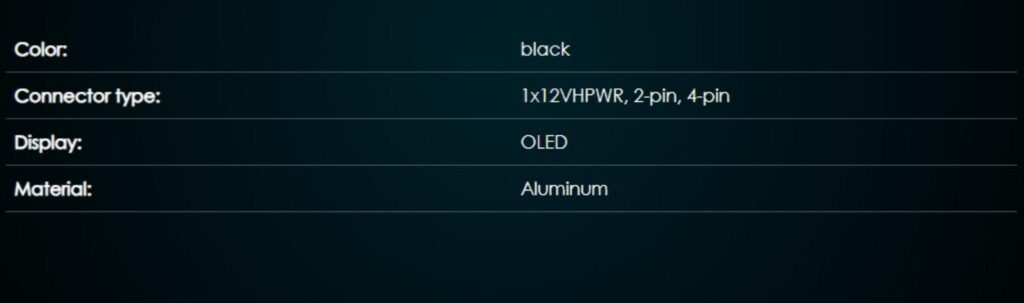
Specifications
Packaging and Unboxing
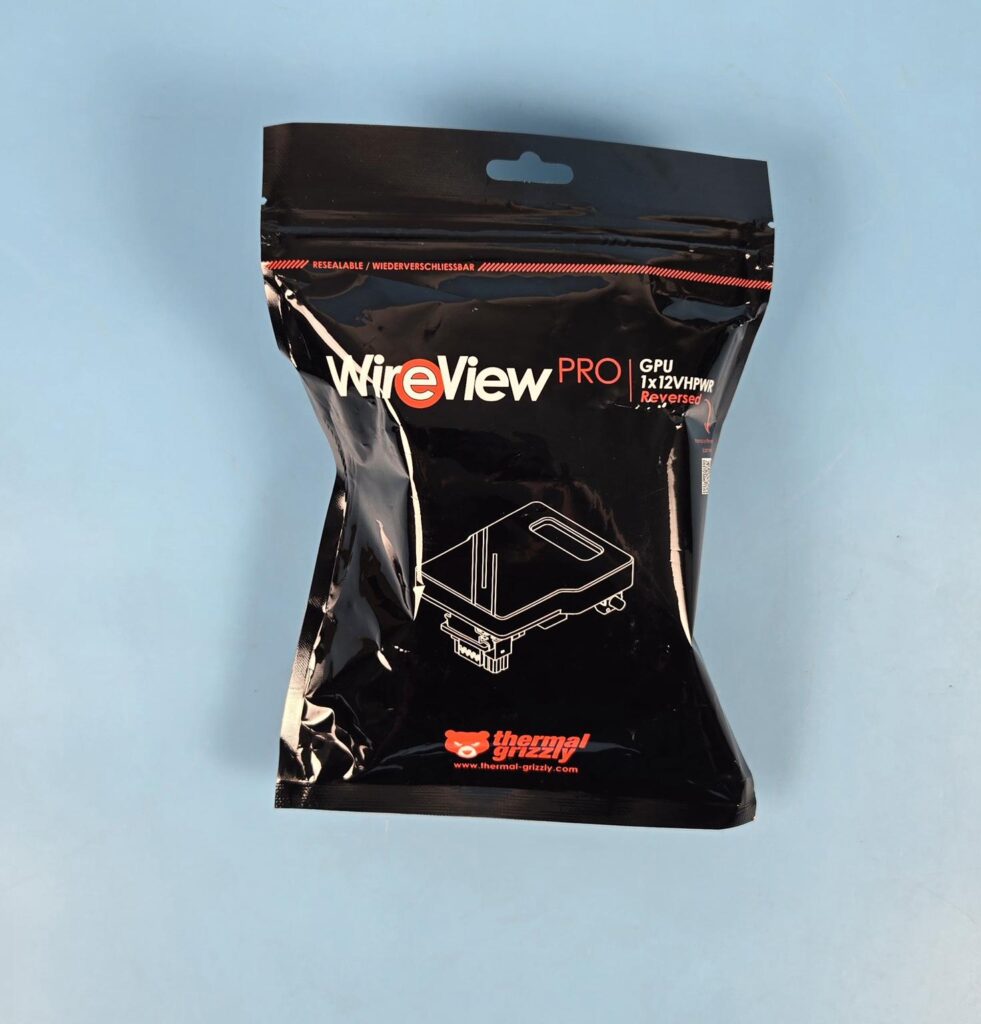
The product is shipped inside a pouch, which is clearly not sufficient for the actual cardboard box inside. I encourage Thermal Grizzly to review its packaging for more user-friendly packaging while remaining eco-friendly.
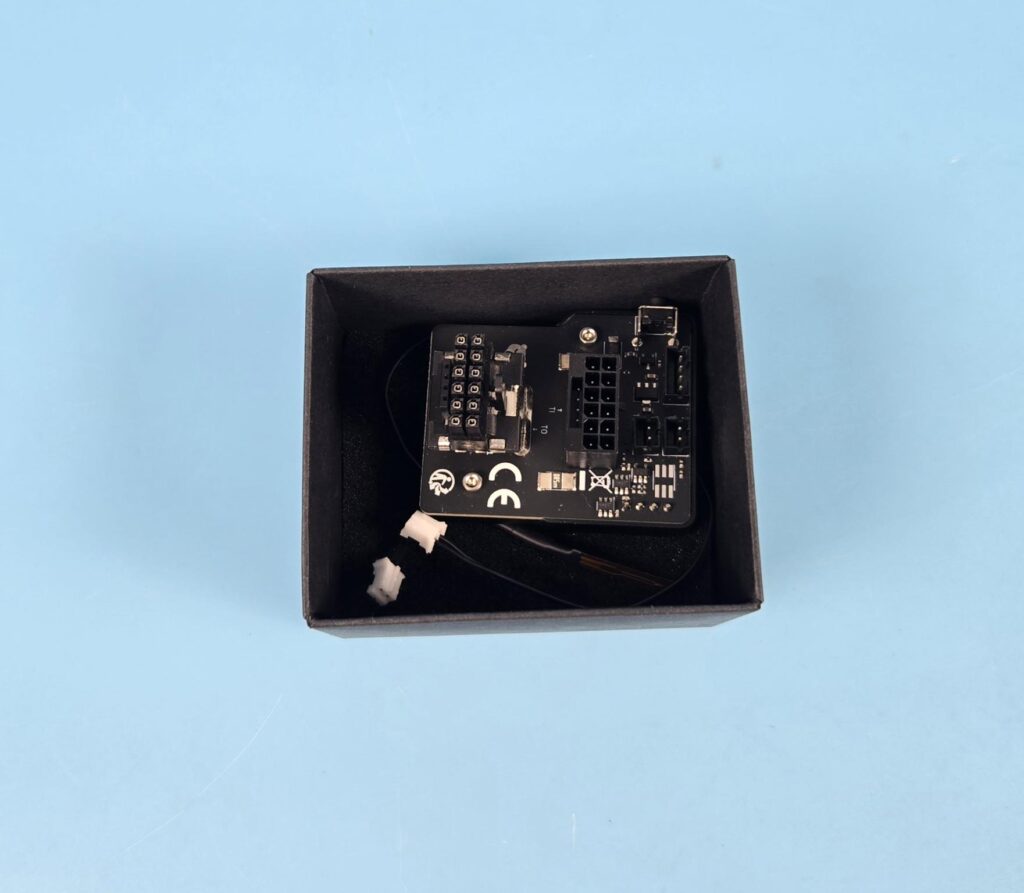
The product itself comes inside a small cardboard box.
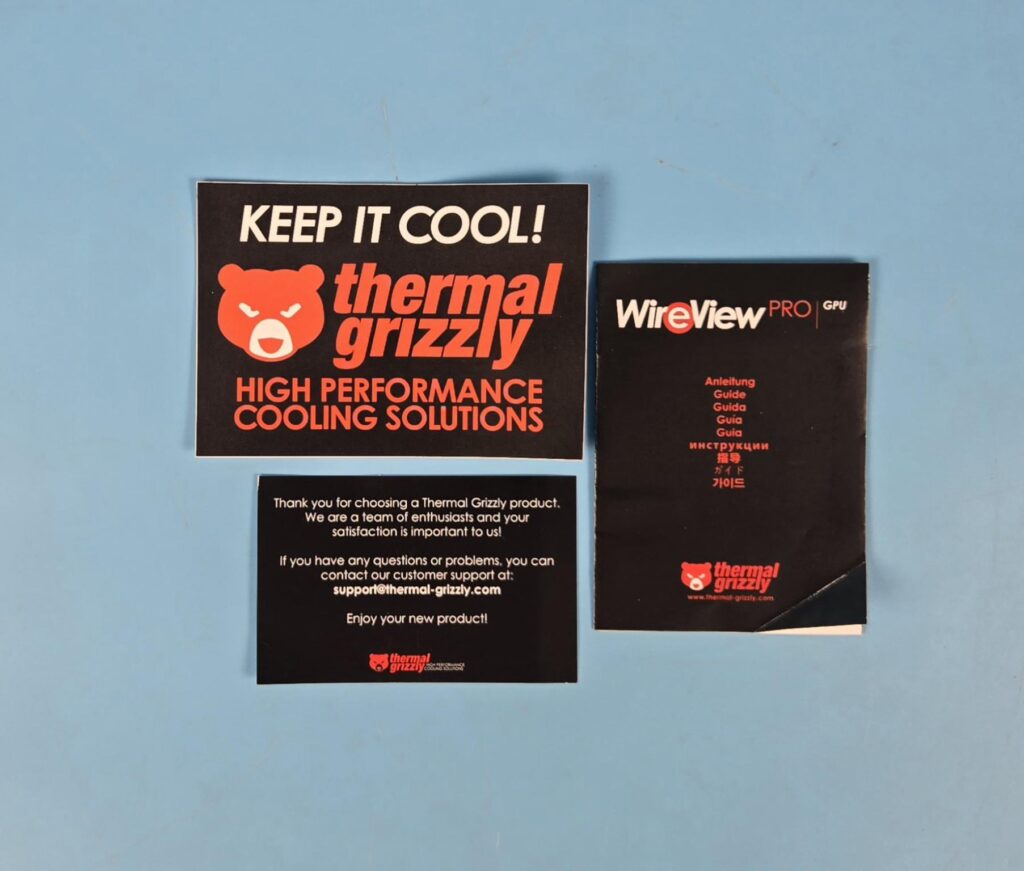
Thermal Grizzly has provided a basic user guide. You’d better check the detailed documents on their website.
Closer Look
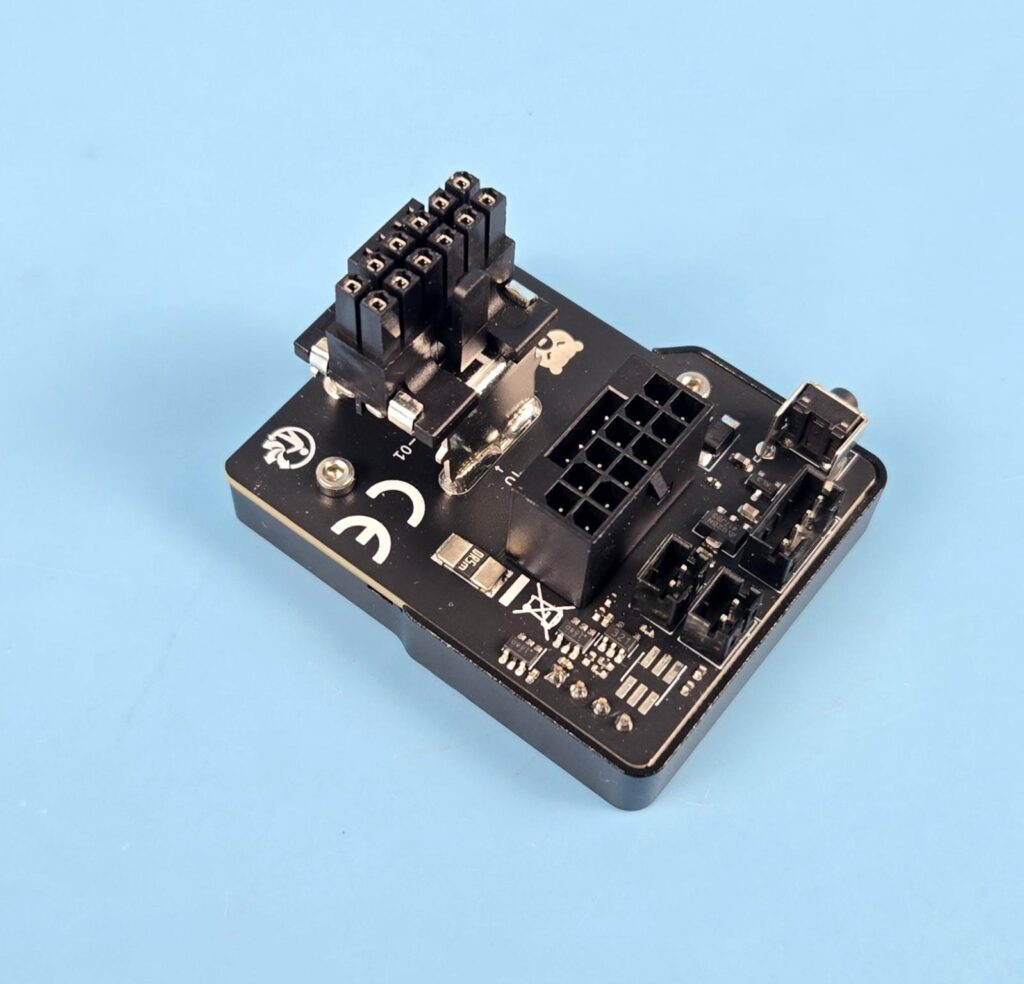
The main housing is made of aluminum and ABS materials. You can see two connectors on the adapter. One goes into your graphics card, and the PSU’s 12VHPWR or 12V-2×6 cable is connected to the second connector/header. Its dimensions are 52x43x33mm.
Here is what Thermal Grizzly says about it, “The WireView Pro GPU is an advanced version of the device for measuring and monitoring the power consumption of graphics cards. Developed in collaboration with Jon “elmor” Sandström, the WireView Pro GPU connects to the 12VHPWR power connector of the graphics card and is linked to the power supply through the power cable. Power consumption data is displayed on an OLED screen. The Pro version has been enhanced with connector detection and temperature sensors. An added buzzer provides an audible warning if the adjustable temperature or current limit is exceeded or if the cable is not correctly connected or if an incorrectly specified cable is used.”
Salient properties of the adapter include:
- OLED display
- Power consumption measurement
- Power consumption recording
- Internal temperature sensors at the power connectors
- External temperature sensors
- Pin detection for sensor-pin connectors
- Alarm function
- Optimized cable management
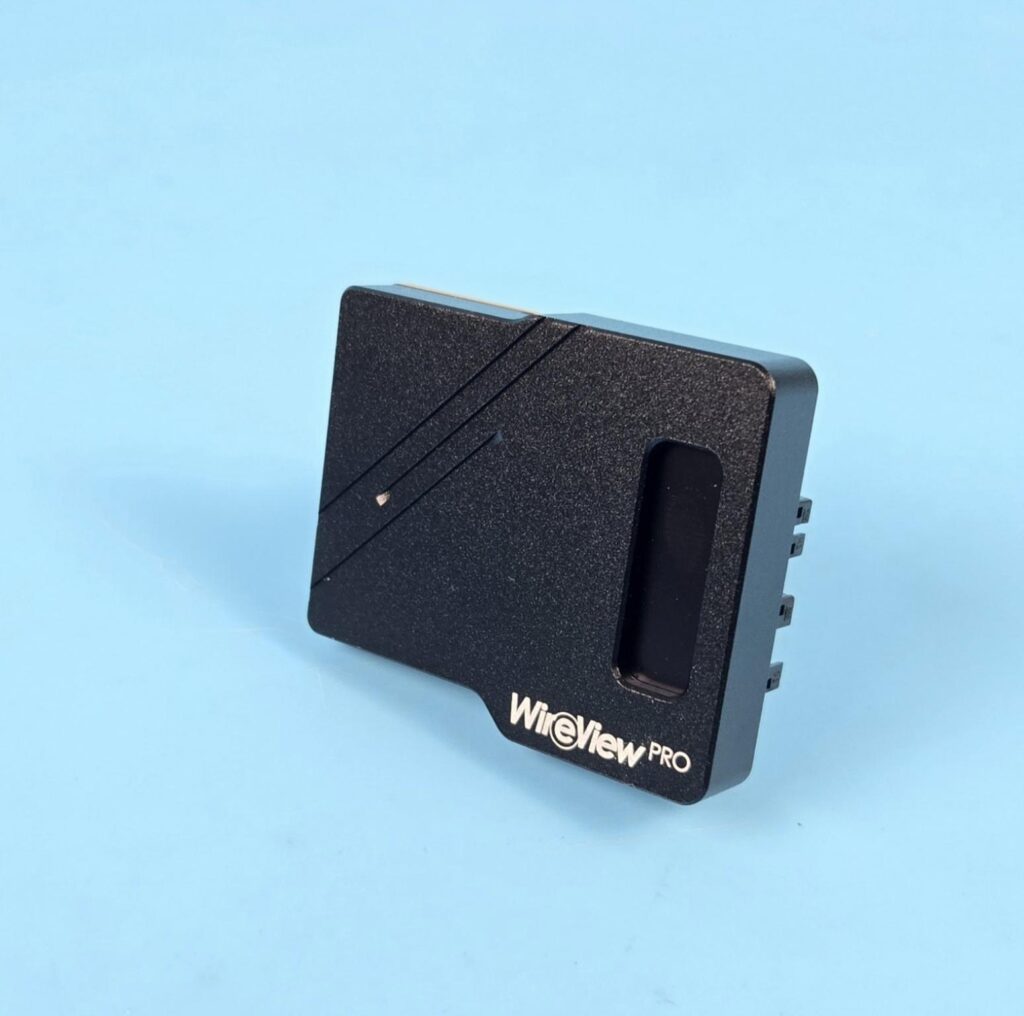
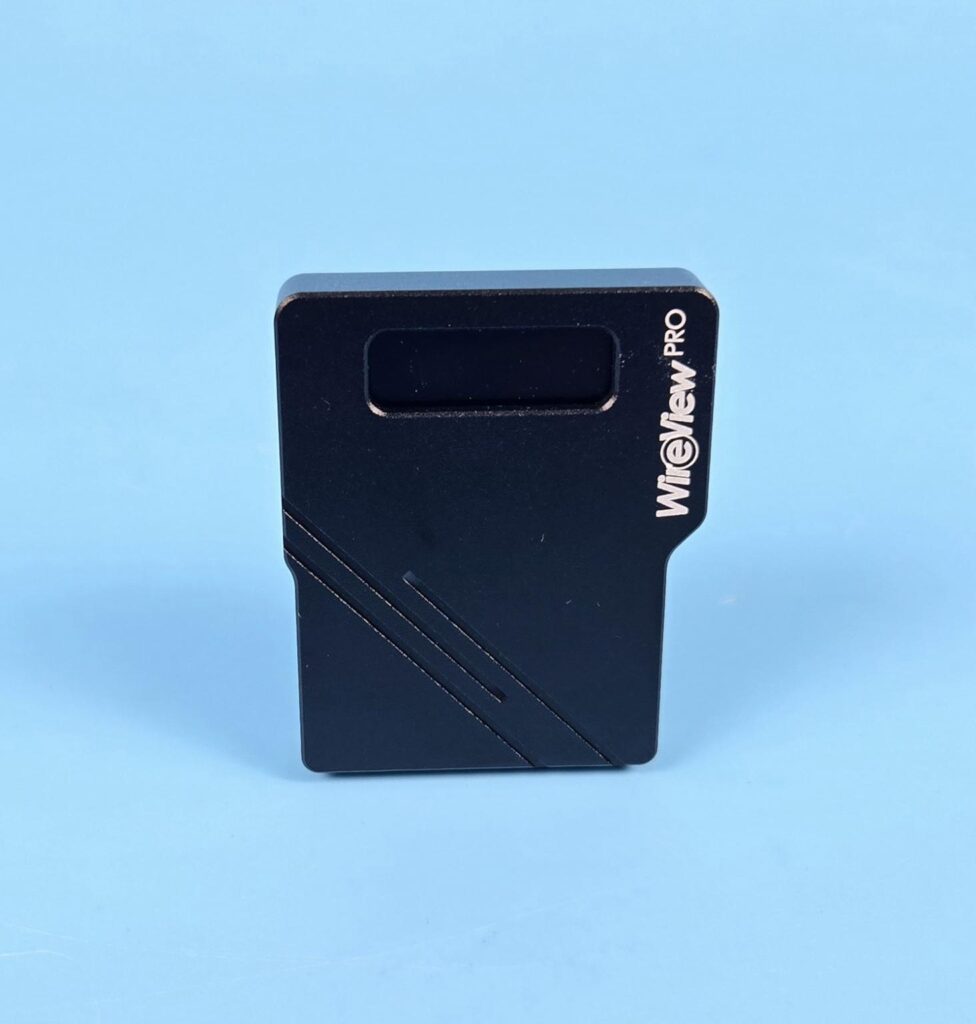
The main housing has an aluminum construction, making it robust. You can see an OLED display screen on the front. WireView PRO is printed in white as well. You can see line stenciling, which is for style only. One connected the display screen will remain upright on the front.
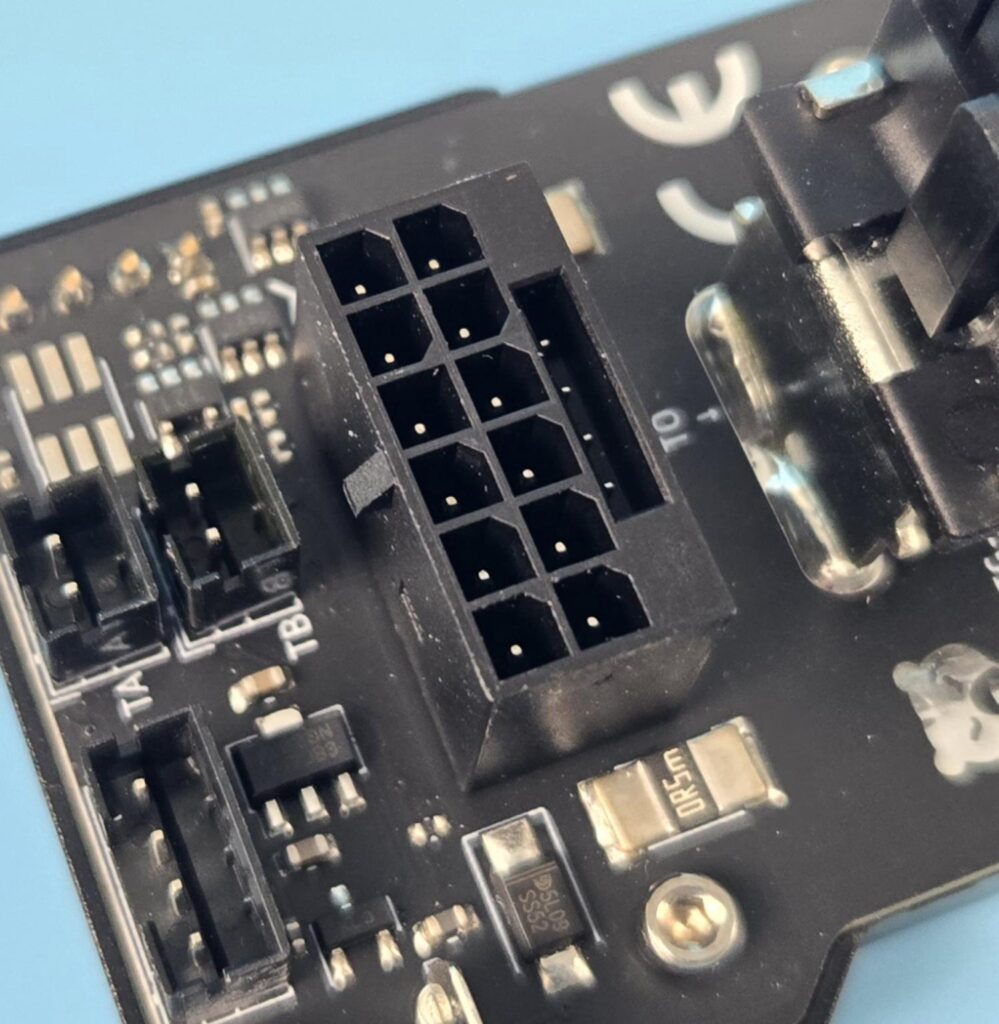
One end of the adapter has a standard 12VHPWR connector to which your PSU’s 12VHPWR or 12V-2×6 cable is attached. You must hear a click sound confirming that the cable is properly attached to the connector.
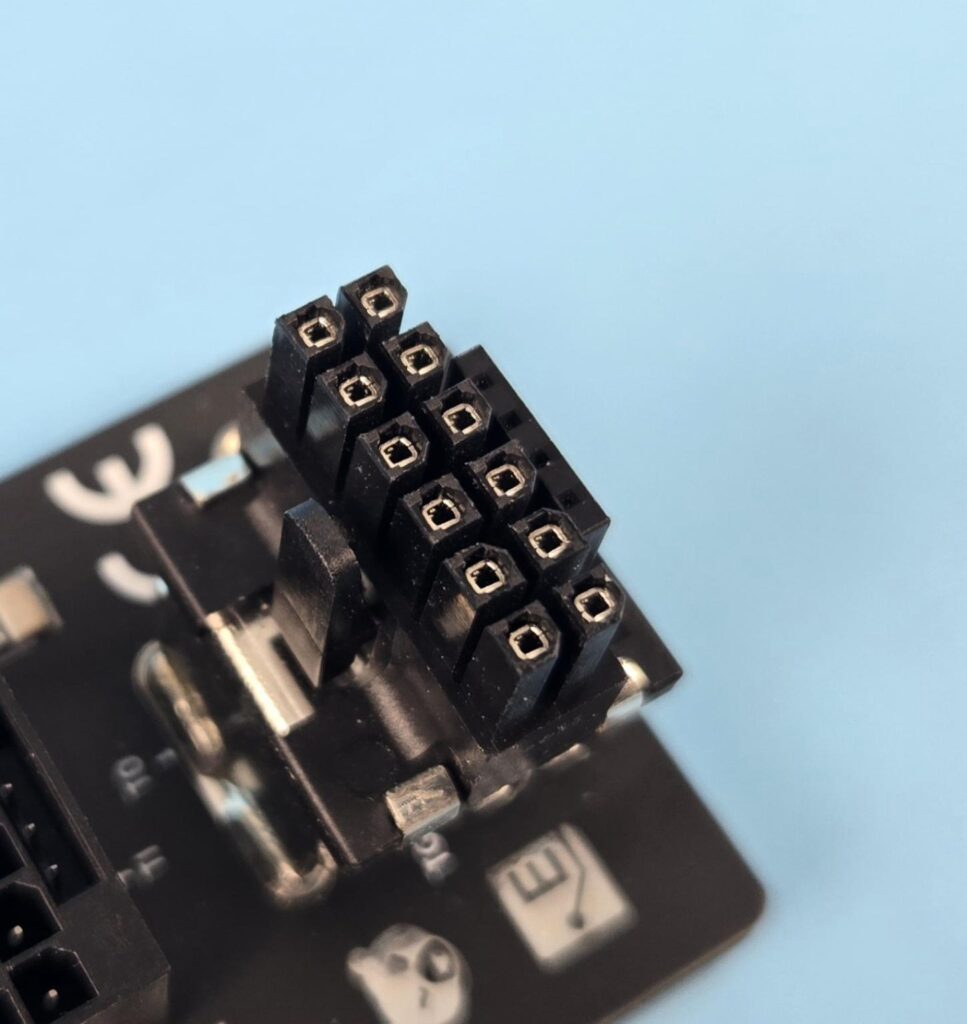
One end of the adapter has a 12VHPWR connector. This connector goes into your graphics card. When installing the adapter, you will not hear a clicking sound. This sound confirms that the adapter sits correctly into the card.
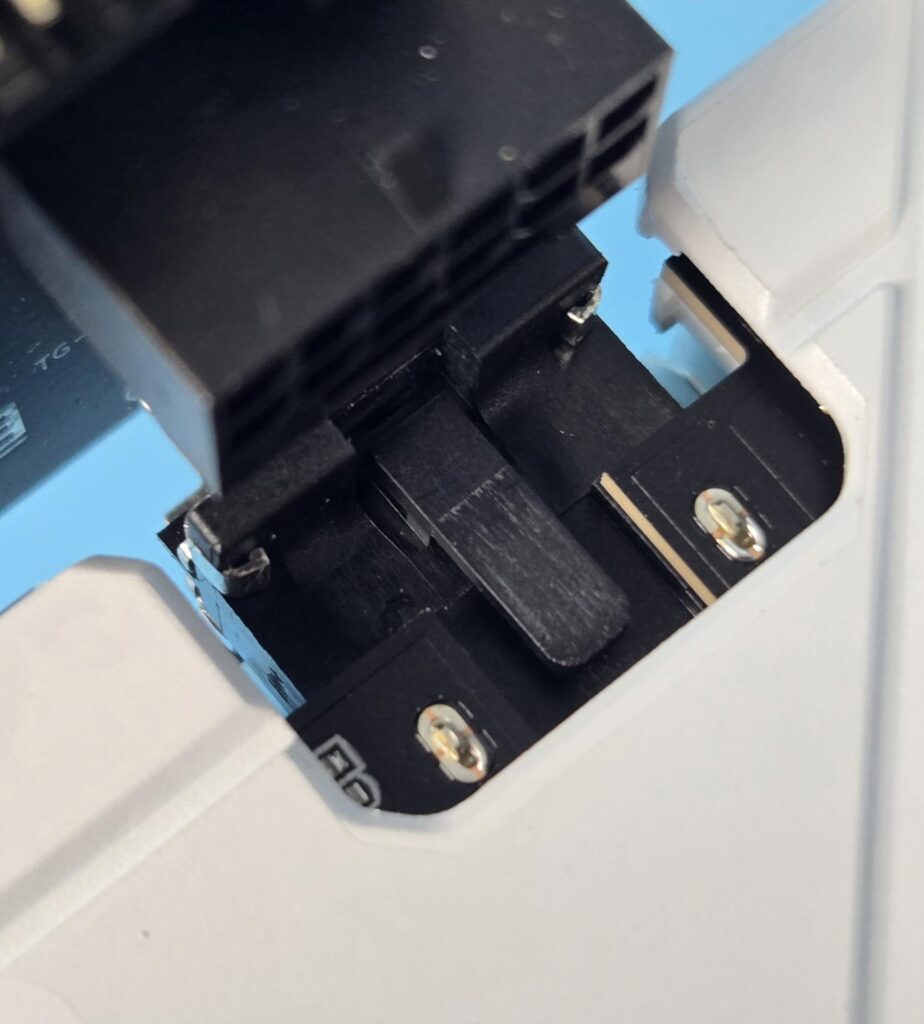
In case you are wondering why that is so. It has a simple reason. There is not enough space around the 12VHPWR connector on the adapter and the graphics card’s PCB for you to conveniently press the locking tab or latch to unlock it and pull the adapter. On this account, I must appreciate the design team for covering this aspect as well.
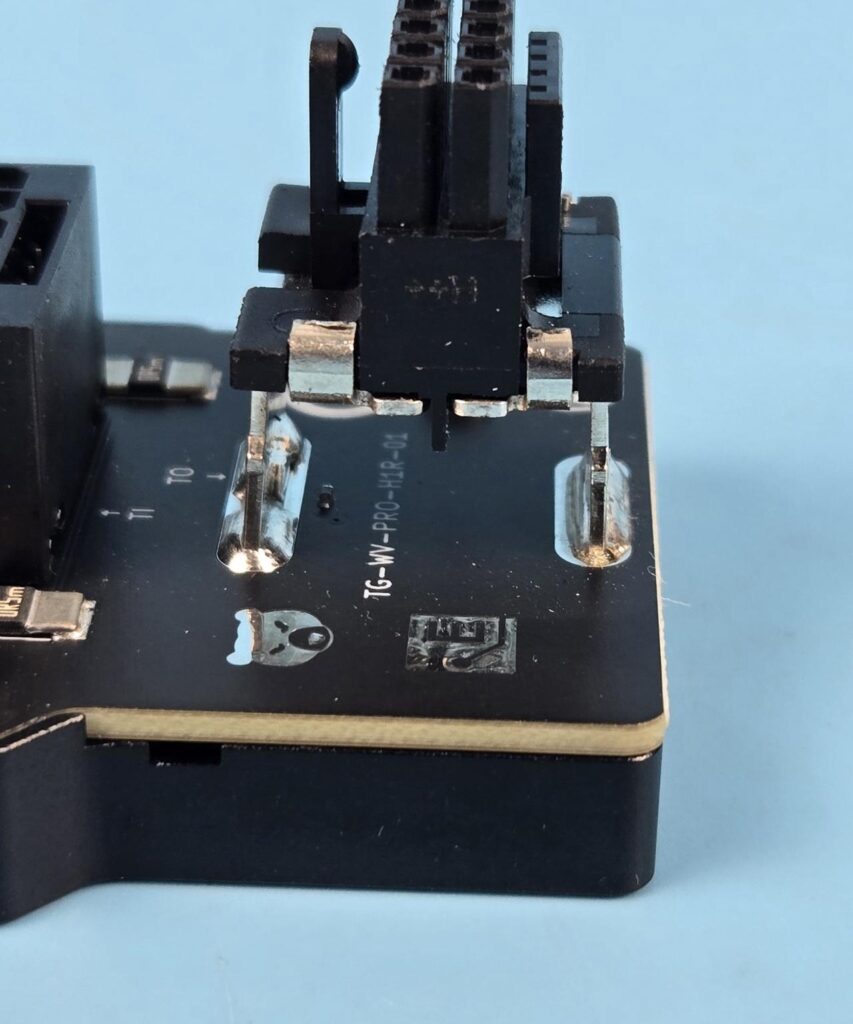
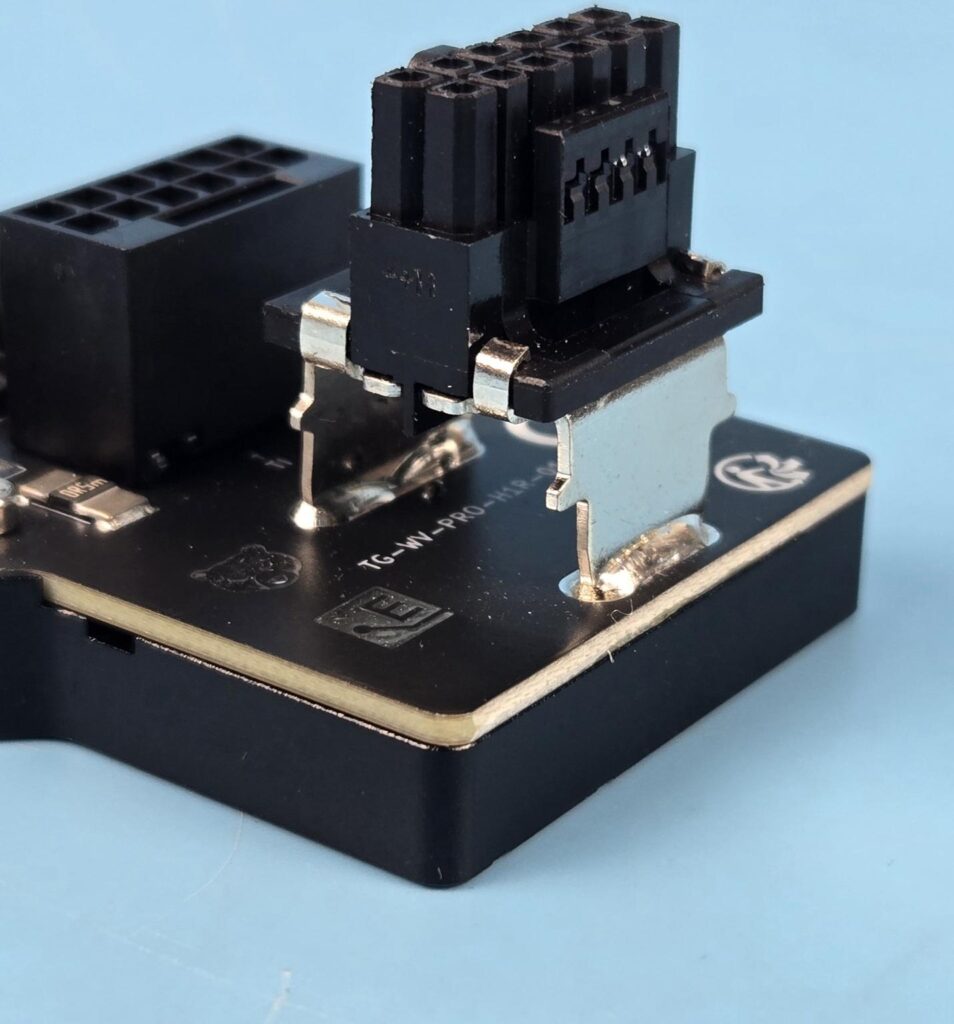
You can see two thick metallic legs with heavy soldering/anchoring on the base. This is done to ensure that a high amount of current can flow through these without causing electrical disturbances like VDroop or heat buildup.
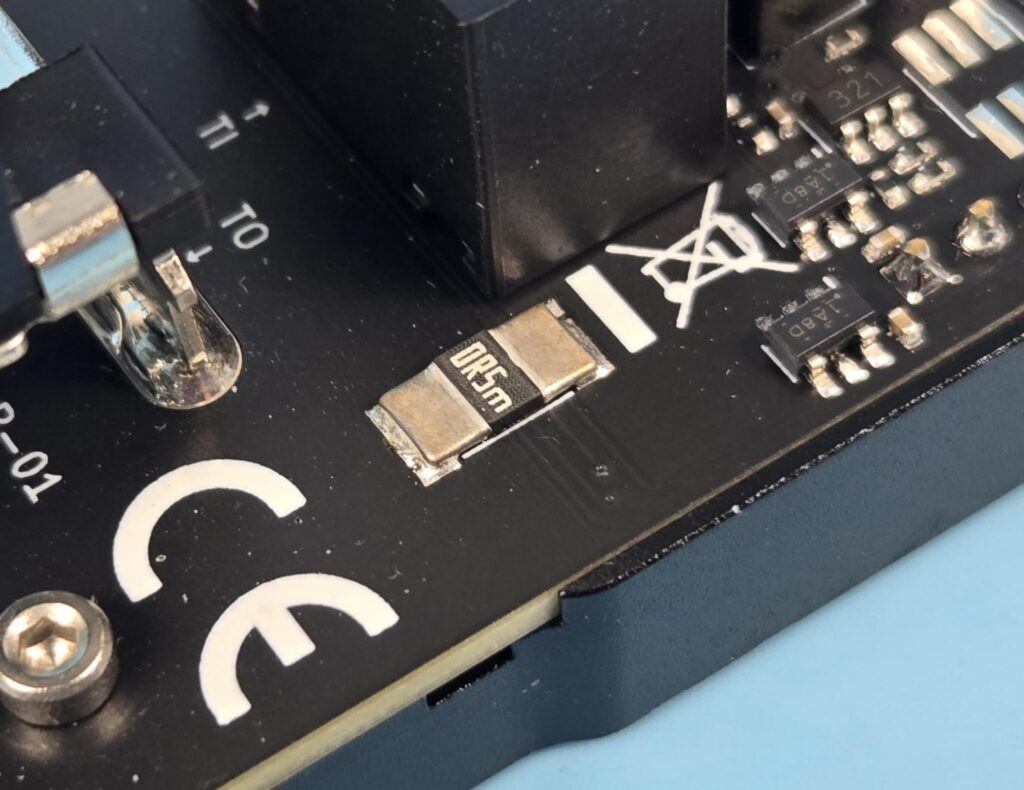
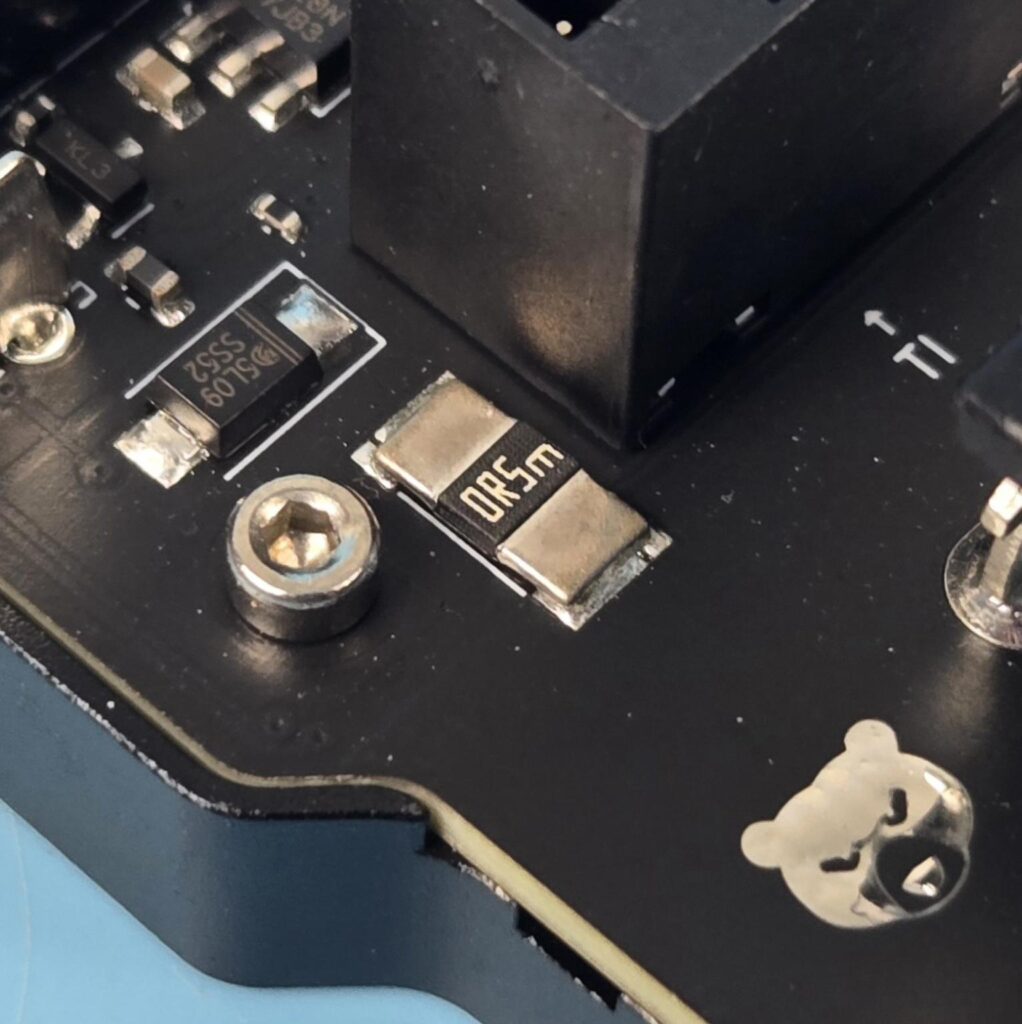
They have used two shunt resistances of 50 milliohms. In case you are not aware, a shunt is a device that provides a low-impedance path for current in a circuit. This is done to divert the current from the main component to prevent overcurrent. It uses Ohm’s law and the principle of voltage sensing. In operations, when current flows through a shunt resistor, a small voltage drop is introduced, which is proportional to the amount of current flowing through the resistor. This is where Ohm’s law comes into the equation, as we can measure the voltage drop in relation to actual current flow using V=IR. This allows the designers to measure the actual current without affecting the overall current flow.
Once we have the current reading and voltage reading, we can simply calculate the actual power being consumed or pulled during the operation. This makes the WireView Pro robust as it displays the minimum and maximum values in addition to the current power, and also provides energy measurement in KW/h which you can use to calculate the electricity cost.
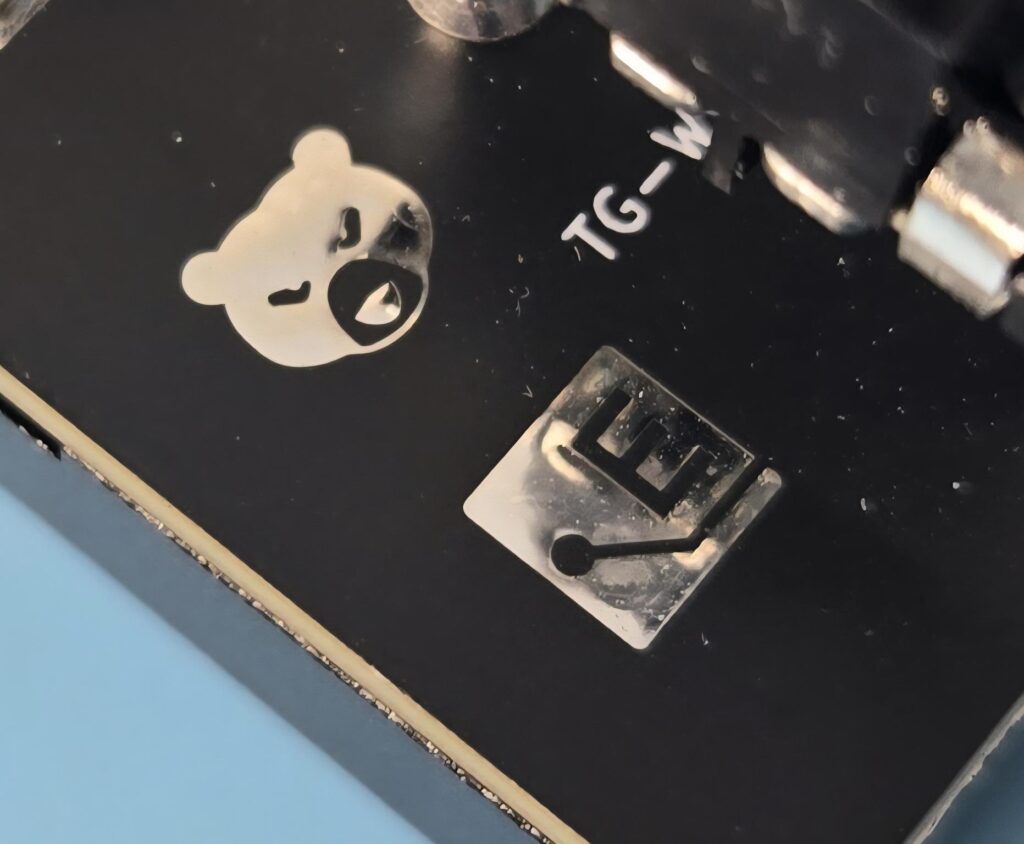
Two logos confirm the joint venture of Elmor Labs and Thermal Grizzly in designing and manufacturing this product. Even if there was no Elmor Labs logo over it, the very design, layout, and screen display when navigating would give out.
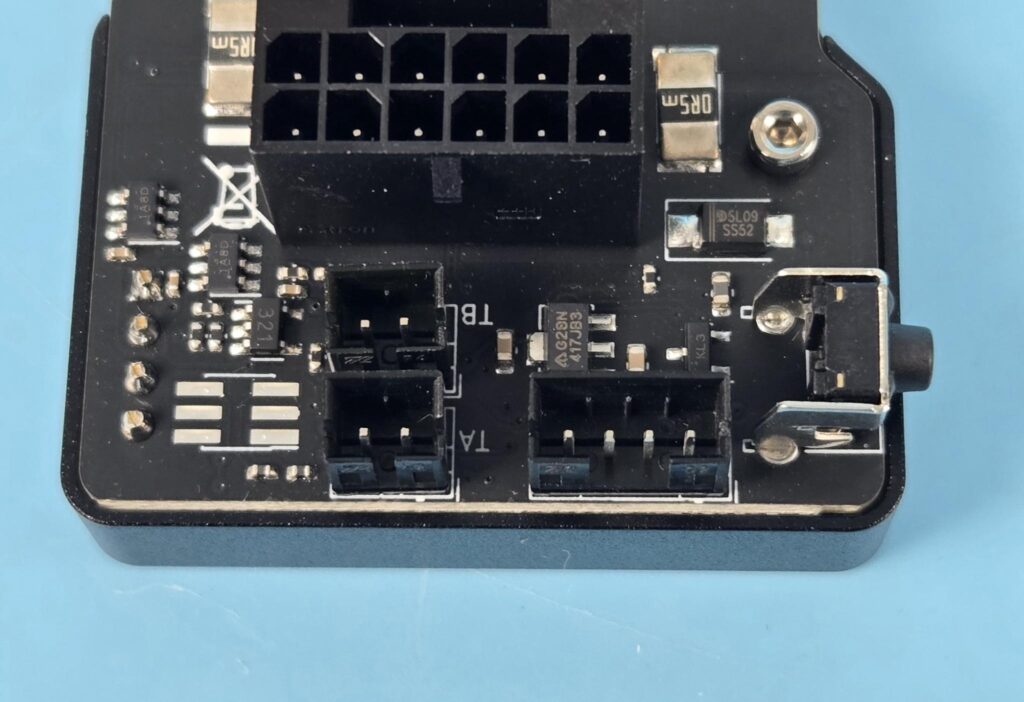
You can see some additional headers on the PCB. Two are labeled TA and TB. These are two-pin sense headers. You can connect two thermal probes to these headers and get to measure the temperature reading of the surface on which the probes are attached. A 4-pin header is there as well. I think it is reserved for ROM programming of the embedded controller, but I am not sure.
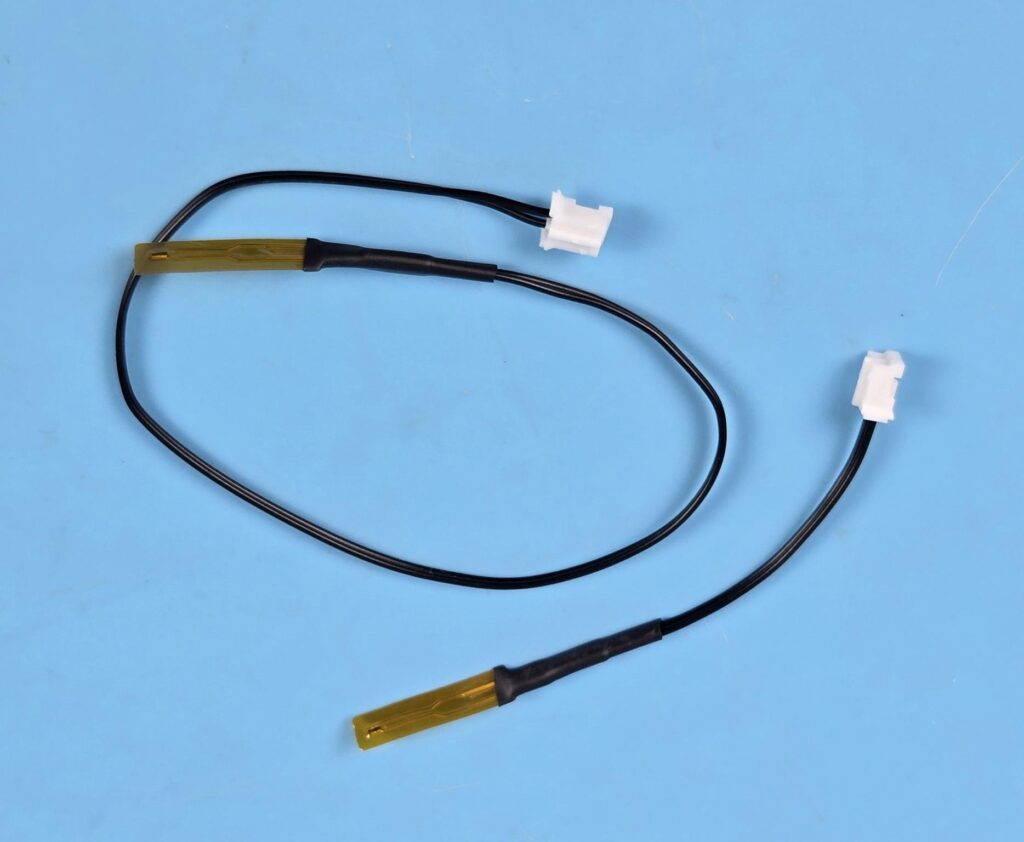
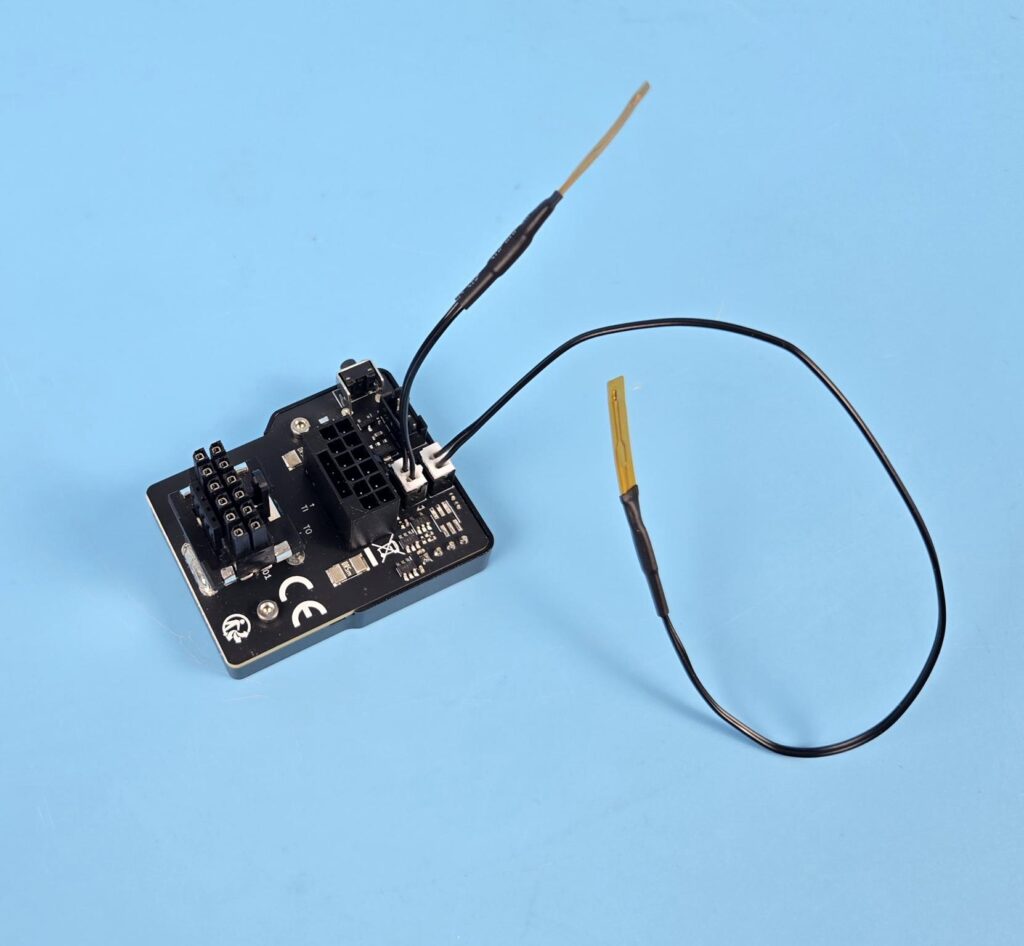
Thermal Grizzly has provided two thermal probes as well. One has a small length compared to the other one. You can use these to monitor the PCB or connector temperature of the graphics card.
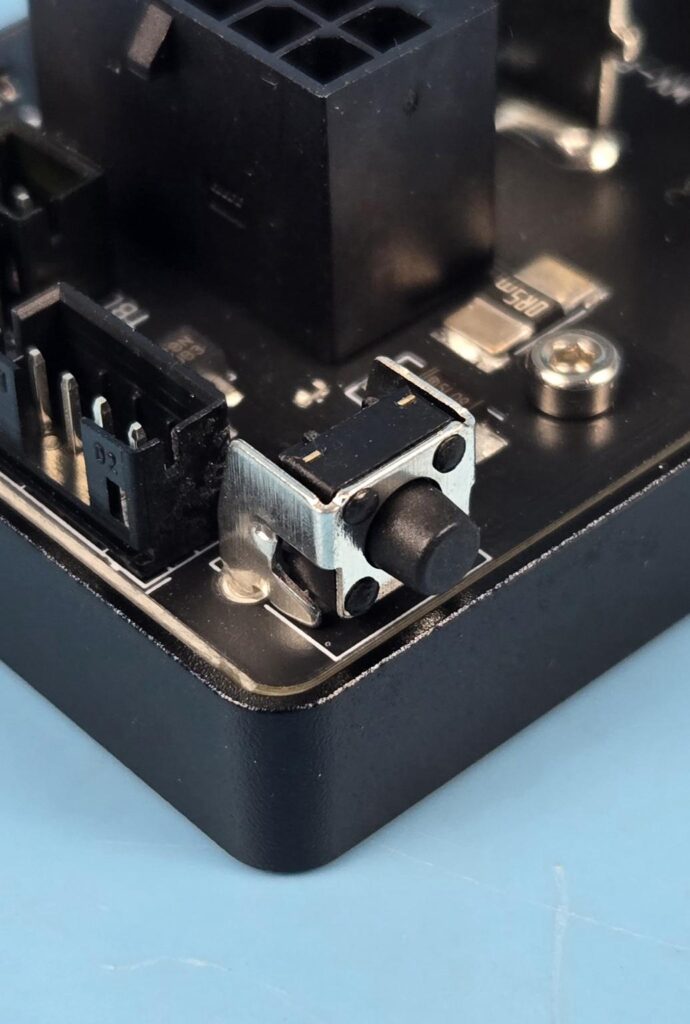
A small, rounded black button is provided on the backside of the OLED screen. It has a toggle function. Pressing it once will show the next sensor data on the screen. Also, you can long-press it for other functions.
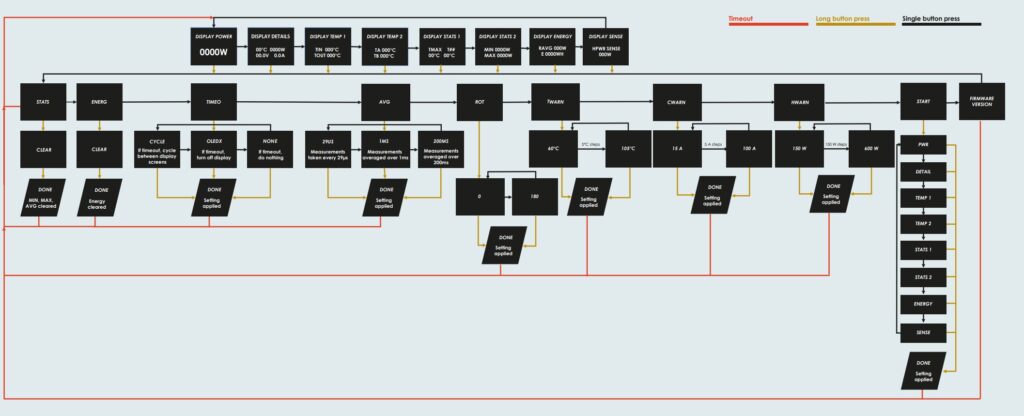
The above picture illustrates the menu system of the display. You should read this document carefully to fully understand the menu settings and operations.
Connector Types
Thermal Grizzly offers WireView Pro in two basic configurations:
- Normal Connector
- Reverser Connector
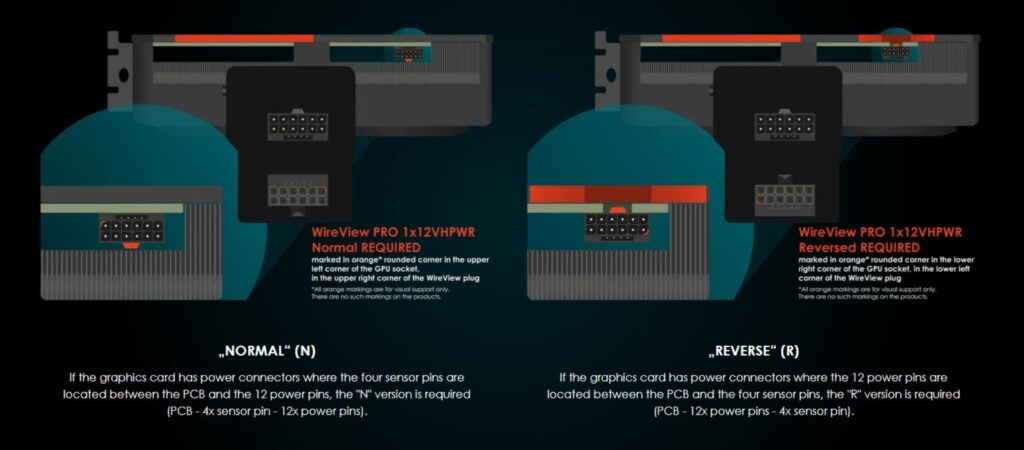
The above picture gives an idea of which type of connector to select based on the alignment of the 12VHPWR connector on your graphics card. In addition, Thermal Grizzly offers 90° and 180° implemented connectors to which your PSU cable is connected.
Installation
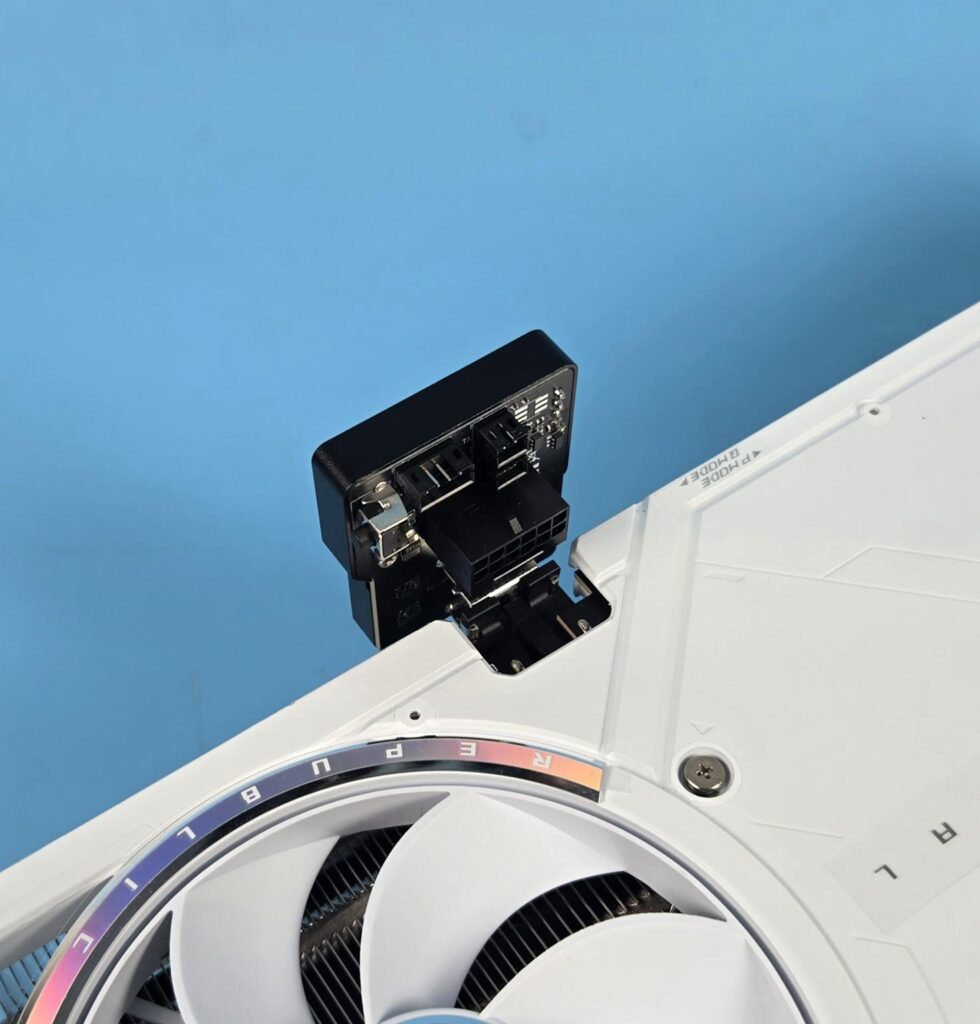
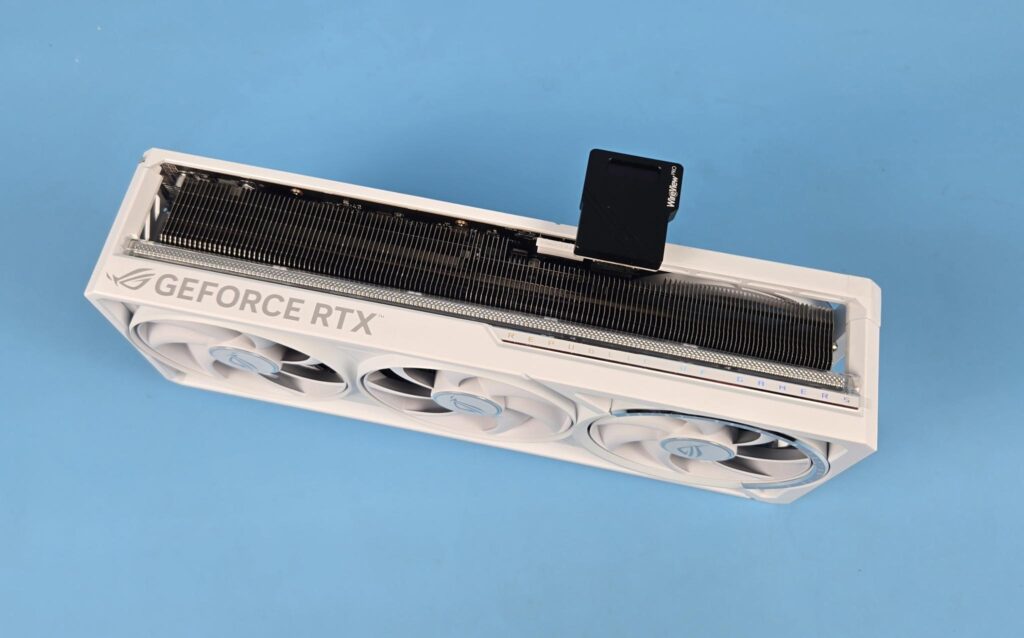
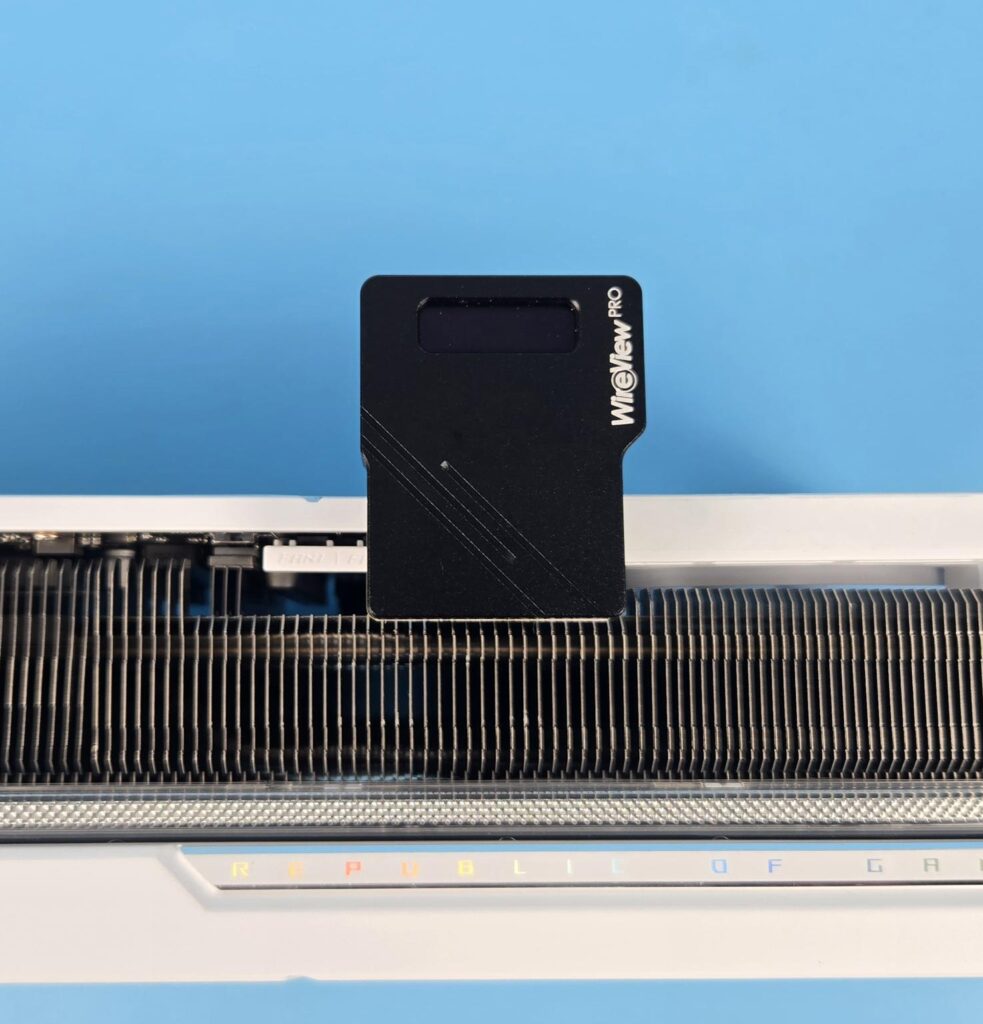
Installation of WireView Pro is actually a simple step. I connected the PSU cable before installing the adapter on the card. Just align the connector on the adapter to the one on the graphics card and plug it in. Though you would not get a click sound, you should get a feeling for firm seating. An alarm is there in case the connection is lost, so here is your peace of mind. I have used it on the Asus ROG Astral GeForce RTX 5080 16G OC White edition.
Display Screen
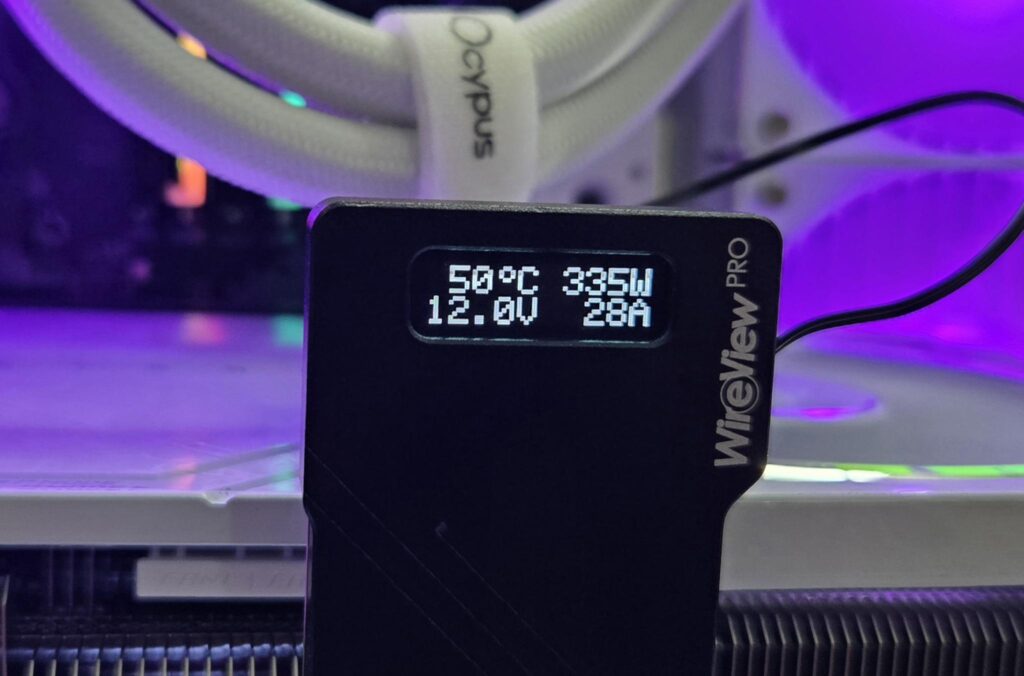
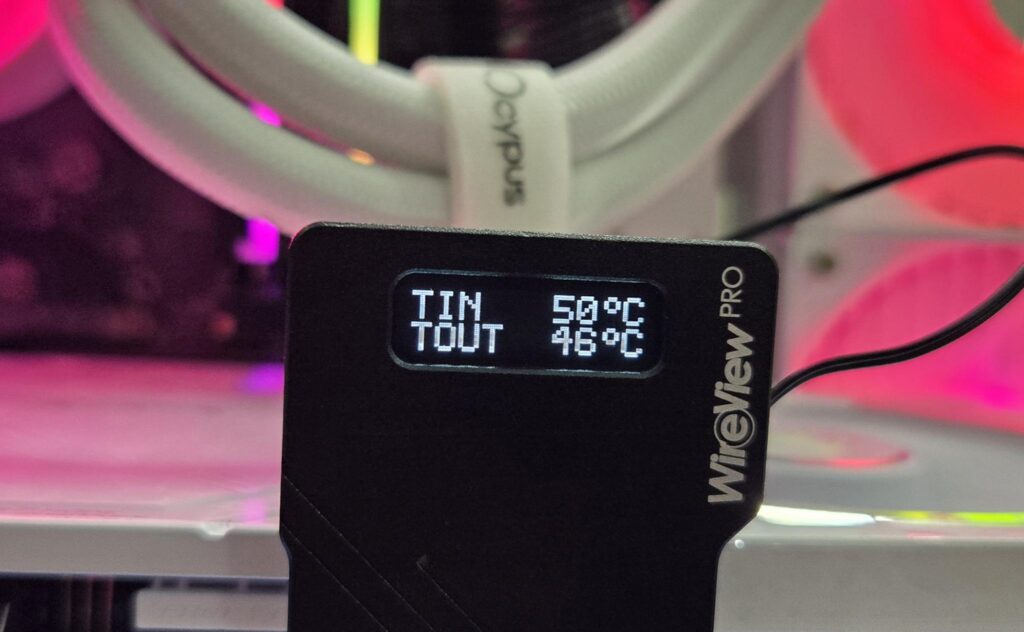
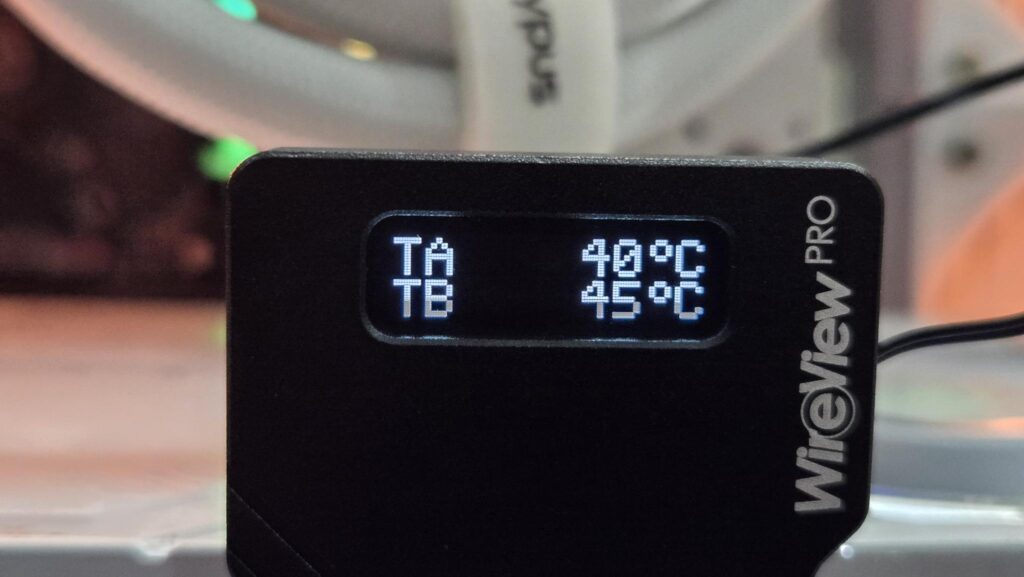
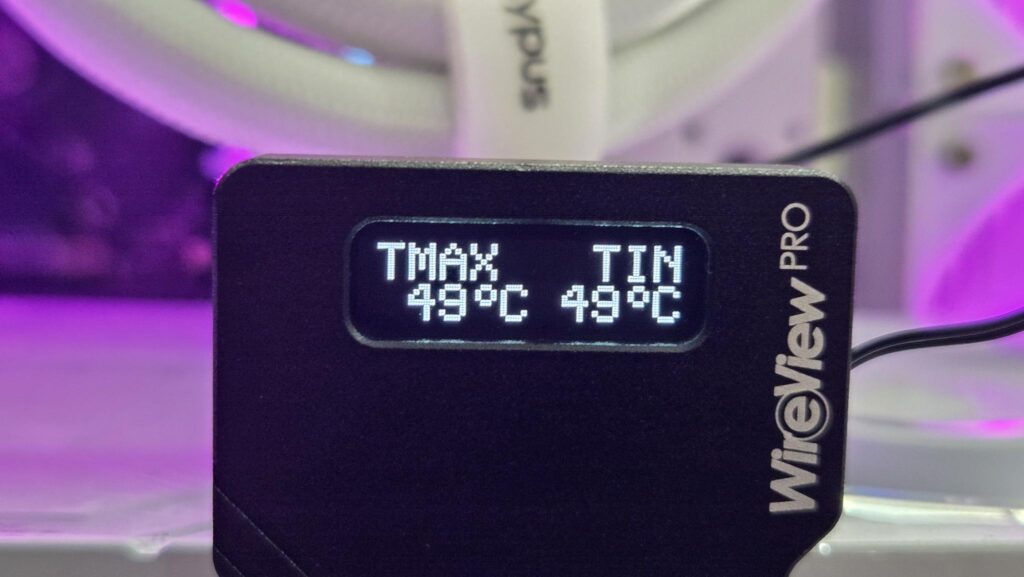
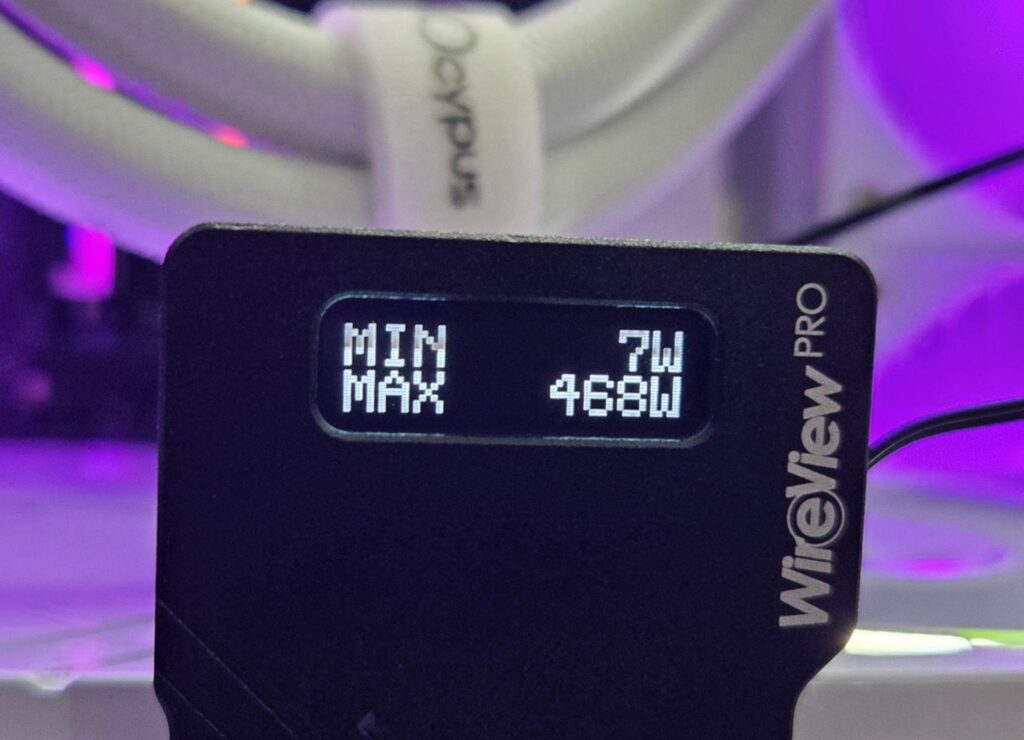
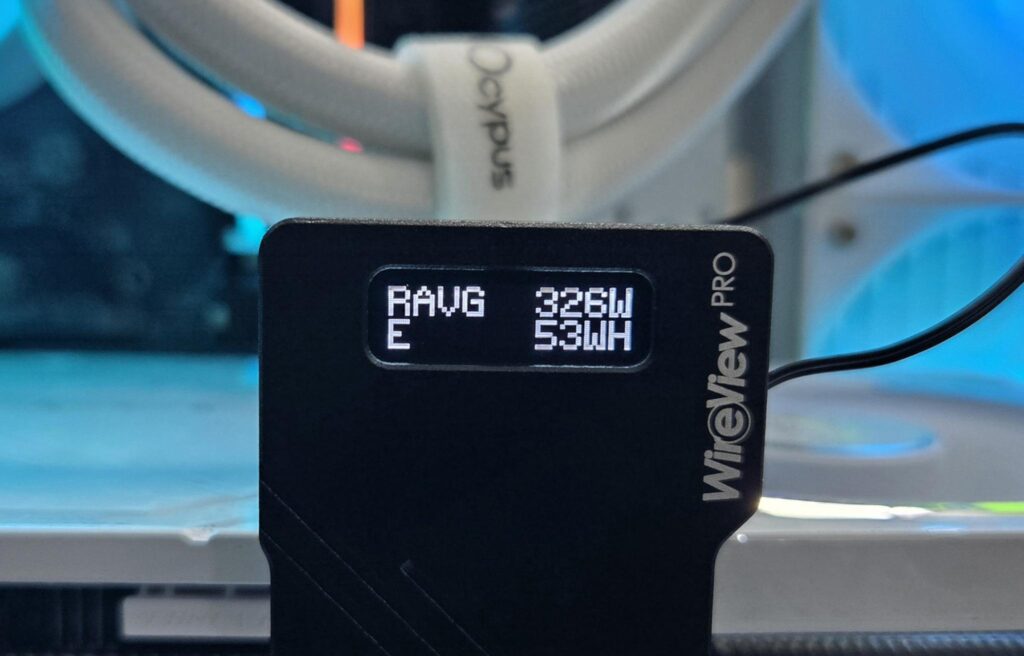
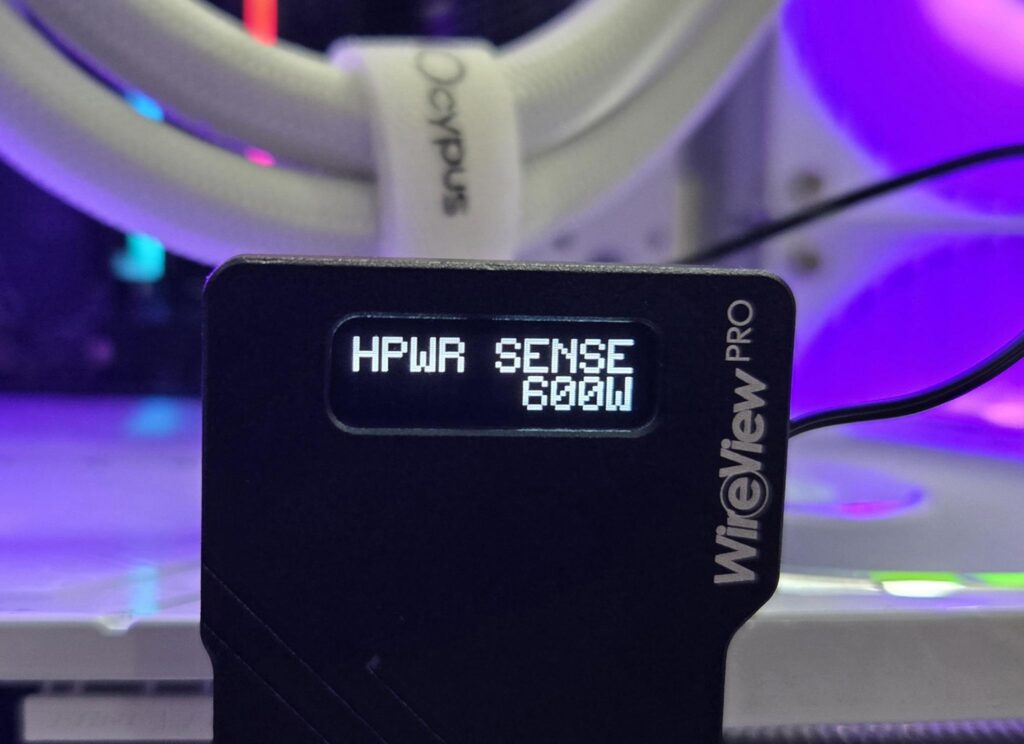
The above pictures show you the sensor readouts, including temperature, electrical current, voltage, power, TA, and TB sensor values. Sense will show 600W all the time. I am not going into the details as it is self-explanatory. This is a monitoring-only tool, so don’t expect more.
Testing
I have used the configuration below for testing:
- ASRock X870E NOVA WiFi
- AMD Ryzen 9 9900X [Stock, Auto]
- G.Skill Trident Z RGB 32GB 6400MHz CL30 kit
- Western Digital SN850 500GB NVMe Drive [OS]
- Teamgroup Vulkan 2TB SSD [Game Drive]
- Ocypus Delta L36 ARGB V2 White
- CPS YN1000 1000W Platinum PSU
- Thermaltake Core P6 TG Snow Edition in an open-frame layout
I don’t have dedicated equipment to measure the actual power being drawn by the graphics card. I will be setting up Elmor Labs PMD2 along with ADT-Link R33G PCIe 5.0 soon, for that matter. These days, it is not that straightforward to measure the actual power draw of the component since some portion of this power comes from the 24-pin ATX connector and PCIe connector as well.
Anyhow, I will keep it to the basics. I will use TPU GPU-Z Sensor Log’s Board Power Draw and 16-pin Power sensors and compare it to the values reported by the WireView Pro. For this, I ran the 3DMARK Time Spy Extreme stress benchmark. This test runs for some 20 minutes. Here is the comparison:
| Source | Power Reading |
| Board Power Draw | 342.7 W |
| 16-pin Power | 332.6 W |
| WireView Pro | 468 W |
The reported values are the maximum from each source. Average power value on WireView Pro during the test remains around 338W, which actually sits closer to the GPU-Z sensor data, but the maximum power the graphics card took during this session was reported to be 468W with a current value of up to 28A on the WireView Pro.
Thermal Imaging
I wanted to monitor the WireView Pro housing temperature as well, given the high amount of electrical current flowing through it. During this, I observed the heat pattern on the 12VHPWR connector onthe PSU cable.
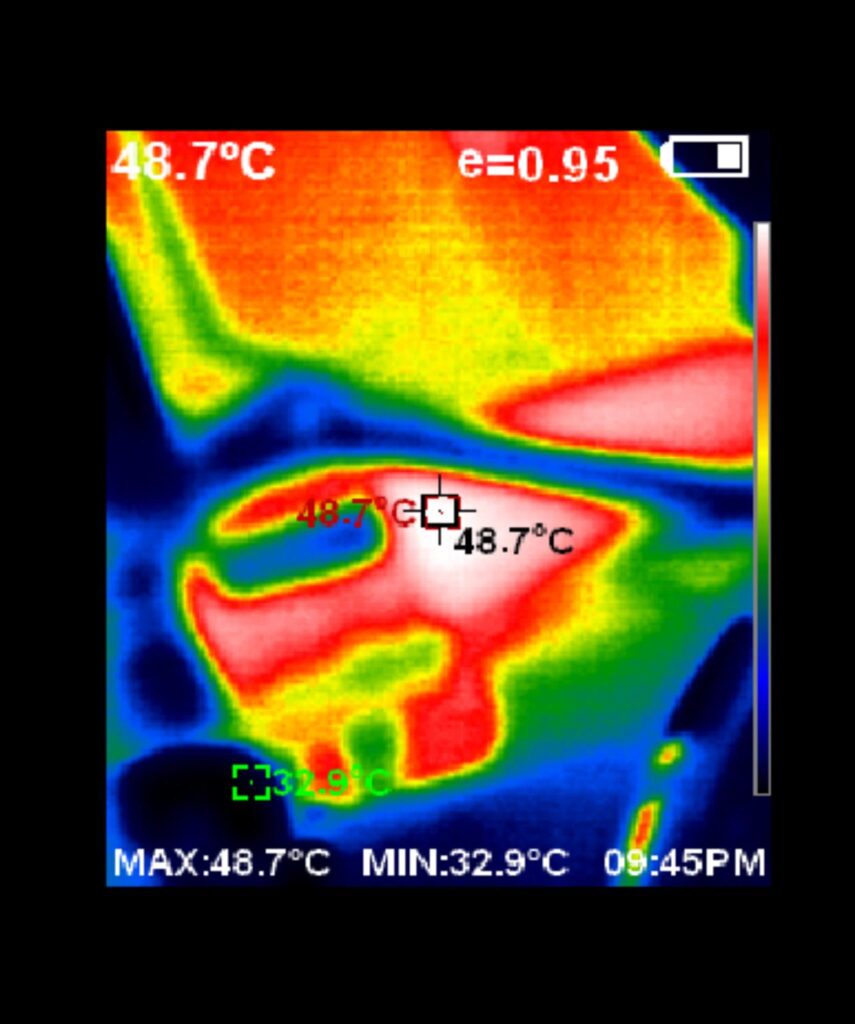
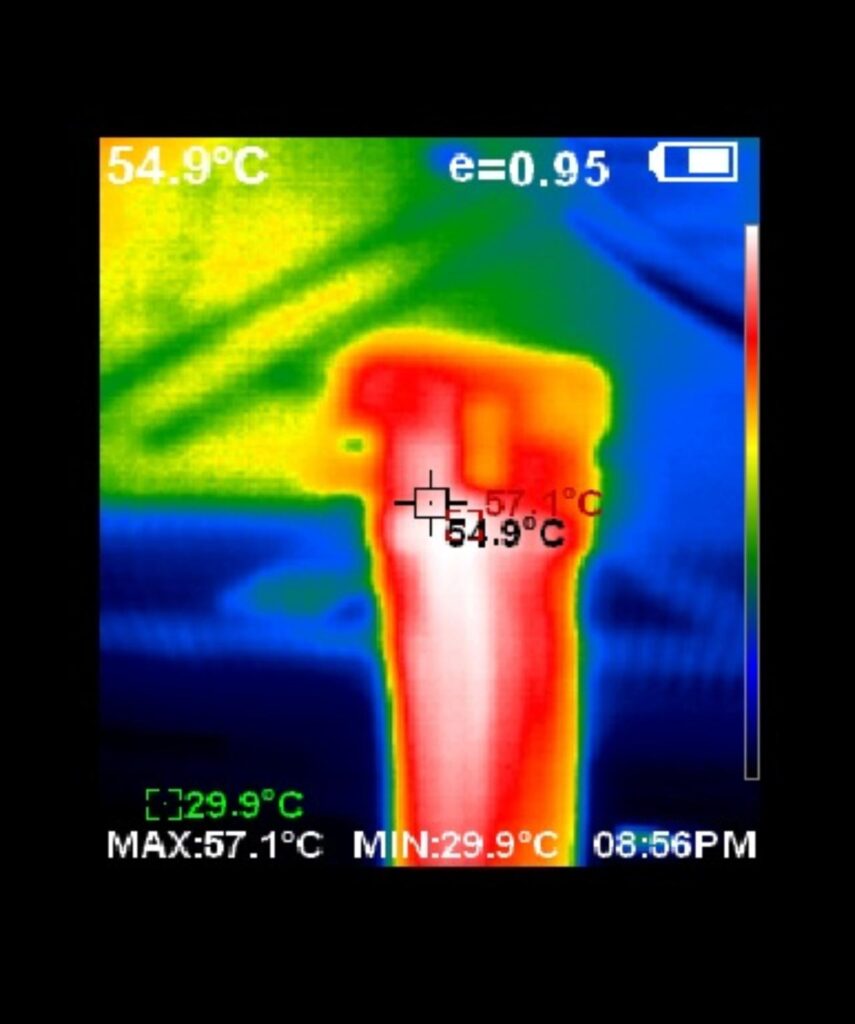
You can see that electrical current is not flowing evenly when the PSU cable is connected directly to the graphics card, as evidenced by the heat source (shown in white). However, when this cable is connected to the adapter, it shows a balanced and evenly spread of current on all wires (visible top 6 wires).
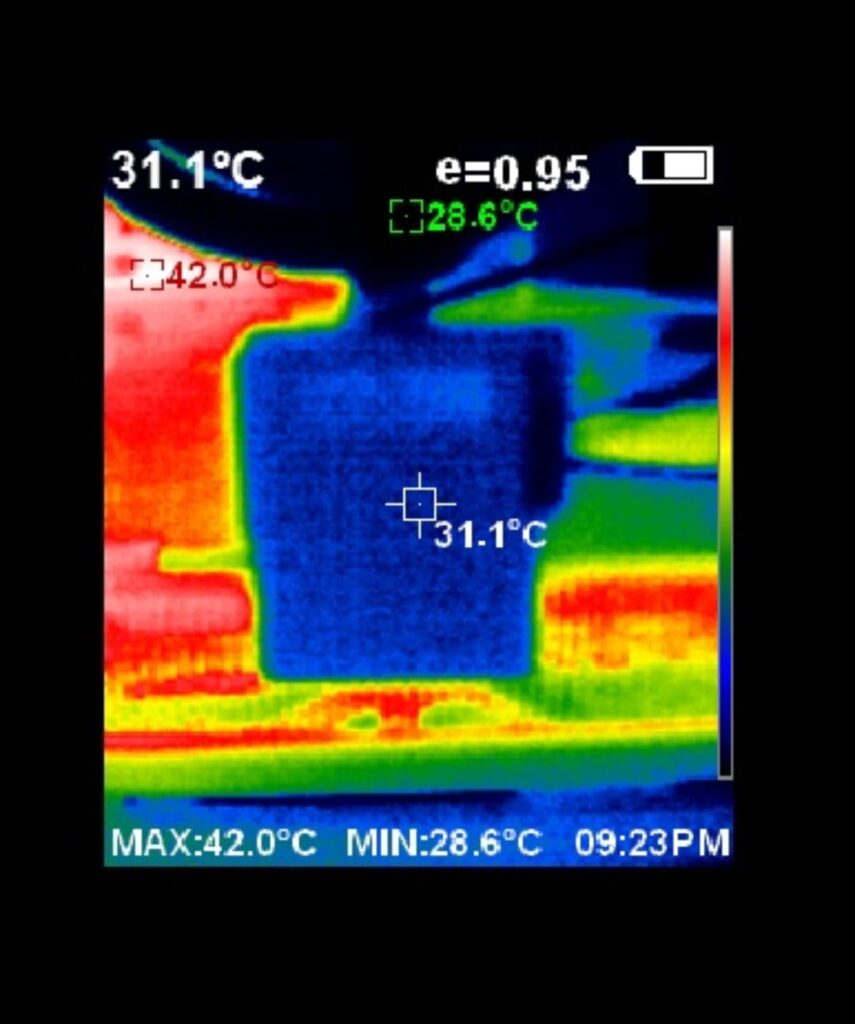
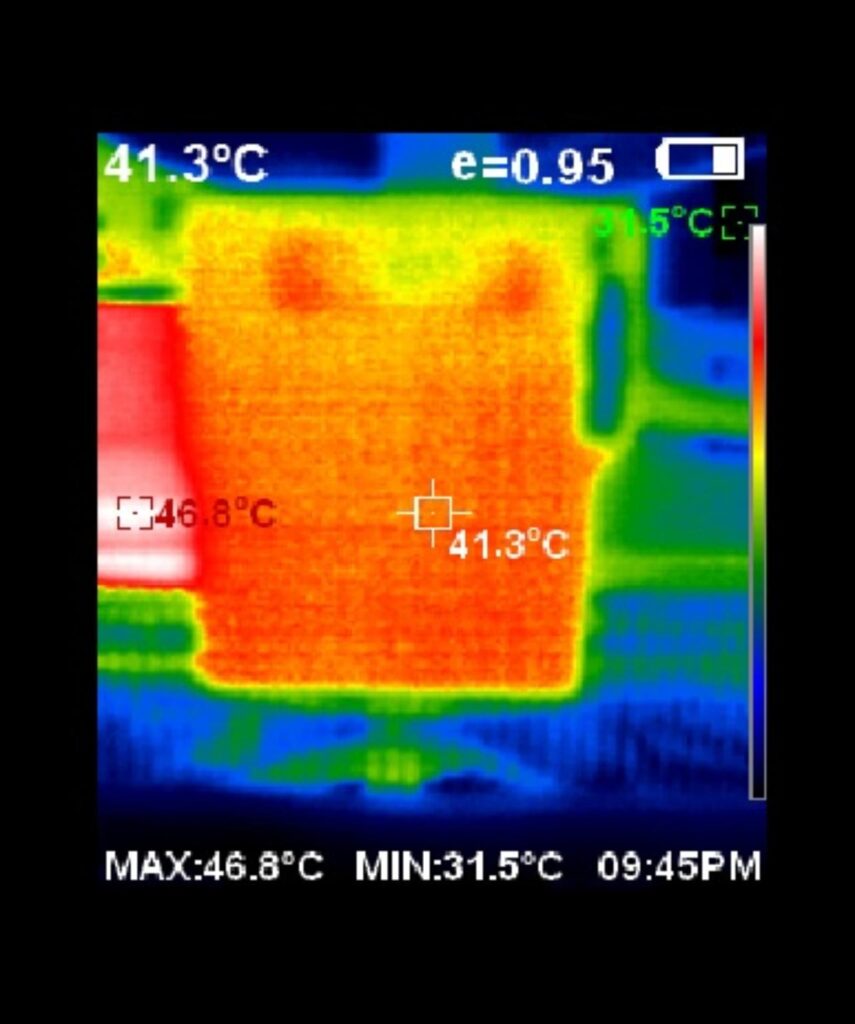
During idling, the housing temperature was 31°C at an ambient temperature of 24°C. Under load, the housing temperature reached 41.3°C. Please keep in mind that I have tested the adapter on stock settings without unlocking the power limits on RTX 5080. On RTX 5090, this housing can reach much higher temperatures given the higher power draw. In that case, active cooling is definitely a consideration.
Conclusion
We are seeing options in the market in the wake of issues with the 12VHPWR connector. WireView Pro is a monitoring tool/adapter from Thermal Grizzly that sits between your graphics card and the PSU. What it does is continuously monitor the power parameters along with the thermals on the source. It comes equipped with a buzzer that sounds off in case of any power instability or if the cable connection is not proper/adequate.
This product and its upgrade are a collaboration between Elmor Labs and Thermal Grizzly. In case you are not familiar with Elmor Labs (John), I encourage you to visit his website, and you will find a range of monitoring tools and other related items that are handy for overclockers, enthusiasts, and product testers.
WireView Pro has an OLED display screen – although a small size – that shows values like current power, Energy, Min and Max values, Sensor probe readouts, Voltage readout, current value, Temperature on Input and Output, HPWR Sense, etc. It has a toggle button that can be used to toggle between the sensors, and long pressing it would give you access to the menu. You should check the technical documentation on the Thermal Grizzly website.
This adapter uses two 50-milliohms shunt resistors to accurately monitor input current and voltage, providing accurate power readings without affecting the overall electrical current. The housing of this adapter is made of aluminum material and has a size of 52x43x33mm.
Thermal Grizzly has provided two probes/sensor cables to record the surface temperature and provided two headers so that you can monitor the thermals on the OLED screen. This is a handy tool; in fact, it is a must-have tool to protect your investment in a graphics solution.
While this tool does not provide any logging function nor it provides any software based monitoring nor it regulates the power unlike the Aqua Computer’s AMPINEL which is a real deal but lacks in the warranty department, the WireView Pro provides a peace of mind that your graphics card and its power connection is being monitored and alarm would sound in case of any issue giving you a time to respond before damage happens. While I did not observe high housing temperatures on RTX 5080 but same can’t be said when this adapter will be used on RTX 5090 due to higher power draw and electrical current. For that, active cooling would be needed. It is advised not to touch the adapter during operation.
On a side note, this adapter is not compatible with Nvidia’s Founder Edition cards due to their 45° layout. Do check the compatibility on the Thermal Grizzly website. Also, make sure to check the configuration to avoid clearance issues with the CPU cooler.
This tool has an MSRP of $89.97. Thermal Grizzly offers a 5-year warranty, which is excellent, and this is where it outshines the competition. Based on my experience and testing, I am recommending this product to RTX 40xx and 50xx users and even AMD 9070/XT cards that use the same connectors.
Pros
- Safeguard for your pricey graphics card
- Accurate measurements
- Real Time Monitoring
- OELD Screen
- Two thermal probes
- Two Headers for probes
- Buzzer
- Temperature Monitoring
- Current Monitoring
- Voltage Monitoring
- Warranty
- Available in Normal and Reverse Connector Config
Cons
- Price
- No automatic shutdown protection
- Can’t monitor individual wires of the PSU Cable
- No logging of sensor data
- OLED Screen size
- Single-button control is not user-friendly
- Lacks Software
- Compatibility
- No active Cooling